Conguring Client Settings
Conguring Service Access Settings
135
Resolution
Click the drop-down menu to select the desired display resolution on a Remote
Desktop session. Four options are available: Fullscreen, Large Window,
Medium Window, and Small Window.
Option Description
Fullscreen
Opens a Remote Desktop session in full screen with the same
display resolution as the local desktop.
Large Window Opens a Remote Desktop session in a large display resolution.
Medium Window Opens a Remote Desktop session in a medium display resolution.
Small Window Opens a Remote Desktop session in a small display resolution.
NOTE: To congure the display resolution of the local desktop, please refer to
section “4.3.3 Conguring Display Settings” on page 70.
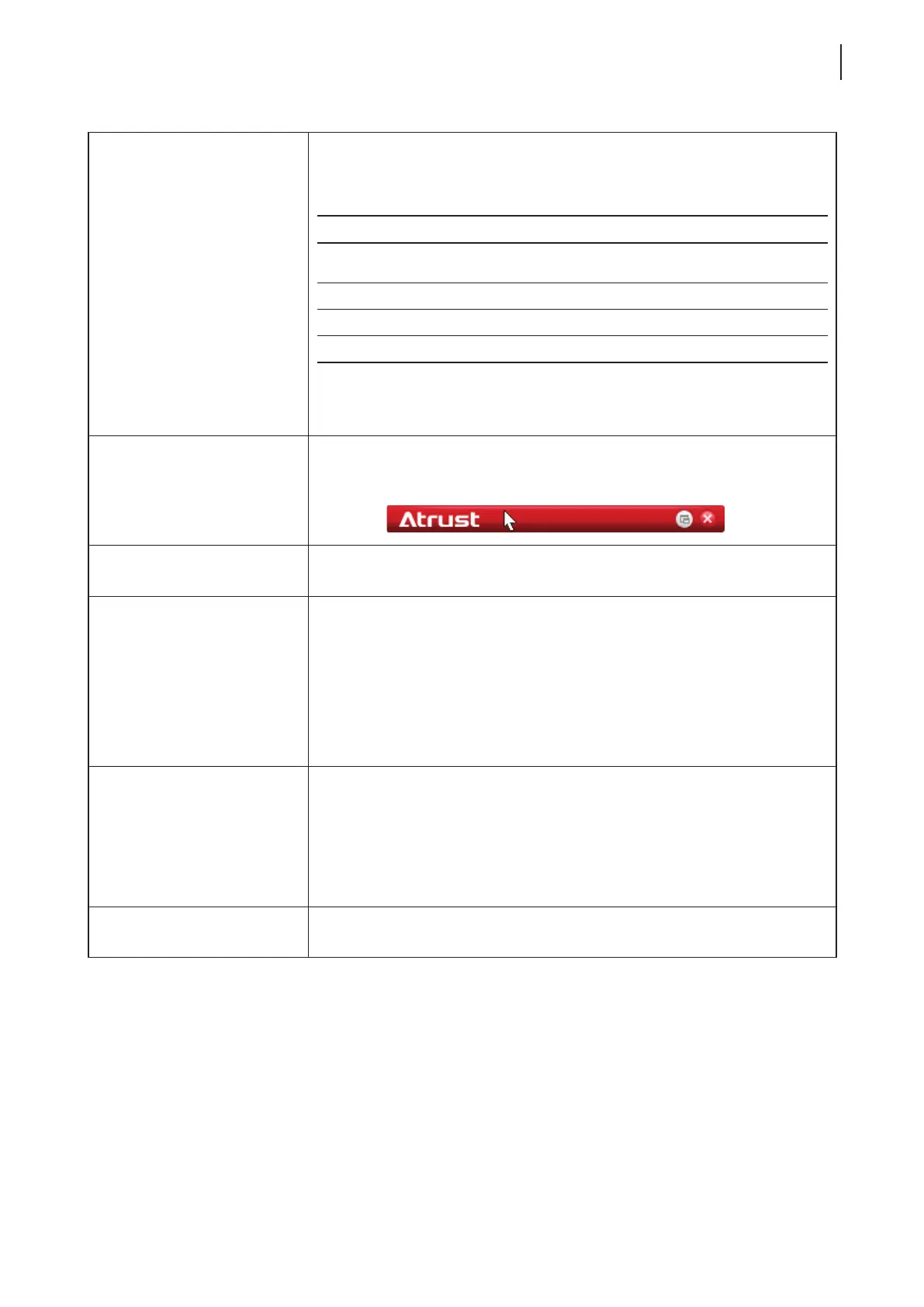
Use Toolbar
Click the drop-down menu to select whether to use the Atrust Toolbar on a
Remote Desktop session. The tool bar allows you to adjust a session window size
or suspend a session.
Cursor Auto-hide
Click the drop-down menu to enable/disable the auto-hiding of the mouse cursor
or pointer on inactivity in Remote Desktop sessions.
Use RemoteFX
Click the drop-down menu to disable/enable RemoteFX.
NOTE: Windows
®
RemoteFX™ is a technology that offers a rich user experience
over a network for remote desktop users.
NOTE: To enable the RemoteFX feature for Remote Desktop sessions on your
t180L/t180LB thin client, you still need to congure the host server. For
detailed instructions on how to enable RemoteFX on a host server, please
visit Microsoft Support website at support.microsoft.com.
Progressive Rendering
Click the drop-down menu to disable/enable progressive rendering.
When enabled, images and videos will be encoded and sent over progressively
when the network bandwidth is limited. This new RemoteFX feature is supported
by Windows Sever 2012 and Windows 8.
NOTE: This option is shown only when Use RemoteFX is enabled.
Use Bulk Compression
Click to enable/disable the bulk compression for the data trafc between the
server and client.



 To Next Page