Conguring Client Settings
Conguring External Device Settings
88
Settings for Printers
Item Description
Share Printer
Check/Uncheck to share the printer.
Once Share Printer is checked, other computers in the same network segment
will be allowed to use the printer.
To add this shared printer for use on other computers, please do the following:
1. For computers running a Windows Server operating system, such as
Windows Server 2008 R2, please add the Internet Printing Client
feature rst (Click Start > All Programs > Administrative Tools >
Server Manager > Action > Add Features > Internet Printing Client,
follow the wizard to complete the task, and then restart your system).
2. Click Start > Devices and Printers > Add a printer >
Add a network, wireless or Bluetooth printer.
3. Click Stop to cancel the automatic printer search, and then click
The printer that I want isn’t listed.
4. Under Select a shared printer by name, enter
http://IP address of your thin client:631/printers/Printer Name.
NOTE: For example, if a printer is locally attached to your thin client and is
added as a local printer through Atrust Client Setup with the printer
name EPS, and the IP address of your thin client is 192.168.50.146.
Here you should enter: http://192.168.50.146:631/printers/EPS
5. Click Next to continue.
6. Select the manufacturer and model of the printer, and then click OK to
install the correct driver.
7. Upon completion, a success message appears. Click Next to continue.
8. On the appeared page, click Print a test page to test the printer.
9. Click Finish to apply. The printer is added to the Printers and Faxes list.
Mapping in RDP Sessions Check/Uncheck to enable/disable the locally connected printer in an RDP session.
Mapping in ICA Sessions Check/Uncheck to enable/disable the locally connected printer in an ICA session.
Mapping in VMware Sessions Check/Uncheck to enable/disable the locally connected printer in a View session.
Windows Driver Name
Keep this eld blank, if the printer works well in a session. In case that the
printer fails to work, lling in this eld may solve the problem.
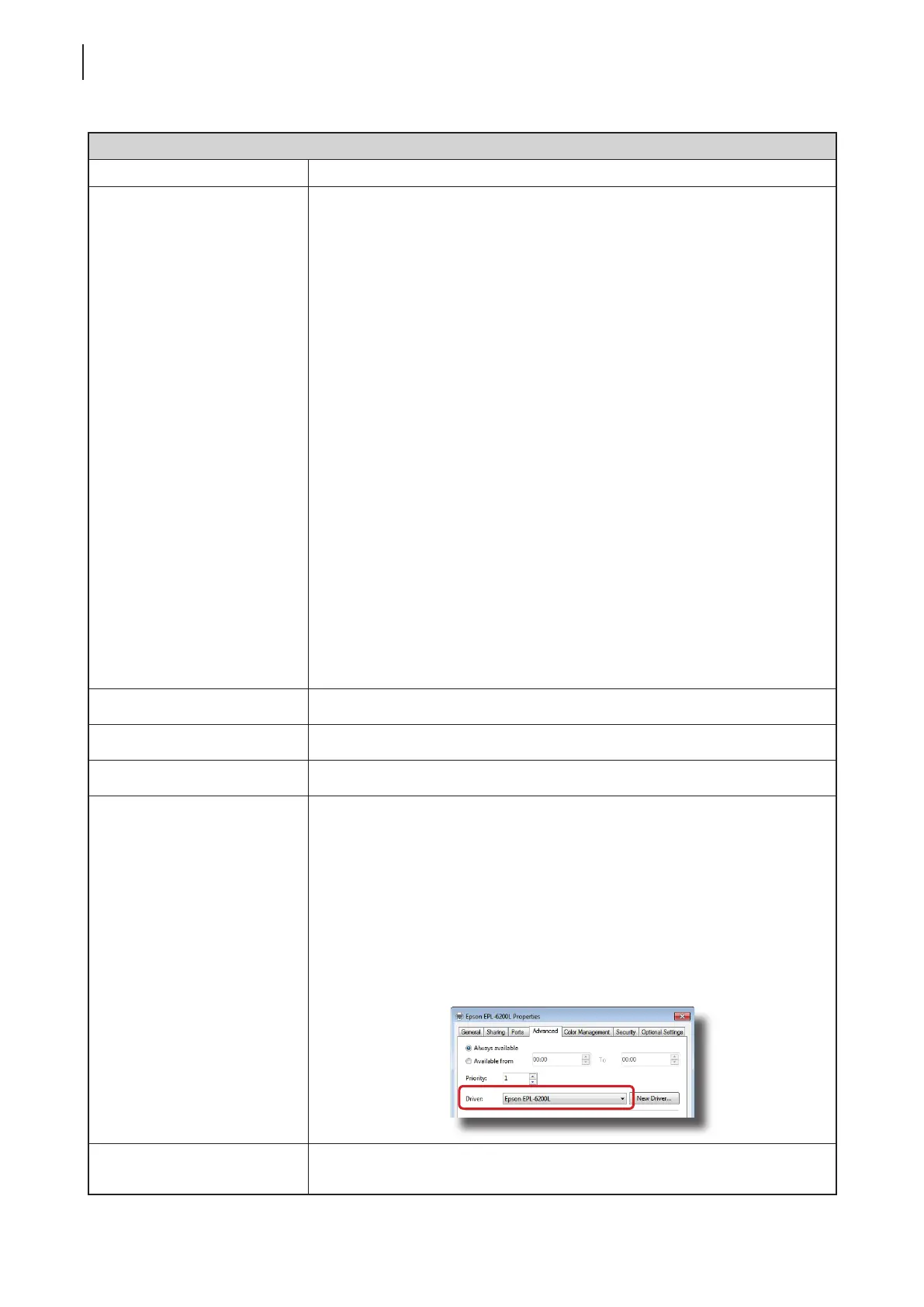
To nd out the required information, please do the following:
1. Attach the printer to a computer running a Windows OS, complete the
required installation, and ensure the printer works well.
2. Click Start > Devices and Printers, and then, in the opened window,
right click the printer to open a popup menu.
3. On the popup menu, click to select Printer properties.
4. In the opened window, click Advanced. The driver name is shown.
RDP Printer Mapping Name
(for RDP sessions only)
Type in the desired printer name in a session (Windows desktop). If this eld
remains blank, the name you typed in the Printer Name eld will be used.



 To Next Page