To toggle zebra for the HDMI display, use the ‘set’ button to toggle the switch icon in the bottom
left of the screen while in the ‘zebra’ tab.
To set the level that zebra appears at, use the arrow buttons to select the percentage indicator
on the bottom right of the screen and press ‘set’. Then use the arrow buttons to adjust the zebra
level. There are eight zebra presets available including middle gray and middle gray plus one
stop, then in five percent increments from 75 to 100 percent exposure.
TIP If you’re shooting in variable light such as outdoors on a partly overcast day,
setting your zebra level lower than 100 can warn you of potential overexposure.
Focus Assist
The ‘focus assist’ setting toggles the appearance of focus assist on the HDMI output of your
Blackmagic Micro Studio Camera 4K G2.
The focus assist setting set to 50%
To toggle focus assistance for the HDMI output, use the ‘set’ button to toggle the switch icon in
the bottom left of the screen while in the ‘focus assist’ tab.
To set the level of focus assistance for the HDMI output of your Micro Studio Camera 4K G2,
use the arrow buttons to select the percentage indicator on the bottom right of the screen and
press ‘set’. Then use the arrow buttons to adjust the focus assistance level. Press the ‘menu’
button to return to the home screen.
The optimum level of focus assistance varies shot by shot. When focusing on actors, for
example, a higher level of focus assistance can help resolve edge detail in faces. A shot of
foliage or brickwork, on the other hand, may show distracting amounts of focus information at
higher settings.
TIP Your Micro Studio Camera 4K G2 has two focus assist modes. You can switch
between ‘peaking’ and ‘colored lines’ focus assistance in the ‘monitor’ settings menu.
For more information, see the ‘monitor menu’ section.
Frame Guides
The ‘frame guide’ setting toggles the appearance of frame guides on the HDMI output. Frame
guides include aspect ratios for various cinema, television and online standards.
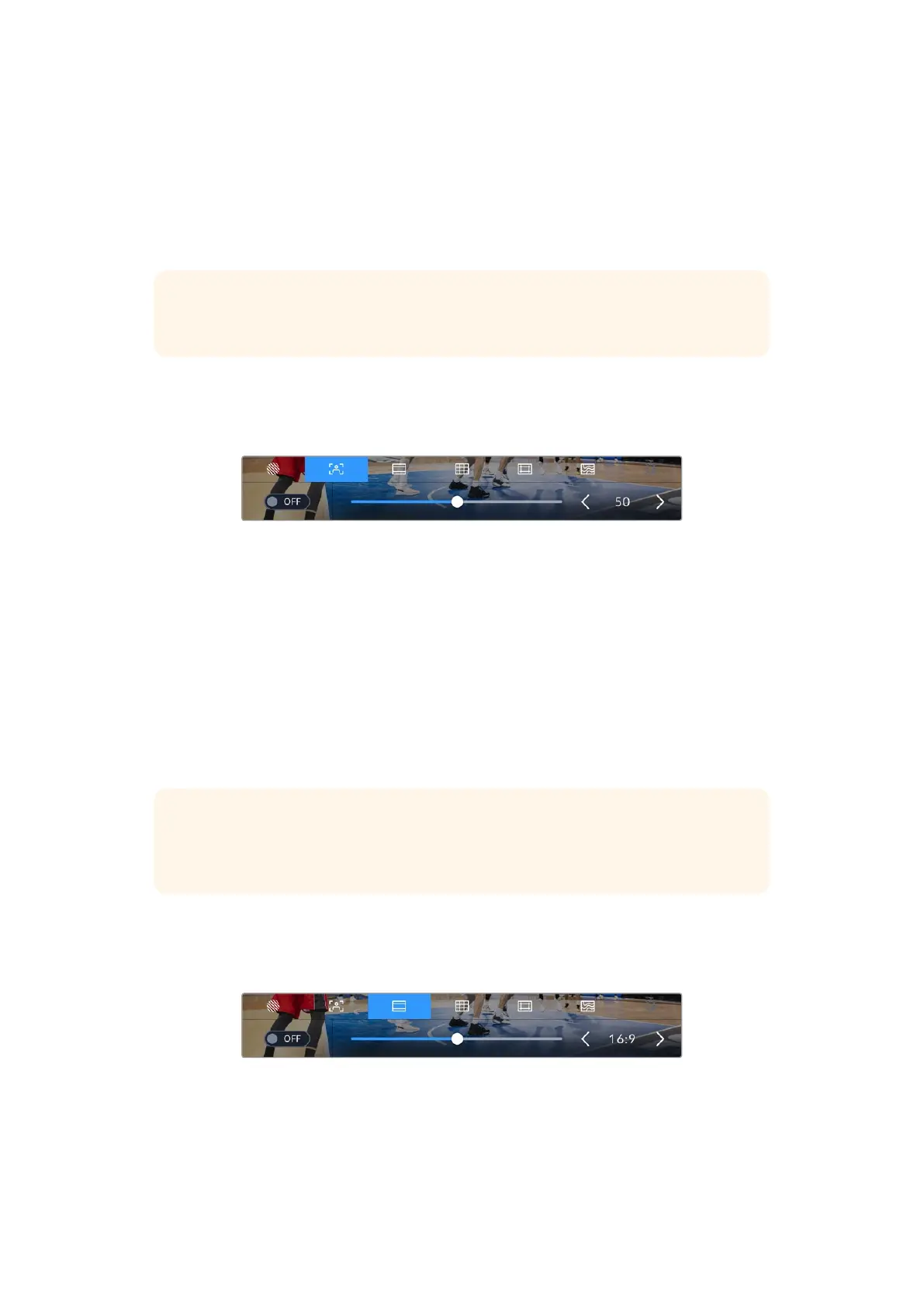
Use the ‘frame guides’ setting to toggle frame guides for your camera’s HDMI output
To toggle the appearance of frame guides on your Micro Studio Camera 4K G2’s HDMI output,
use the ‘set’ button to toggle the switch icon in the bottom left of the screen while in the ‘frame
guides’ tab.
28Using the HUD Controls


 To Next Page
 Loading...
