To choose the frame guide you want to use, use the arrow buttons to navigate to the aspect
ratio indicator on the bottom right of the display and press ‘set’. Then choose the frame guide
you want to use by pressing the arrow buttons.
The available guides are:
2.35:1, 2.39:1 and 2.4:1
Displays the broad widescreen aspect ratio compatible with anamorphic or flat widescreen cinema
presentation. The three widescreen settings differ slightly based on the changing cinema standards
over time. 2.39:1 is one of the most prominent cinema widescreen standards in use today.
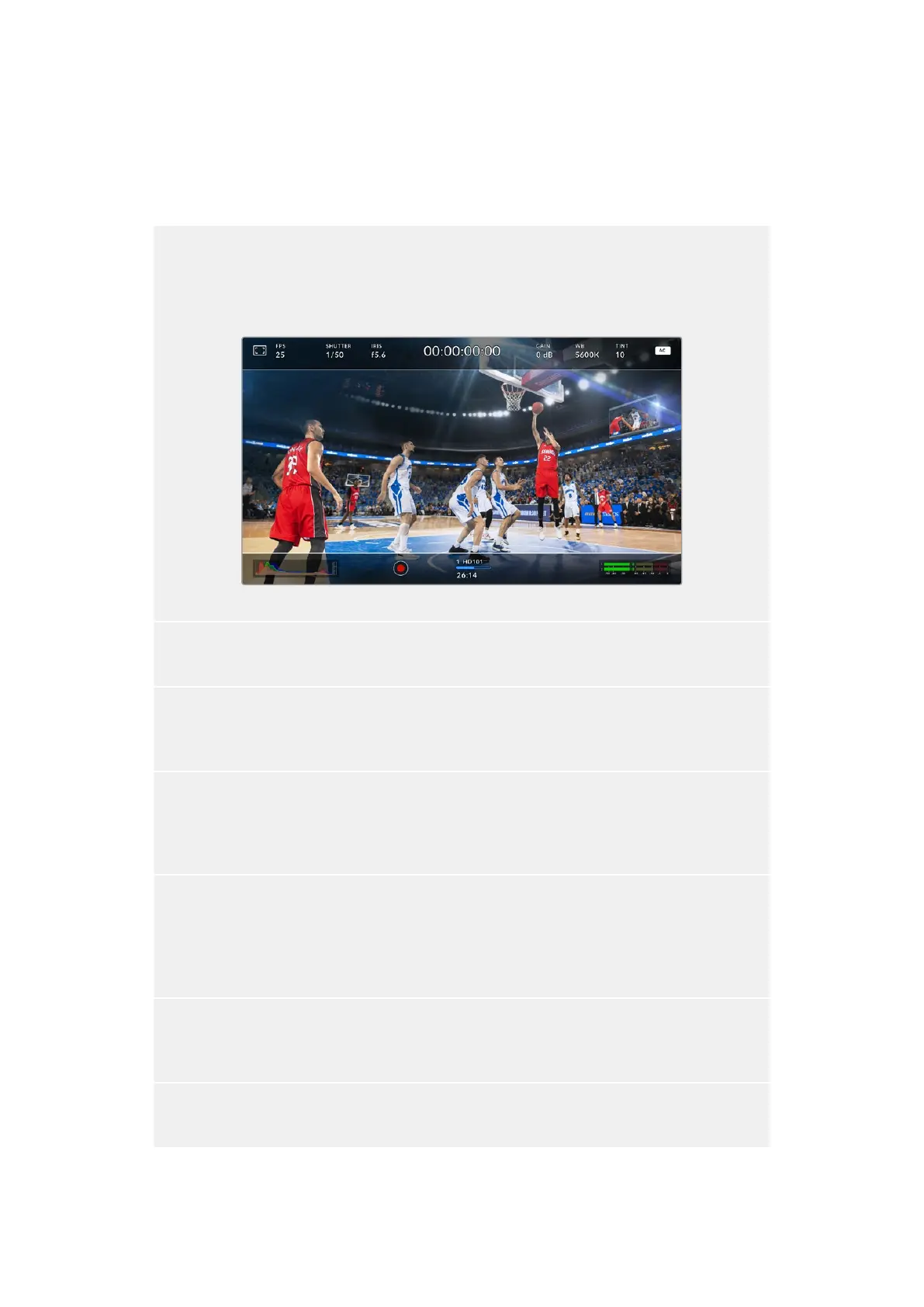
The HDMI display with 2.40:1 frame guides enabled
2:1
Displays a ratio slightly wider than 16:9 but not as wide as 2.35:1.
1.85:1
Displays another common flat widescreen cinema aspect ratio. This ratio is slightly wider than HDTV
1.78:1 but not as wide as 2.39:1.
16:9
Displays a 1.78:1 aspect ratio compatible with 16:9 HD television and computer screens. This ratio is
most commonly used for HD broadcasting and online videos. The same aspect ratio has also been
adopted for Ultra HD broadcasting.
14:9
Displays a 14:9 aspect ratio used by some television broadcasters as a compromise between 16:9 and
4:3 television sets. Ideally, both 16:9 and 4:3 footage remains legible when center cropped to fit 14:9.
You can use this as a compositional guide if you know your project may be broadcast by a television
station that uses 14:9 cropping.
4:3
Displays the 4:3 aspect ratio compatible with SD television screens, or to help with framing when
using 2x anamorphic adapters.
1:1
Displays a 1:1 ratio slightly narrower than 4:3. This square ratio is growing in popularity on social media.
29Using the HUD Controls


 To Next Page
 Loading...
