4:5
Displays a 4:5 aspect ratio. This vertical aspect ratio is ideal for portraits and viewing on smartphones.
9:16
Displays a 9:16 aspect ratio. This vertical aspect ratio is useful for framing social media content.
TIP You can change the opacity and color of frame guide overlays. For more
information see the ‘monitor menu’ section of this manual.
Grids
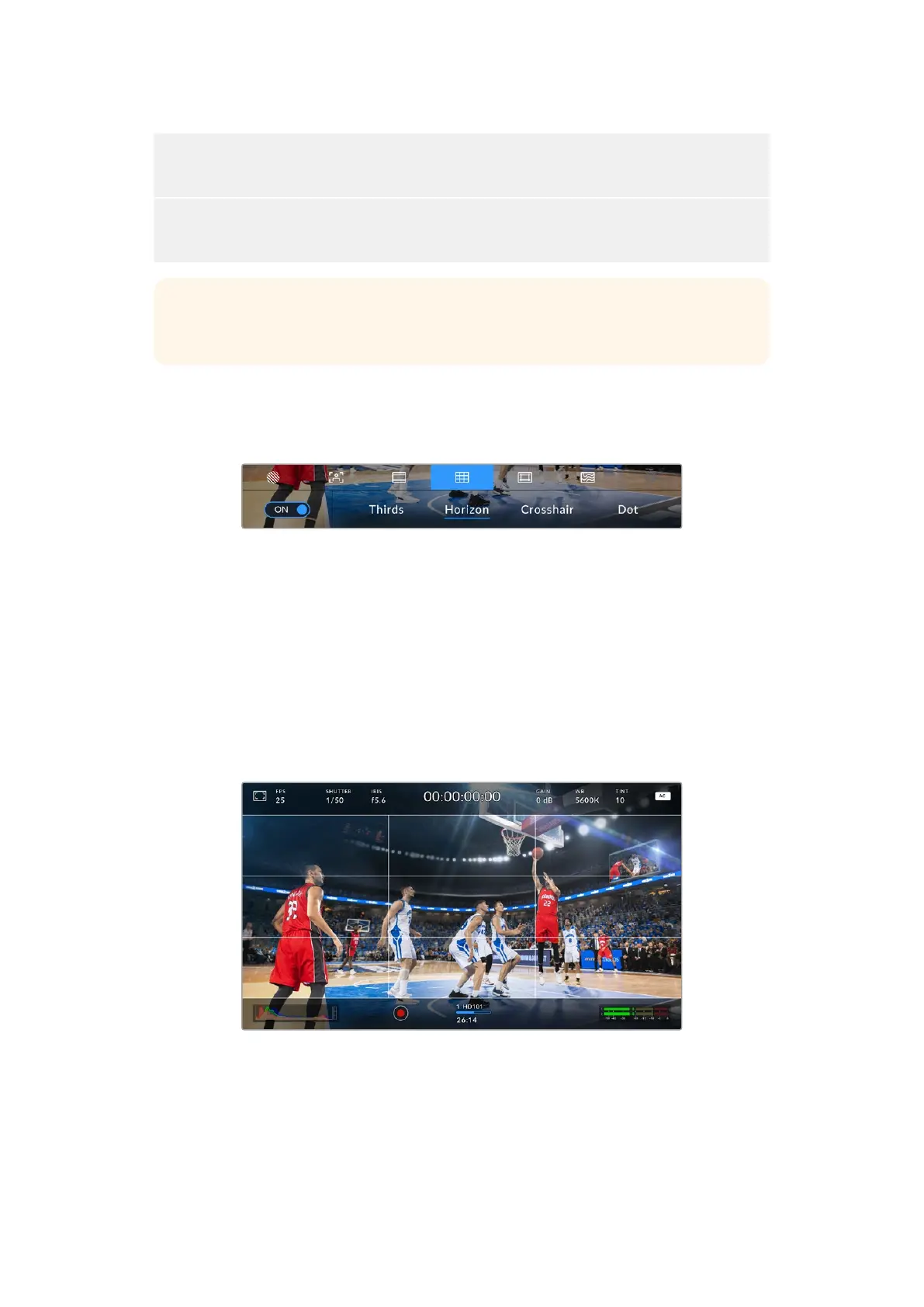
The ‘grids’ setting toggles the appearance of a rule of thirds grid, horizon meter, crosshair or
center dot on the HDMI output.
The ‘grid’ settings with the ‘horizon’ meter enabled
Grids and crosshair are overlays that can help with image composition. When ‘grids’
are enabled, your Micro Studio Camera 4K G2 can show a rule of thirds grid, horizon,
crosshair or dot.
To toggle the appearance of grids on your Micro Studio Camera 4K G2’s HDMI output, use the
‘set’ button to toggle the switch icon in the bottom left of the screen while in the ‘grids’ tab.
To set which overlay you want to display, use the arrow buttons to select the ‘thirds’, ‘horizon’,
‘crosshair’ or ‘dot’ options and press ‘set’ to confirm your choice. With thirds selected, you can
also display either the horizon, crosshair or dot indicators. For example thirds plus horizon,
thirds plus crosshair, or thirds plus dot.
The rule of thirds grid automatically scales to any on screen frame guides
30Using the HUD Controls


 To Next Page
 Loading...
