Pixel Recalibration
The CMOS sensor used in your Blackmagic Micro Studio Camera 4K G2 is made up of millions
of pixels that respond to light. As a result, they become more visible and become what is known
commonly as hot pixels. All camera sensors, regardless of manufacturer, will develop this
variation in pixel brightness over time.
To solve this, your camera has a built in recalibration feature that you can run if you see any
pixels that are brighter than others.
To perform the pixel recalibration process:
1 Attach the lens cap.
2 Select ‘pixel recalibration’ and press ‘set’.
3 Select ‘recalibrate’ and press ‘set’ to confirm your choice.
The process takes approximately one minute to complete. When complete, select ‘ok’.
Motion Sensor Calibration
To calibrate the horizon meter, place your camera on a surface you know is level, select
‘motion sensor calibration’ and press ‘set’, on the next screen confirm your choice by selecting
‘calibrate’. It is essential that you keep the camera stable during calibration, this is to ensure that
the recorded motion sensor metadata in the Blackmagic RAW files during filming is accurate.
The process takes approximately five seconds to complete.
The motion sensor data can be used in DaVinci Resolve to stabilize clips. Refer to the ‘gyro
stabilization’ section for more information.
Reset
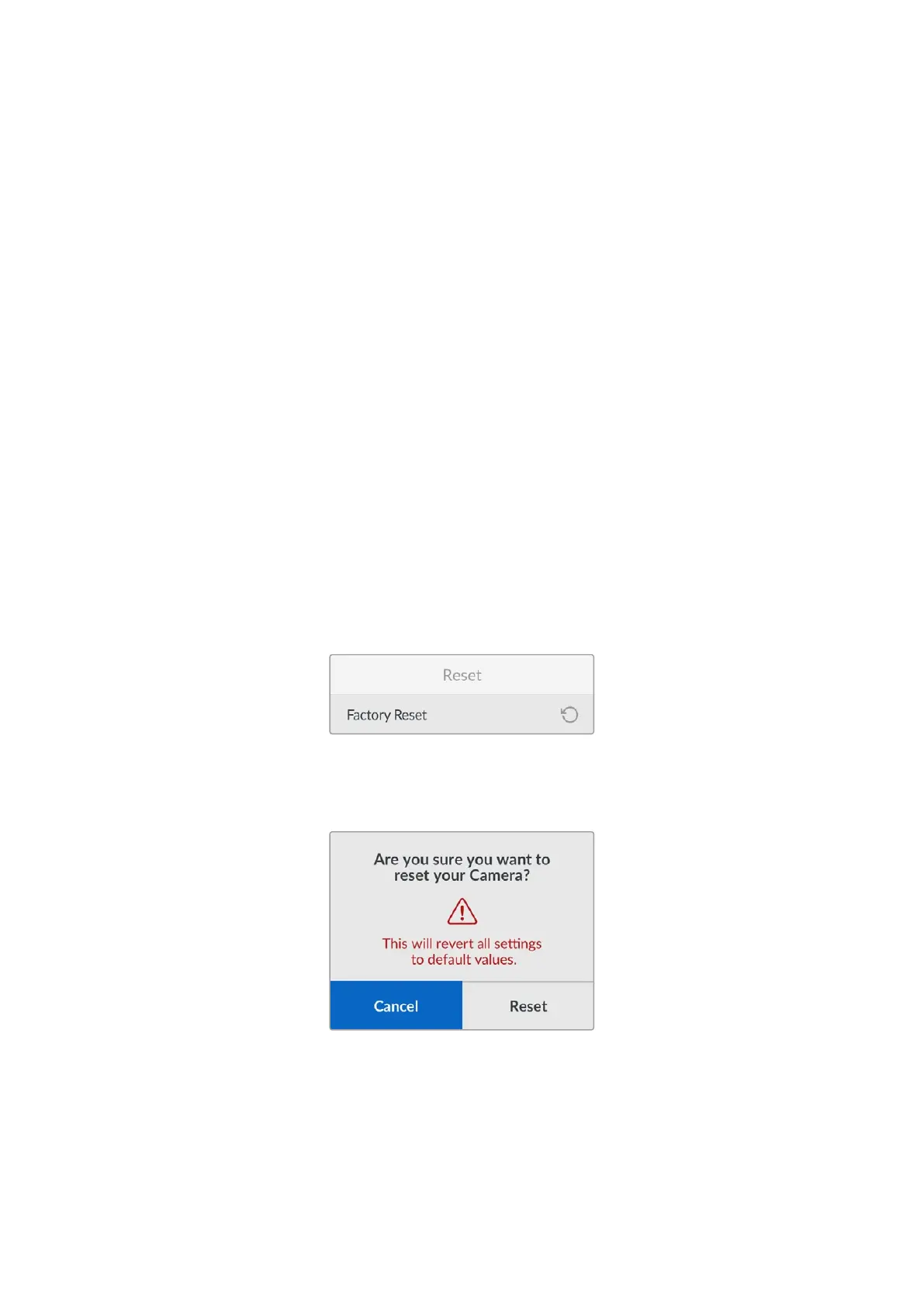
Factory Reset
To reset the camera to its default factory settings, select ‘factory reset’. On the confirmation
page, select ‘reset’ to confirm this action.
Select ‘reset’ to restore factory settings
Your camera erases any stored LUTs and presets, and resets all settings. It is a good practice
to export your presets to a USB flash drive as a backup before performing a factory reset. After
a factory reset, you can restore your presets quickly by importing them from the flash drive. It
is important to note that a factory reset also resets the horizon meter, so you should recalibrate
the motion sensor after a factory reset to help ensure its accuracy.
59Setup Menu


 To Next Page
 Loading...
