M710 User Manual 31
General Operation
Using the Keyboard
Editing Keys
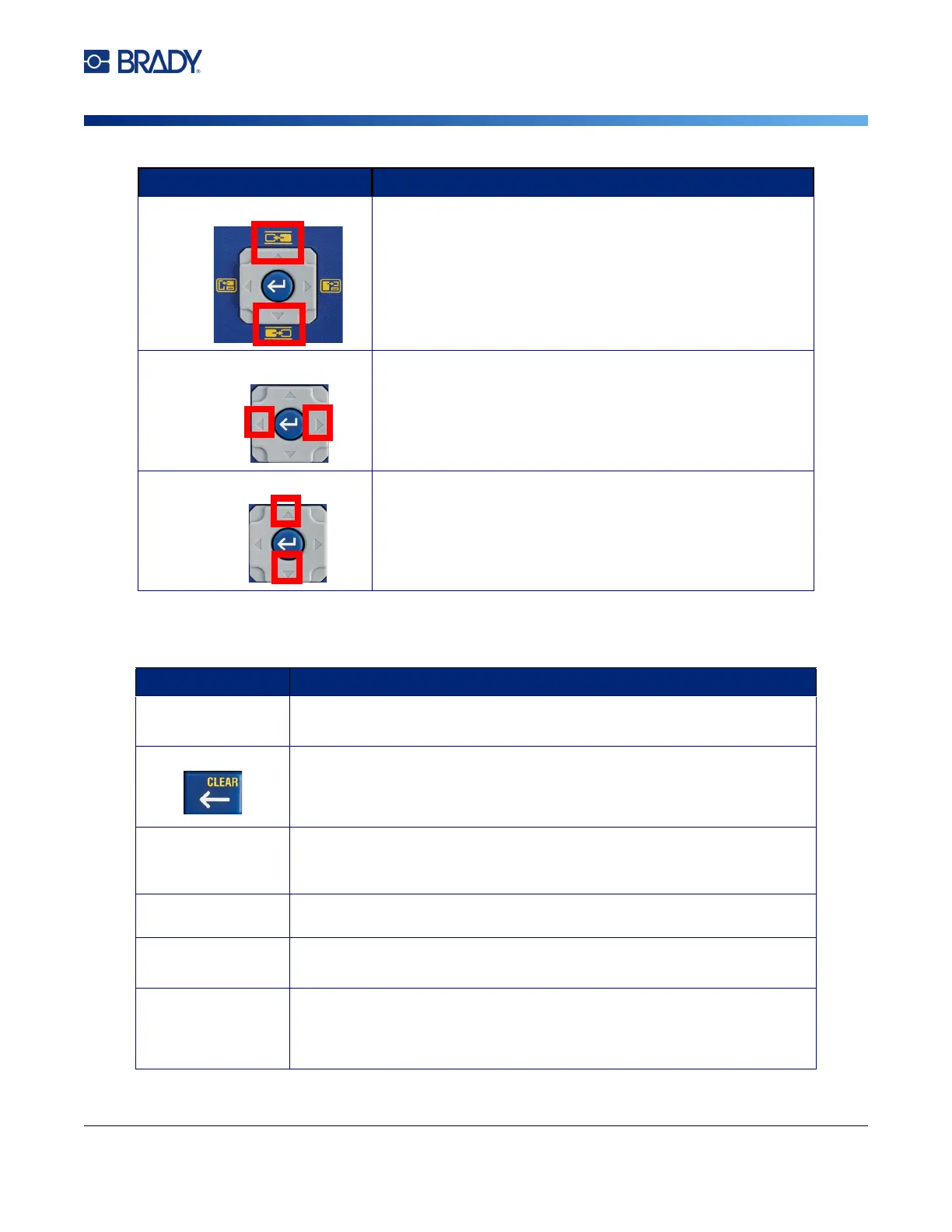
Move to a label In a multi-label file, moves to the next or previous label.
Highlight text Highlights (selects) text on the editing screen, left or right a
character at a time, enabling you to add font attributes (bold,
italics, underline) to text already entered.
Font size increment On the editing screen, increases or decreases the font size,
one point size at a time.
Key Description
ENTER
• Adds a new blank line of text to a label.
• Also accepts menu items and attributes. (Works the same as OK key.)
Backspace
• In the editor, removes characters one at a time, moving to the left from
the cursor.
• Exit a menu. (You may have to press backspace multiple times to back
all the way out, otherwise press FN + CLEAR to exit completely.)
CAPS LOCK Acts as a toggle to lock text into upper- or lowercase as data is entered.
Note: Because text defaults to uppercase, use the Caps Lock to switch to
lowercase.
FN + CLEAR
• Clears data from the label or deletes all labels.
• Cancels menu options and functions.
SHIFT Located to the right of the spacebar.
Used together with another key to type the top left character on the key.
SHIFT + FN
• Used together with another key to type the top right orange character on
the key. See “Keys With Multiple Characters” on page 29.
• For accented letters, press FN+Special Character, then type the letter.
See “Letters with Diacritical Marks” on page 51.
Key Description



 To Next Page