M710 User Manual 52
Editing Labels on the Printer
Barcode
diacritical marks are available on the keyboard depends on the region in which the printer was
purchased.
Character on Keyboard
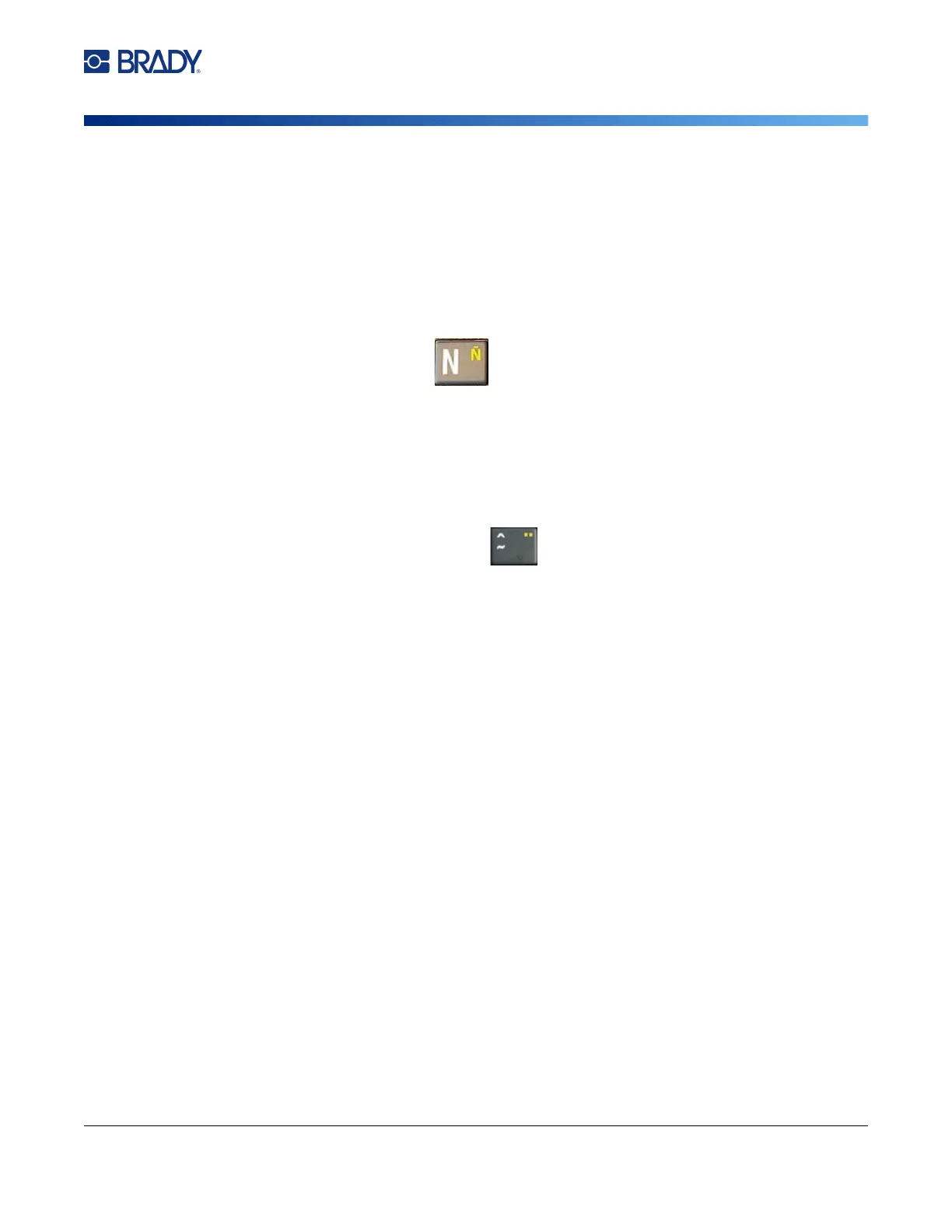
If you are in a region where letters complete with diacritical marks are on the keyboard, simply type the
letter if it is in white, or press FN and then the letter if it is in orange.
Key Combinations
To add a diacritical mark to a letter, press the key with the mark and then type the letter.
For example, to type Ü, you would press FN + , and then U.
Tip: Diacritical marks that can be combined with a letter are usually found on keys that only have
diacritical marks. Marks applied above the letter are usually higher on the key and marks applied
below the letter are usually lower on the key.
For more information on key combinations for keys that have multiple characters or symbols on them,
see “Keys With Multiple Characters” on page 29.
Barcode
Barcodes are generated following industry standard symbology. A typical barcode is composed of
vertical lines (bars) and spaces of varying thickness, depending on the text entered. It can also include
“human readable text.” Human readable text is the data entered that makes up the barcode. Because
you cannot read bars and spaces, you can have the actual text that makes up the barcode display.
Barcode elements support vertical resizing (height) only. The width of the barcode is based on data
and symbology and cannot be changed. However, some barcode widths (depending on symbology
used) can be altered by changing the ratio and density of the bar code.
Barcode data can be displayed in the same line as other data (text or symbols). It is not necessary to
have a separate area for the barcode. Barcode data on the same line as text will not overwrite the text
already on the line but will be placed next to it. Any text in the same line as the barcode will align on the
baseline with the barcode.
To type the white letter
on the key, press the key.
Press SHIFT and then
the key to change the
case (n instead of N).
To type the orange letter on
the key, press FN and then
the key.
Press FN + SHIFT and then
the key to change the case
(ñ instead of Ñ).



 To Next Page