M710 User Manual 36
General Operation
Printing
Exit the preview and return to the editing screen:
• Press or double tap the screen.
Multiple Print
Multiple print lets you print multiple copies or print a range of labels rather than all the labels in the file.
To use the multiple print options:
1. Press FN + MULTI. The Multiple Print screen displays.
2. Make your selections. For help using the screen, see “Settings Screens” on page 28.
•
No. of Copies:
Enter the number of copies desired.
•
Print Range:
Select the From field and enter the number of the first label to be printed.
Select the To field and enter the number of the last label to be printed.
•
Collate:
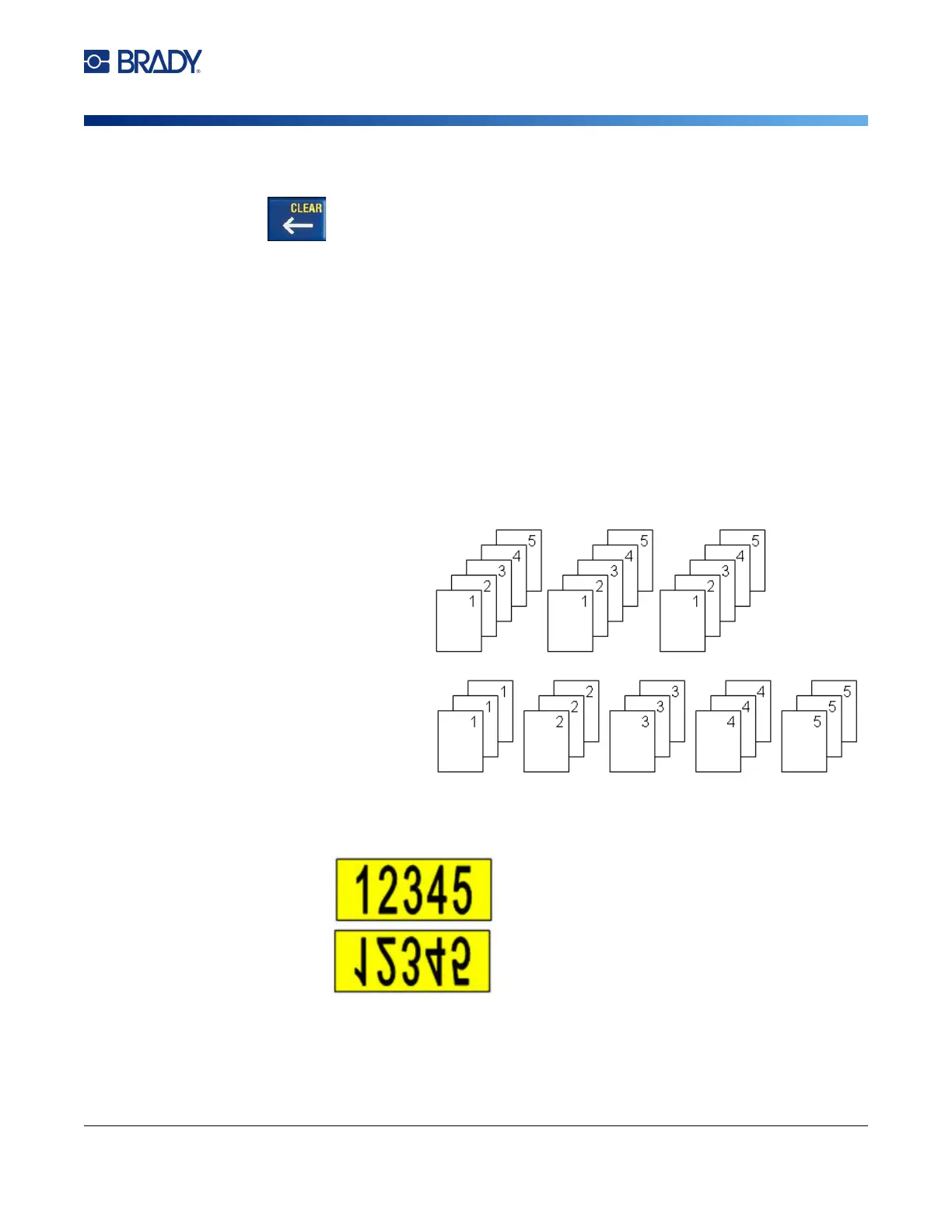
Collation determines the order in which multiple copies of each label will print. For
example, suppose you have set the number of copies to three, and you have five labels in the
file.
•
Mirrored Print:
Mirrored print takes all data on a label and flips it to provide a mirror image.
Mirroring displays on the printed label only. Mirrored print applies to the entire label; you
cannot mirror data in an individual area.
With Collate selected,
you get three sets of all
five labels.
With Collate cleared,
you get three copies of
label 1, then three
copies of label 2, and
so on.



 To Next Page