M710 User Manual 54
Editing Labels on the Printer
Serialization (Sequential Data)
3. Enter the barcode value. The steps are different depending on the type of barcode.
•
Linear barcodes (most symbologies):
The barcode displays on the screen as the data is
being entered.
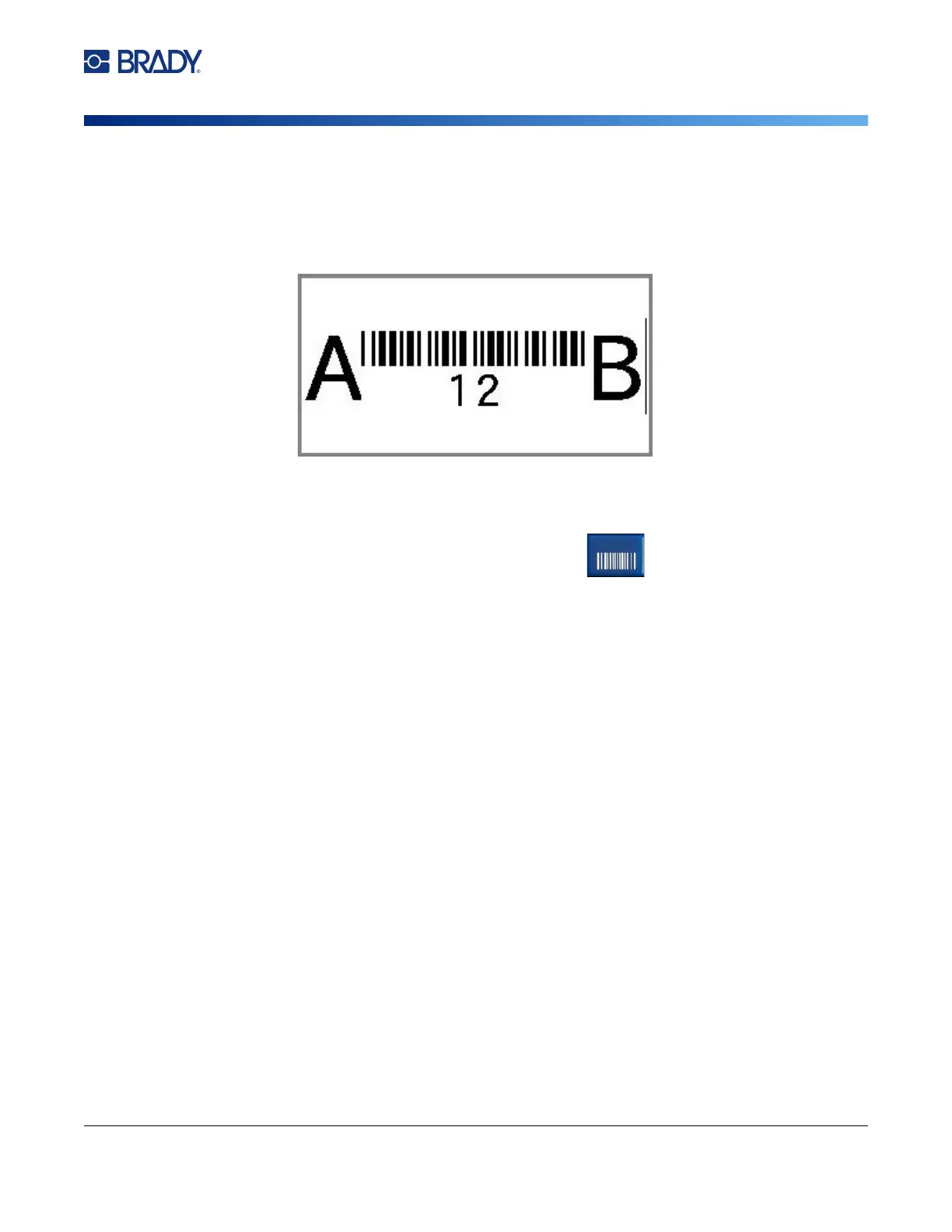
a. Type the value. The image below shows the barcode placed within a line of text with
the human readable text below the barcode.
If the human readable text were set to None, the barcode data would appear in the
middle of the barcode as you are entering it, but would not be visible once you
finished.
b. When finished with the barcode entry, press . You can add text or other
elements to the label as normal.
•
2D barcodes like Data Matrix and QR:
The printer displays a data entry form for the barcode
value. Type the value and then tap
OK
.
Note: A shortcut to enter letters with diacritical marks (like à or Ë) is to type the base letter and then
use the navigation keys to select the character.
Edit Barcode Data
To edit barcode data:
1. Position the cursor on the barcode. The barcode mode automatically turns on.
2. Edit the barcode text.
The barcode mode automatically turns off when you move past the last character of the barcode, or
when you tap OK for a 2D barcode.
Serialization (Sequential Data)
The SERIAL key automatically adds a series of sequential numbers or letters to the labels. The Serial
function consecutively places the next number or letter in the defined sequence on individual labels.
The number of labels created is defined by the sequence values you enter, and displays in the upper
right corner of the touchscreen. Use print preview to view the sequence before printing. See “Preview”
on page 35.



 To Next Page