M710 User Manual 81
File Management
Storing Files Created with Brady Workstation Software
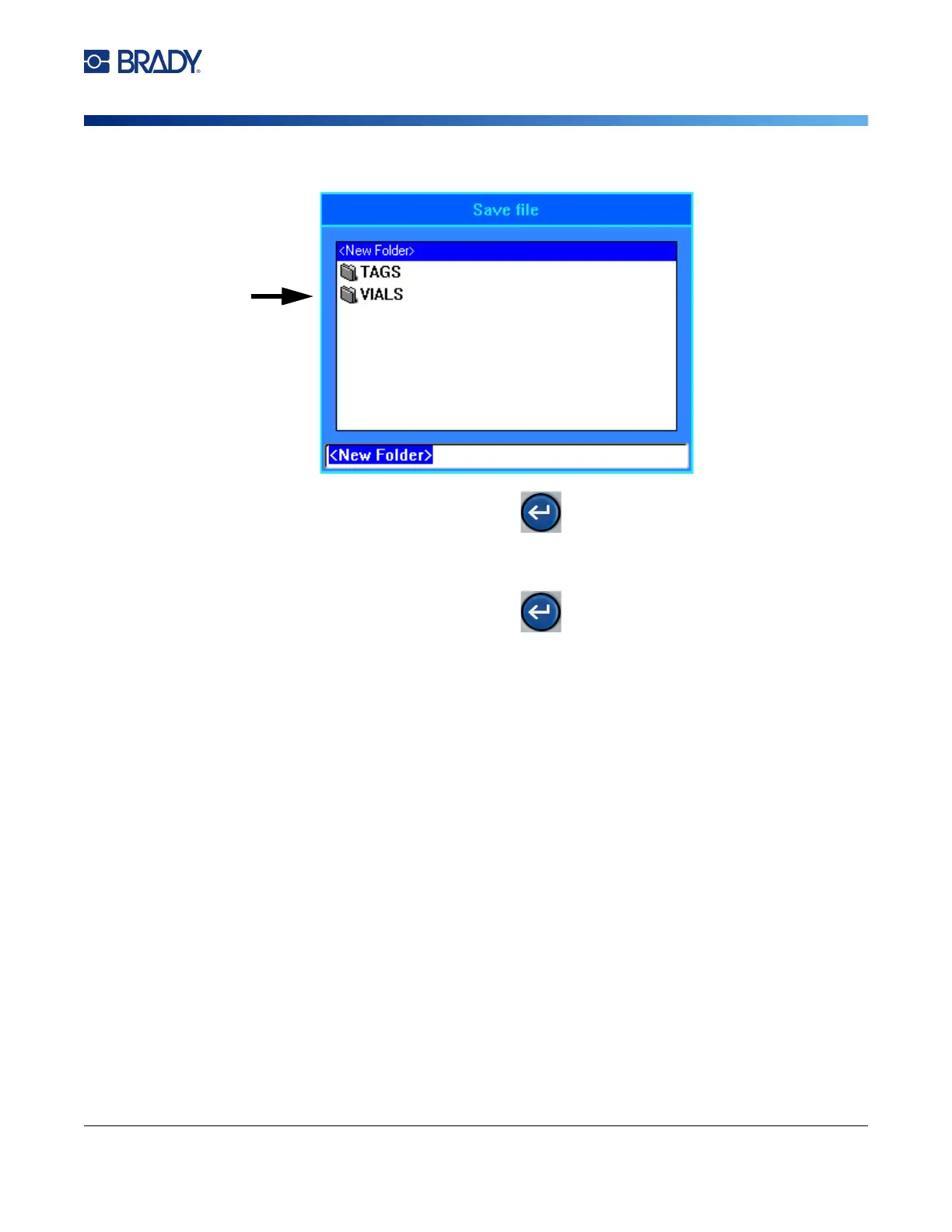
d. Double-tap the folder that you just created.
e. Type a name for the file and press . Proceed to step 5.
•
To choose an existing folder:
a. Double-tap the desired folder.
b. Type a name for the file and press .
5. If the name already exists, a message displays asking if you want to overwrite the existing file
with that name.
• To overwrite the existing file, select
Yes
.
• To go back and type a different file name, select
No
.
When the file is saved, you are returned to the editing screen with the saved file still displayed. If you
want to remove the saved file from the screen, press FN + CLEAR. This clears the data from the editor
so you can work on a different label, but does not delete the saved file. For more about the operation
of the CLEAR key see “Deleting Text” on page 39.
Storing Files Created with Brady Workstation Software
Storing files from Brady Workstation on the printer allows you to print later while disconnected from the
Brady Workstation computer.
Files from Brady Workstation are stored as print jobs which contain all the
information needed to print. Print jobs cannot be edited on the printer; they can only be printed.
Therefore
storing a print job this way also serves to prevent edits.
Follow the steps below to store a print job on the printer, then see “Opening a File” on page 82.
To store print jobs from Brady Workstation on the printer:
1. Make sure the printer is connected to the computer with the USB cable.
2. In Brady Workstation software, open the label file and go to the Print screen.



 To Next Page