M710 User Manual 27
General Operation
Using the Touchscreen
Menus
Menus provide access to controls such as printer settings, label setting, font, and so on. Use function
keys on the keyboard to open menus. See “Using the Keyboard” on page 29.
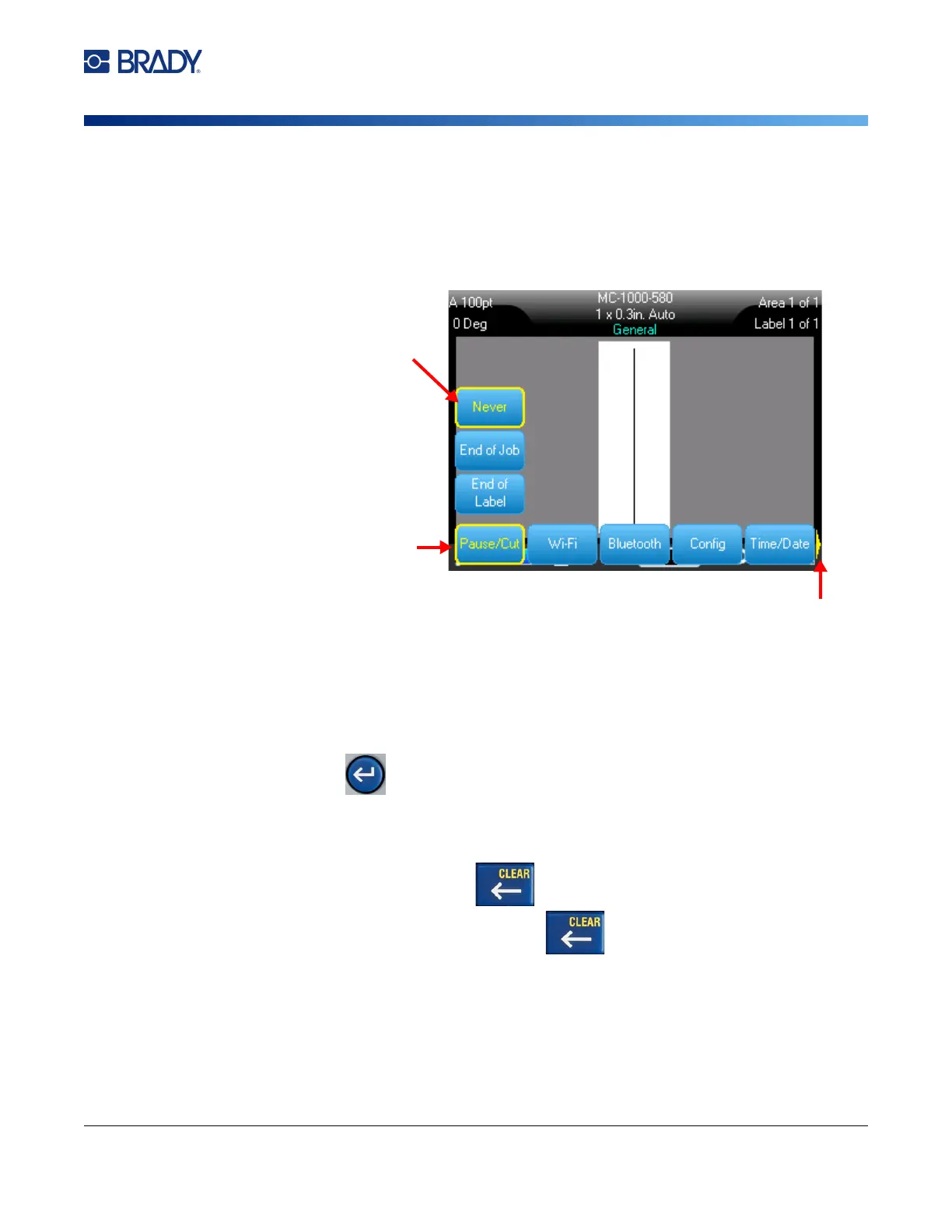
Menus open across the bottom of the screen. Sub-menus open vertically, above the main menu
selection. A yellow border marks selected menu items. The image below shows the Setup menu.
To select items on a menu, do one of the following.
•
Keyboard:
Use the navigation keys to move through the menu. When the desired option is
highlighted, press . For more information see
“Using the Keyboard” on page 29
.
•
Touchscreen:
Use your finger to tap your selection.
To close a menu without making changes:
•
Keyboard:
Press the backspace key. You may have to press backspace more than once
to exit out of all menus. Alternatively, press
FN
+ to exit out of all menus.
•
Touchscreen:
Touch anywhere outside of the menu.
1. The main menu displays across
the bottom.
3. Selected item in the submenu.
4. The yellow arrow indicates that more
menu items are available. To scroll the
menu, drag your finger on the touchscreen or
use the navigation keys.
2. Submenus display vertically above
the main menu item.



 To Next Page