M710 User Manual 45
Editing Labels on the Printer
Formatting Labels and Areas
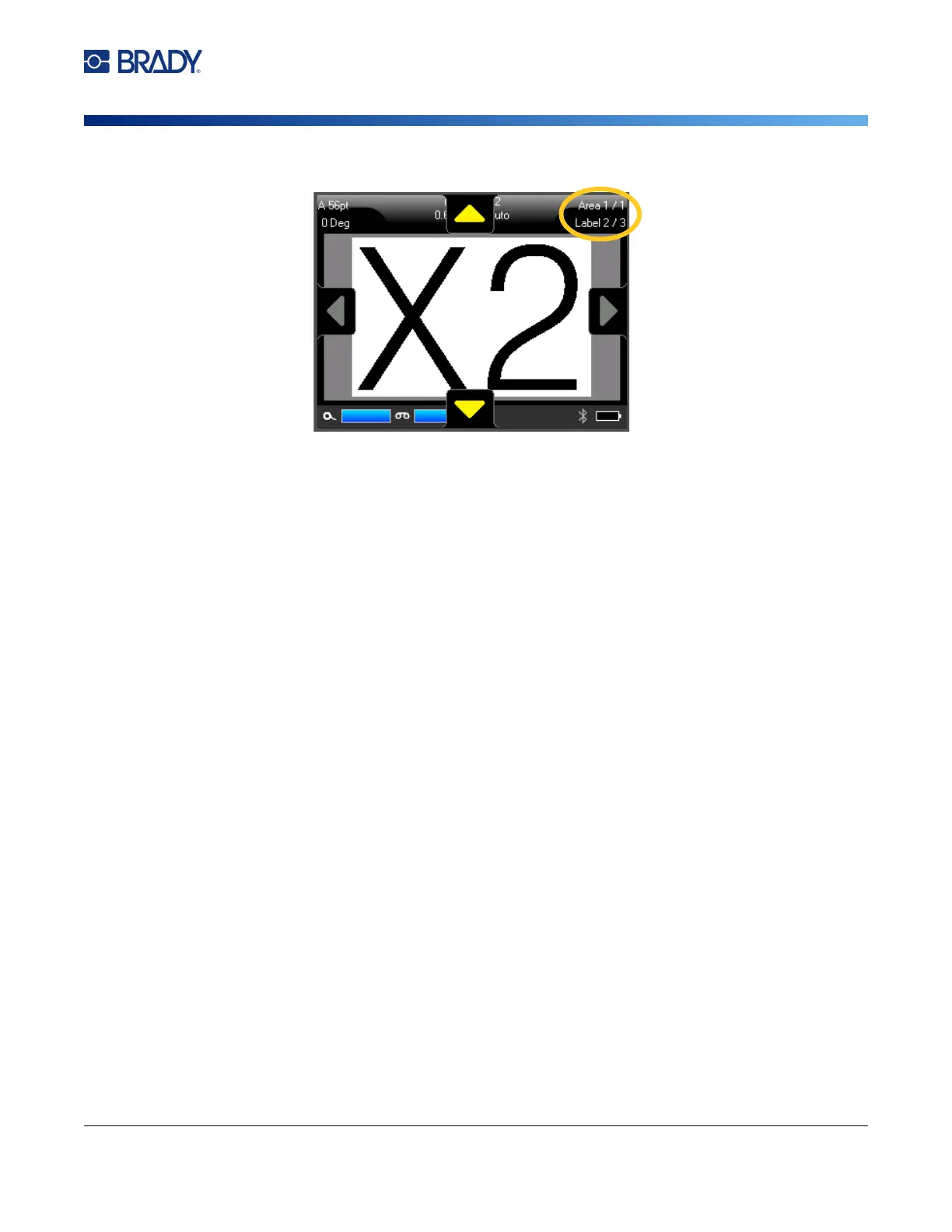
If there are not multiple areas on a label or multiple labels in a file, the arrows are grayed out.
Delete Label or Area
If multiple areas exist on one label, when that label is deleted all the areas associated with that one
label are also deleted. Deleting an area removes it from the current label. It does not delete that area
on all labels.
To delete a label or area:
1. Navigate to the label or area you want to delete. See “Go to Label or Area” on page 44.
2. Press LABEL if deleting a label or press FN and AREA if deleting an area.
3. Choose Delete.
4. A confirmation message displays. Select Yes.
Duplicate Label or Area
Duplicating a label retains all formatting and content of the label being duplicated. If multiple areas
exist on the label, they will also exist on the duplicated label.
To duplicate a label:
1. Navigate to the label to duplicate. See “Go to Label or Area” on page 44.
2. Press LABEL.
3. Tap Dup.
Formatting Labels and Areas
Justification
Justification refers to the alignment of data between boundaries (margins) on a label or in an area.
There are two types of justification: horizontal and vertical. Horizontal justification (H. Justify) aligns
data between the left and right boundaries of a label or area, while Vertical justification (V. Justify)



 To Next Page