Printing a Tube or Label Using the P-touch Keyboard
26
2
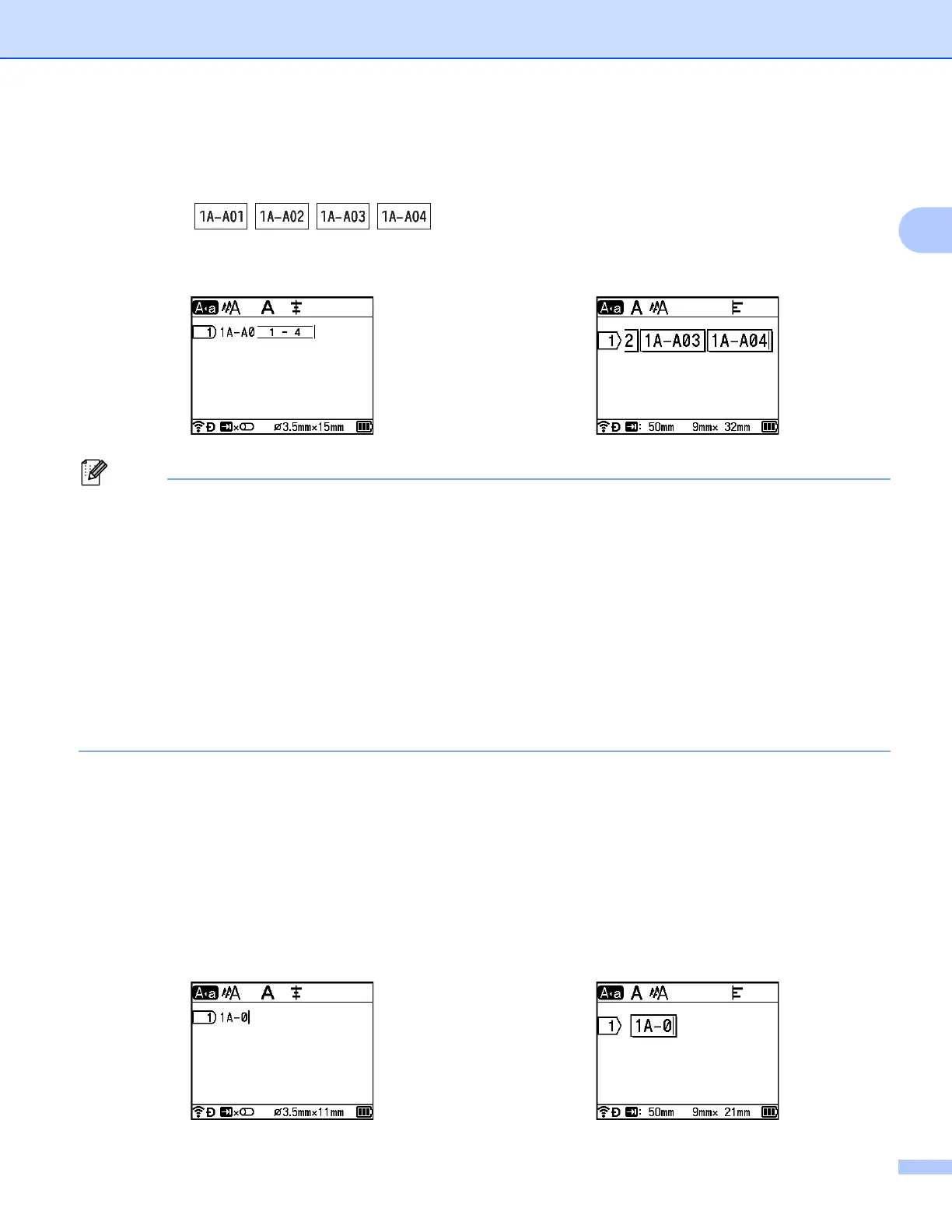
d Press the OK or Enter key to display an image of the tubes or labels on the screen. For tubes, the
starting text and ending text for the serialised numbers are indicated using a mark as shown in the
following illustration:
Example:
• For tubes, when you select the serialize mark and then press the Serialize key, you can do the setting
again. (Not available for labels)
• For labels, although the P-touch creates multiple pages of labels after you complete the serialize settings,
you can select the pages and print only the pages you want. See Printing a Range of Pages on page 58
(Not available for tubes).
• When you want to print multiple copies of the serialised tubes or labels, you can select [Serialize] or
[Copy] for the printing order in [Settings] - [Print Order] in the Home screen.
• When creating labels with a serialised barcode, select the entered barcode, and then press the Serialize
key. (Barcodes cannot be printed on tubes.) For more information about barcodes, see Creating a Barcode
Label (Labels Only) on page 31.
• To return to the previous step, press the Esc key.
Advanced Serialize Mode 2
Simultaneous 2
a Enter the text except the text that you want to serialize.
Example: Create tubes or labels 1A-A01, 1A-B02, 1A-C03, and 1A-D04 using this function. In this case,
enter "1A-0".
Tube creation screen Label creation screen
Tube creation screen Label creation screen












 To Next Page