Printing a Tube or Label Using the P-touch Keyboard
29
2
b Position the cursor where you want to insert the first serialised text (to the right of "0"), and then press
the Shift and Serialize keys. Select [Group] using the or key, and then press the OK or Enter key.
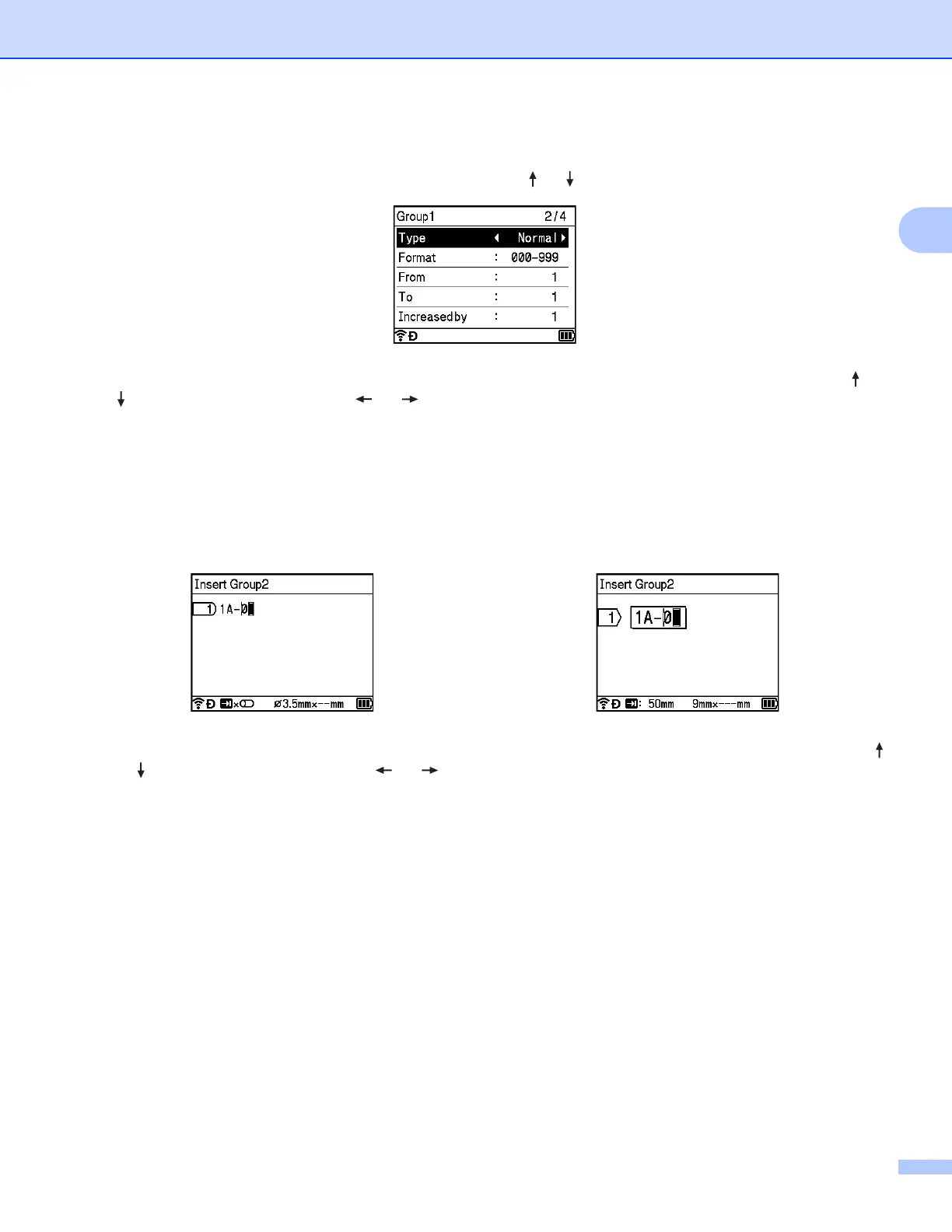
c For the first serialised text, select [Type], [Format], [From], [To] and [Increased by] using the or
key, set the values using the or key, and then press the OK or Enter key.
Example: [Type]: Normal, [Format]: 000-999, [From]: 1, [To]: 4, and [Increased by]: 1
See the Serialize Settings table in step c of Serialize Mode for more information.
d Position the cursor where you want to insert the second serialised text (to the left of "0"), and then press
the OK or Enter key.
e For the second serialised text, select [Type], [Format], [From], [To] and [Increased by] using the
or key, set the values using the or key, and then press the OK or Enter key.
Example: [Type]: Alphabet, [Format]: A-Z, [From]: A, [To]: B, and [Increased by]: 1
See the Serialize Settings table in step c of Serialize Mode for more information.
Tube creation screen Label creation screen












 To Next Page