Printing a Tube or Label Using the P-touch Keyboard
32
2
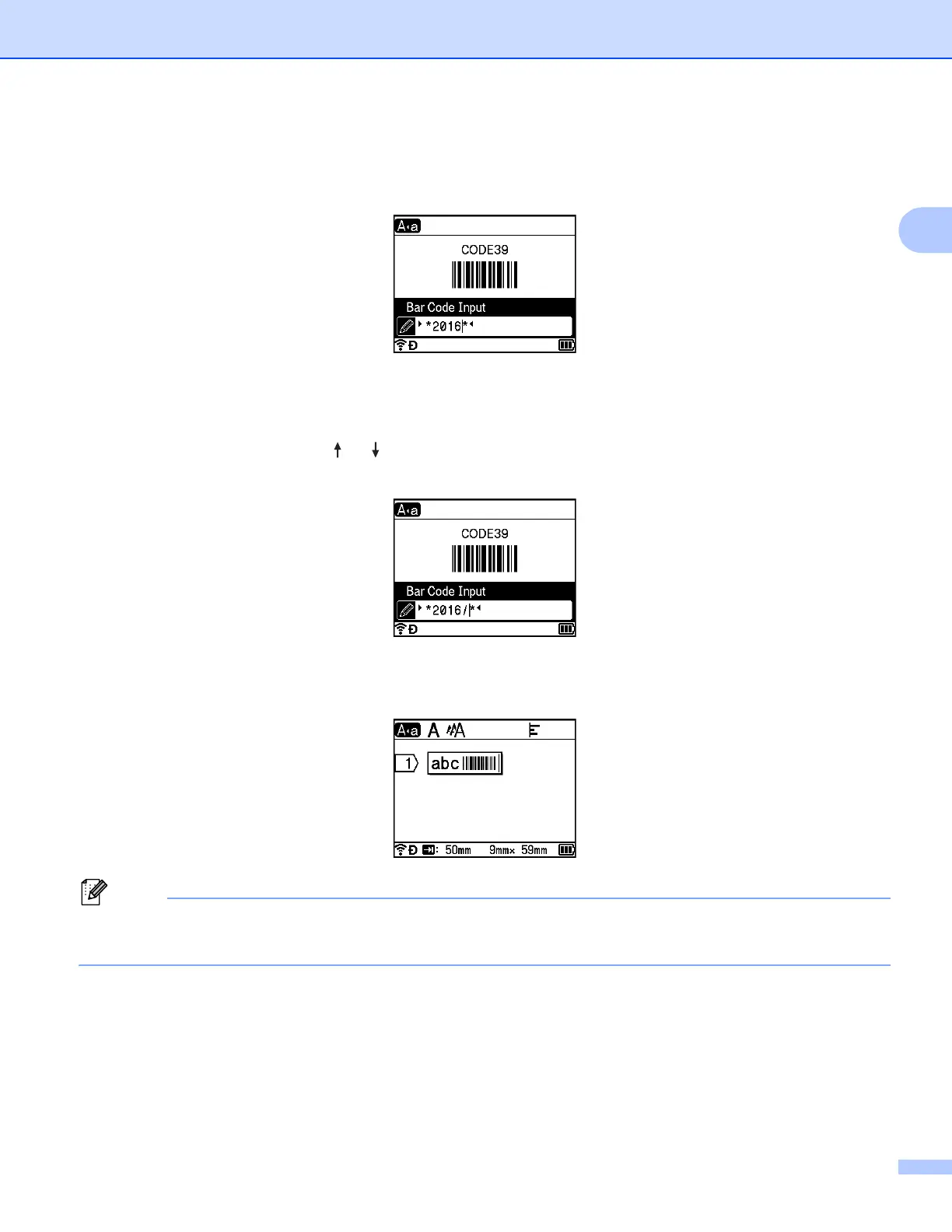
e Type in the barcode data.
You can enter special characters in the barcode when using the CODE39, CODE128, CODABAR or
GS1-128 protocols. When not using special characters, go to step h.
f Press the Symbol key.
A list of characters available for the current protocol appears.
g Select a character using the or key, and then press the OK or Enter key to insert the character in
the barcode data.
h Press the OK or Enter key to insert the barcode in the label.
The barcode appears on the label creation screen.
• To return to the previous step, press the Esc key.
• To set the selected attribute as the default setting, press the Space key .
Editing and Deleting a Barcode 2
To edit barcode parameters and barcode data, select the barcode, and then press the OK or Enter key.
See Setting Barcode Parameters and Entering Barcode Data on page 31 for more information.
To delete a barcode from a label, position the cursor to the right of the barcode mark or select the barcode,
and then press the Backspace key.





 To Next Page