Section 3: Pinsetter Electronics 3-19
Switch Diagnostics Menu
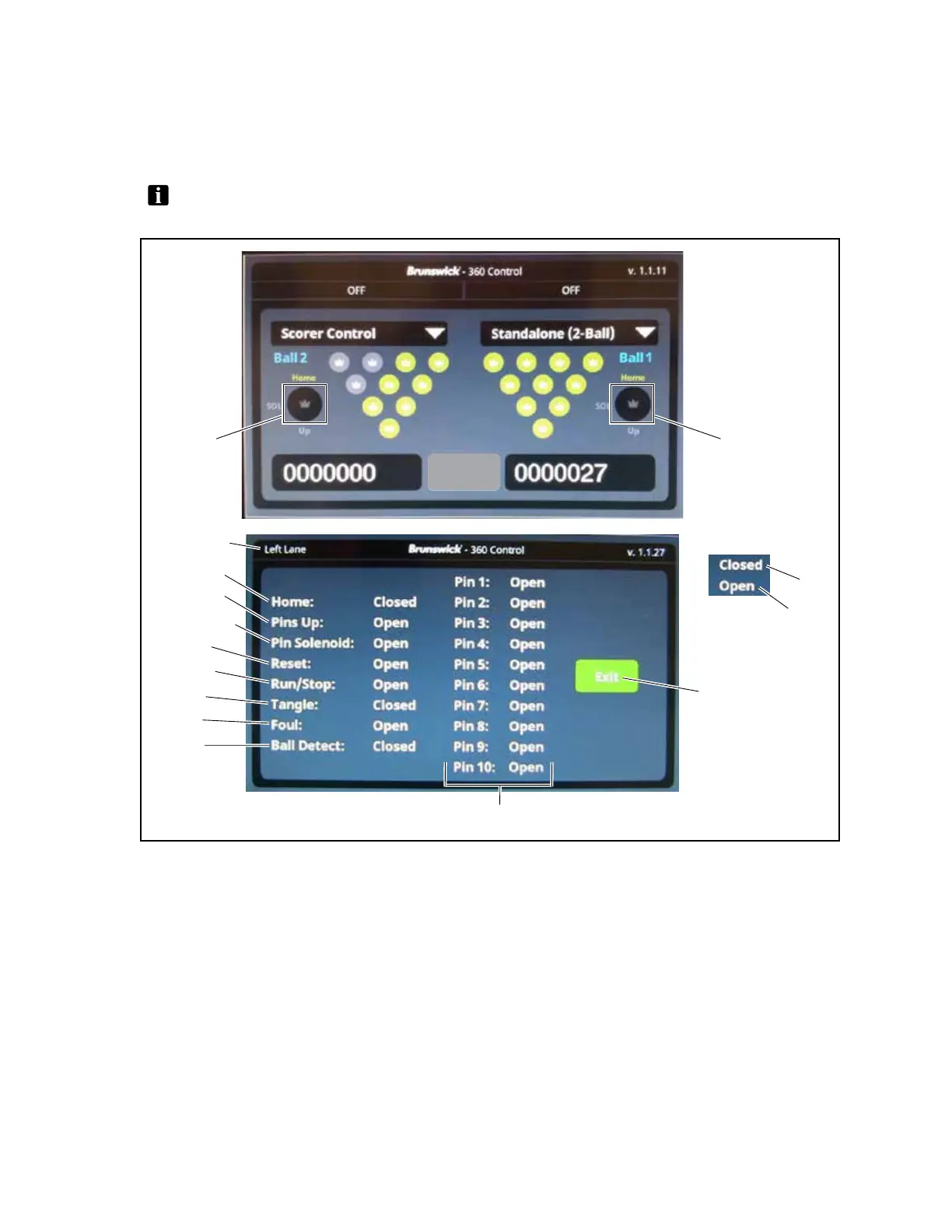
The Switch Diagnostics Menu allows the operator to view, in real time, the switches on the pinsetter.
Touch the switch cluster animation on the Main screen to display the Switch Diagnostics Menu screen.
Refer to Fig ure 3-14.
NOTE: TheSwitchDiagnosticsMenuisavailableanytimetheMainScreenisdisplayedandis
onlyavailableforrmwareversions1.1.23andnewer.
Exit
(13)
EXIT
(3)
LANE
(4)
HOME
(5)
PINS UP
(6)
PIN SOLENOID
(7)
RESET
(8)
RUN/STOP
(9)
TANGLE
(10)
FOUL
(11)
BALL
DETECT
(12)
(1)
SELECT FOR
LANE A
SWITCH
DIAGNOSTICS
Options
(2)
SELECT FOR
LANE A
SWITCH
DIAGNOSTICS
(14)
CLOSED
(15)
OPEN
SWITCH STATE:
Figure3-14.LCDTouchscreen-SwitchDiagnosticsMenu
The items that appear on the Switch Diagnostics Menu include:
(1) Select for Lane A Switch Diagnostics - Select the switch cluster animation to navigate to the
Lane A switch diagnostics screen.
(2) Select for Lane B Switch Diagnostics - Select the switch cluster animation to navigate to the
Lane B switch diagnostics screen.
( 3) L a n e - There are two switch diagnostics screens per lane pair: one for the left lane and one for
the right lane. The lane display indicates which lane is currently displayed.


 To Next Page