73
MicroDock II
Data Transfer (GasAlert Extreme, GasAlertMicroClip, GasAlertMax XT, and GasAlertQuattro only)
5. On the base station, press C Pass to return to the normal oper-
ating screen.
Maximum Datalog Storage Capacity
When the maximum datalog storage is reached, the base station
replaces the oldest datalogs with the newest datalogs. Datalogs are not
recorded in the Results History
.
Automatic Datalog Download (GasAlertMicroClip, GasAlertMax
XT, and GasAlertQuattro only)
The detector can be configured to automatically transfer datalogs every
time a bump test or calibration is performed.
Using the IR Link
• To configure the GasAlertMicroClip using the IR Link and Fleet
Manager II, refer to the GasAlertMicroClip User Manual.
• To configure the GasAlertMax XT using the IR Link and Fleet
Manager II, refer to the GasAlertMax XT Technical Reference
Guide.
• To configure the GasAlertQuattro using the IR Link and Fleet
Manager II, refer to the GasAlertQuattro Technical Reference
Guide.
Using the MicroDock II
To enable Automatic Datalog Download using MicroDock II and Fleet
Manager II, complete the following:
1. From the PC, open Fleet Manager II.
2. Log in to the Administration functions.
3. From the Devices toolbar, click Configure Devices via
MicroDock.
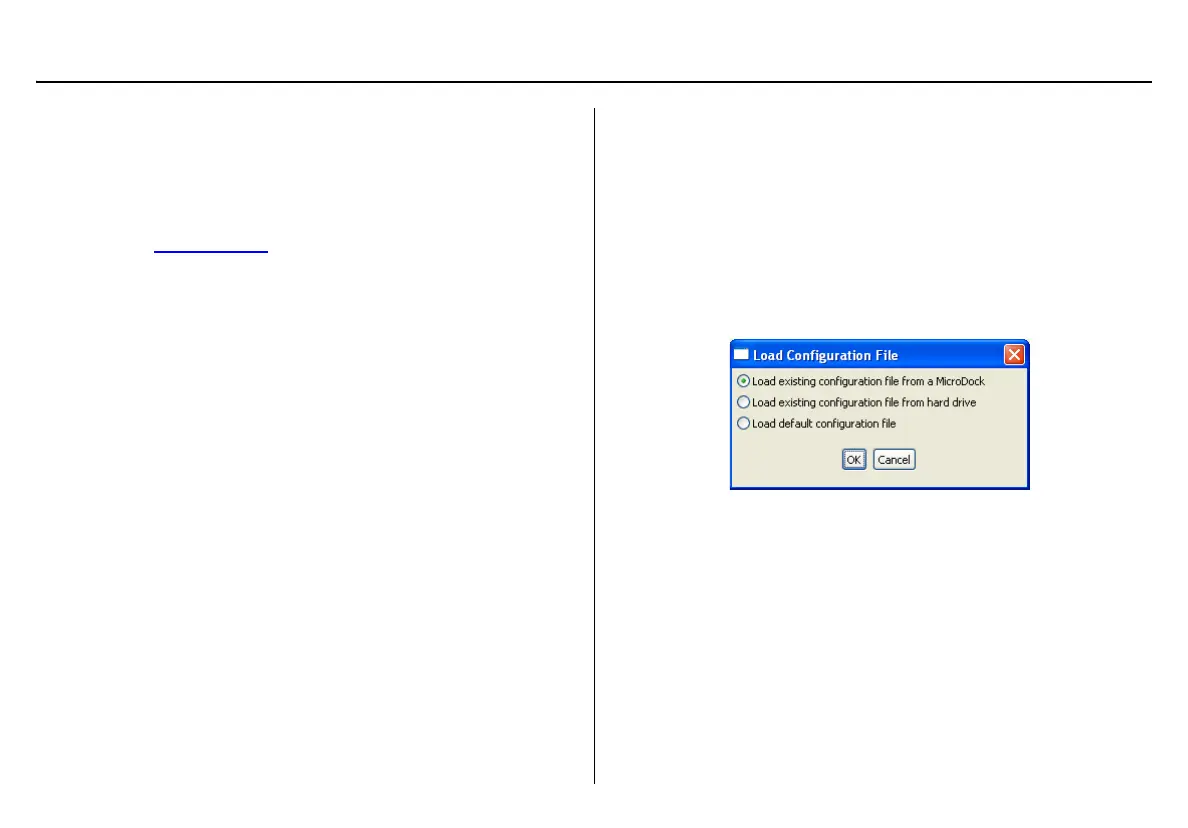
The Load Configuration File dialog box displays.
Figure 22. Load Configuration File Dialog Box
4. Select an option and click OK. If selecting Load existing config-
uration file from a MicroDock, ensure the base station is acti-
vated and connected to the computer with a USB cable.
5. Click the desired detector tab.
6. Under Testing Options, click Automatic Datalog Download.


 To Next Page