EasyManua.ls Logo

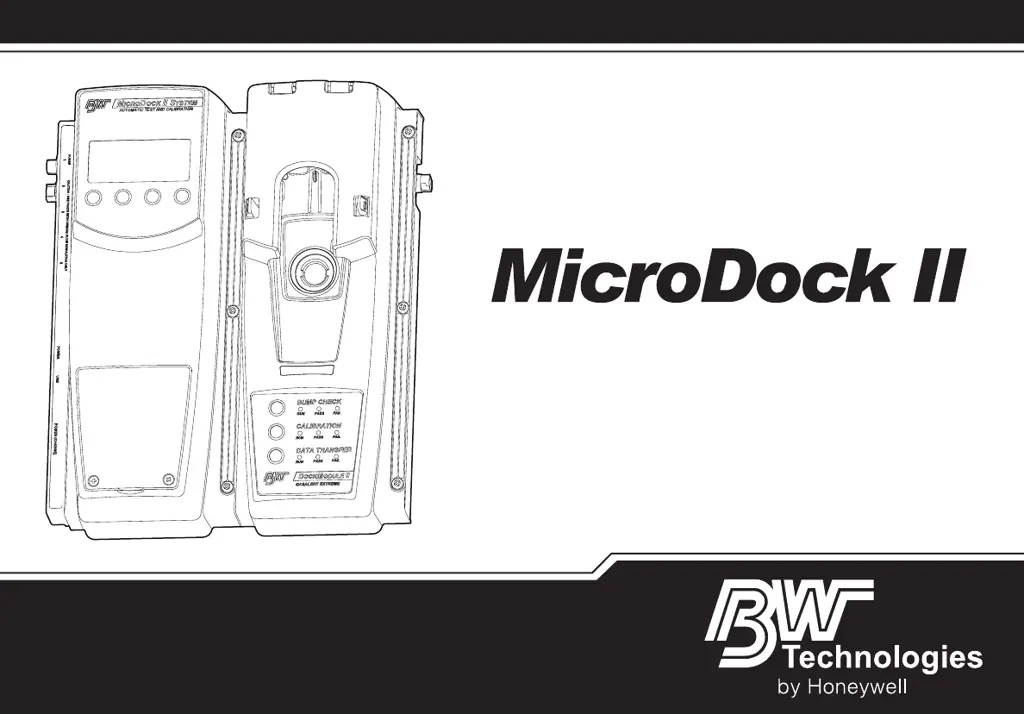
BW Technologies MicroDock II - User Manual

BW Technologies MicroDock II
100 pages
Print Icon
To Next Page IconTo Next Page
Loading...
iERP: 126103
D5617/6 [English]
© BW Technologies 2008. All rights reserved.
Automatic Test and Calibration Station
User Manual

Table of Contents

Other manuals for BW Technologies MicroDock II

Questions and Answers

  • R
    Robert GouldAug 19, 2025
    How to fix a BW Technologies Accessories base station that does not activate?
    • H
      hernandezemilyAug 19, 2025
      If your BW Technologies Accessories base station isn't activating, first, ensure the power adapter is correctly connected. If it still doesn't work, check if batteries are properly inserted and not depleted; replace them if necessary. If the problem persists, the base station might be damaged, and you should contact BW Technologies by Honeywell.
  • T
    timothyadamsAug 21, 2025
    What to do if my BW Technologies Accessories detector fails a bump test?
    • A
      Angela AlvarezAug 21, 2025
      If your BW Technologies Accessories detector fails a bump test, check that the barbed fittings are correctly connected with the gasket. Also, ensure the detector alarm setpoints are not higher than the gas concentration levels of the gas cylinder; use a gas cylinder with a higher concentration. Confirm that all gas connections are correctly attached and not blocked. Verify that the gas cylinder is not empty and replace it if needed. If the problem continues, the detector or base station might be damaged, and you should contact BW Technologies by Honeywell.
  • A
    Anthony YoungAug 23, 2025
    Why does my BW Technologies Accessories detector fail calibration?
    • C
      coopervanessaAug 23, 2025
      If the BW Technologies Accessories detector fails calibration, first, ensure that the gas cylinder isn't empty and replace it if necessary. Next, check that the barbed fittings are correctly connected to the gasket. Also, confirm that all gas connections are properly attached and not blocked. If the issue persists, the detector or base station may be defective, and you should contact BW Technologies by Honeywell.
  • S
    Steven KellyAug 26, 2025
    What to do if the oxygen sensor fails a bump test on my BW Technologies Accessories?
    • K
      Kaylee BarnesAug 26, 2025
      If the oxygen sensor of your BW Technologies Accessories fails a bump test, ensure that the oxygen alarm setpoints of the detector are not set to the same concentration level as the gas cylinder; connect a quad-gas cylinder that has 18% O2. Check if the ambient air (inlet 1) is blocked or the inlet filter is contaminated; remove any blockage or replace the inlet filter. Finally, make sure your zero gas cylinder is not empty, and replace it if necessary.
  • D
    David SheltonAug 27, 2025
    What does a flashing battery icon mean on my BW Technologies Accessories?
    • J
      Joseph CrawfordAug 27, 2025
      If you see a flashing battery icon on your BW Technologies Accessories, it means the batteries are extremely depleted and need to be replaced.
  • K
    Kimberly ObrienAug 29, 2025
    What to do if BW Technologies Accessories base station is activated but does not respond to button presses?
    • J
      Jeffrey WhiteAug 29, 2025
      If your BW Technologies Accessories base station is activated but not responding to button presses, deactivate it, wait 5 seconds, and then reactivate it. This can resolve issues caused by irregular power or electrostatic discharge.
  • G
    George ReedSep 1, 2025
    What to do if my BW Technologies Test Equipment detector fails a bump test?
    • B
      blakeadrienneSep 1, 2025
      If your detector fails a bump test, consider these potential causes and solutions: * Ensure barbed fittings are correctly connected with the gasket. * Verify that detector alarm setpoints aren't higher than the gas cylinder's concentration levels; use a cylinder with a higher concentration if needed. * Check that all gas connections are correctly attached and not blocked. * Make sure the gas cylinder isn't empty; replace it if necessary.
  • T
    Timothy HolmesSep 3, 2025
    How to fix a BW Technologies Test Equipment station that does not activate?
    • B
      Bobby LawrenceSep 3, 2025
      If your station isn't activating, try these solutions: * Connect the power adapter to ensure a power connection. * Insert batteries if there are none. * Replace the batteries if they are depleted.
  • L
    Laura ValdezSep 5, 2025
    Why doesn't the charger LED light up when I insert the detector in my BW Technologies Test Equipment?
    • J
      James AdamsSep 5, 2025
      If the charger LED doesn't light up when the detector is inserted, it could be due to a few reasons: * Ensure the detector is firmly inserted into the detector docking bay. * Allow the battery pack time to adjust to the specified operating temperature if it's above or below 50oF-95oF (10oC-35oC), which may take approximately 60 minutes. * Allow the detector to charge for 2-4 hours if the battery pack is severely depleted.
  • J
    Jonathan MurphySep 7, 2025
    What to do if my BW Technologies Test Equipment docking module doesn't recognize the detector?
    • M
      millerjacquelineSep 7, 2025
      If the docking module isn't recognizing the detector, here are a few things to check: * Ensure the detector is activated. * Verify the detector has IR communication capabilities by checking the label on the back. * Wait approximately 30 seconds, as the station might be establishing communication with the detector.

Summary

Safety Information - Read First

Cautions

Lists critical warnings and precautions for safe operation and maintenance of the base station and its components.

Getting Started

Installation

Battery Installation

Step-by-step guide for correctly installing C-cell batteries into the base station.

Inserting the GasAlertClip Extreme and the GasAlert Extreme

Instructions for properly inserting GasAlertClip Extreme and GasAlert Extreme detectors into the docking module.

Inserting the GasAlertMicro

Instructions for properly inserting GasAlertMicro detectors into the docking module.

Inserting the GasAlertMicro 5;PID;IR

Instructions for properly inserting GasAlertMicro 5/PID/IR detectors into the docking module.

Inserting the GasAlertMicro 5;PID;IR Battery Pack

Procedure for inserting or removing the lithium battery pack for the GasAlertMicro 5/PID/IR detector.

Inserting the GasAlertMicroClip

Instructions for properly inserting GasAlertMicroClip detectors into the docking module.

Inserting the GasAlertMax XT

Instructions for properly inserting GasAlertMax XT detectors into the docking module.

Inserting the GasAlertQuattro

Instructions for properly inserting GasAlertQuattro detectors into the docking module.

Inserting the GasAlertQuattro Battery Pack

Procedure for inserting or removing the battery pack for the GasAlertQuattro detector.

Adding Another Docking Module

Initializing the New Docking Module

Steps to initialize a newly connected docking module for communication with the base station.

Mounting the MicroDock II

Using the Base Station

User Options Menu

Formatting the MMC;SD Card

Reconfiguring the Detector (not applicable to the GasAlertClip Extreme)

Gas Conflicts

Order of Gases Applied for Bump Tests and Calibrations

Bump Test

Calibration

Guidelines

Provides essential guidelines and precautions for performing accurate sensor calibration.

Data Transfer (GasAlert Extreme, GasAlertMicroClip, GasAlertMax XT, and GasAlertQuattro only)

Transferring Datalogs

Guides on transferring logged data from detectors to the base station's MMC/SD card.

Automatic Datalog Download

Configures automatic data transfer upon bump tests or calibrations.

Charging the Battery Pack (Excluding GasAlert Extreme and GasAlertClip Extreme)

Charger;Battery Pack Guidelines

Essential guidelines for safe and effective charging of battery packs.

Charging Procedure

Step-by-step instructions for charging detectors or battery packs using the base station.

Maintenance

Troubleshooting

BW Technologies MicroDock II Specifications

General IconGeneral
Power SourceAC Power
Resolution - O20.1% Vol
Resolution - LEL1% LEL
Resolution - CO1 ppm
CompatibilityBW Gas Detectors
CalibrationAutomated calibration and bump testing
CommunicationEthernet
Automated FunctionsAutomated calibration and bump testing
ConnectivityUSB
Detection Range - O20 to 30% Vol
Detection Range - LEL0 to 100% LEL
Detection Range - CO0-1000 ppm
Detection Range - H2S0 to 100 ppm
Response Time - O2< 15 seconds
Response Time - LEL< 15 seconds
Response Time - CO< 15 seconds
Response Time - H2S< 15 seconds
Battery LifeNot applicable (AC powered)