EasyManua.ls Logo

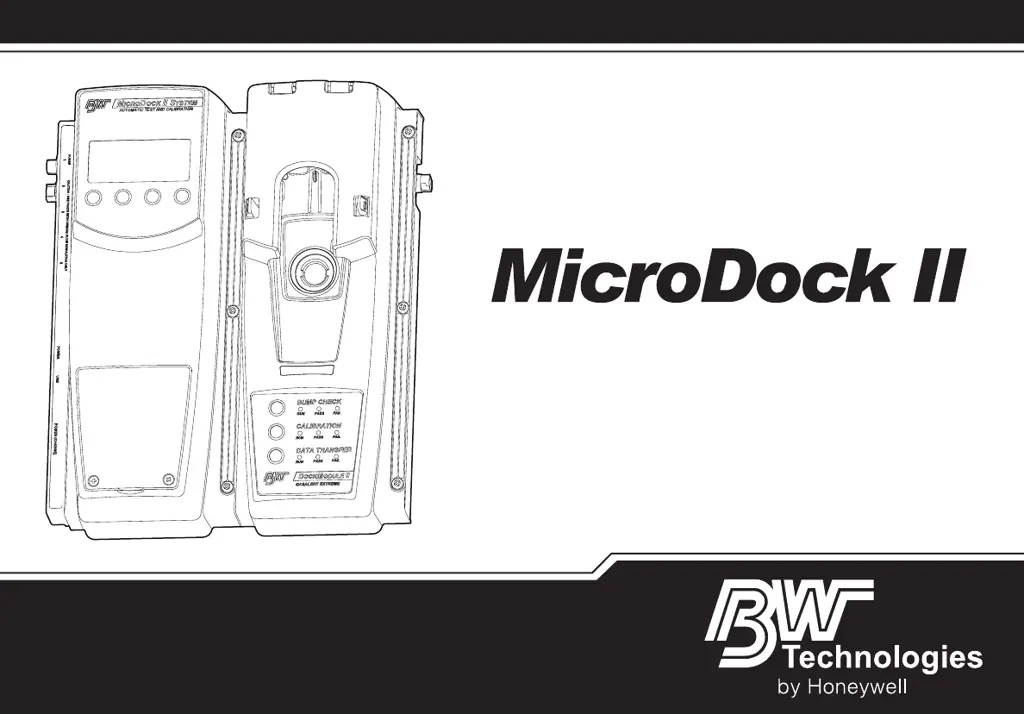
BW Technologies MicroDock II - User Manual

BW Technologies MicroDock II
100 pages
Print Icon
To Next Page IconTo Next Page
Loading...
iERP: 126103
D5617/6 [English]
© BW Technologies 2008. All rights reserved.
Automatic Test and Calibration Station
User Manual

Table of Contents

Other manuals for BW Technologies MicroDock II

Questions and Answers

  • D
    David SanchezSep 9, 2025
    Why is my BW Technologies Test Equipment beeping but not charging?
    • H
      Henry BradySep 9, 2025
      If you hear an audible beep but the device isn't charging, it could be due to: * The battery being above or below the operating temperature of 50oF-95oF (10oC-35oC). Allow approximately 60 minutes for the battery pack to adjust. * A severely depleted battery. Try charging it for 2-4 hours, or replace it with a new one.
  • B
    Brittany HillSep 12, 2025
    What does a flashing battery icon mean on my BW Technologies Test Equipment?
    • S
      Sara BlanchardSep 12, 2025
      A flashing battery icon indicates that the batteries are extremely depleted. Replace the batteries.
  • Z
    zgonzalezSep 14, 2025
    Why is my BW Technologies Test Equipment station activated but not responding to button presses?
    • F
      frykimberlySep 14, 2025
      If the station is activated but not responding to button presses, it might be due to irregular power or electrostatic discharge. Deactivate the station, wait 5 seconds, and then reactivate it.
  • J
    Jonathan BryantSep 16, 2025
    How do I assign a drive letter to my BW Technologies Test Equipment MicroDock II in Windows XP?
    • K
      Kevin BrownSep 16, 2025
      Ensure Windows XP assigned a drive letter to the MicroDock II. Solution: 1) Right-click My Computer and then click Manage. 2) Under Computer Management (Local) click Disk Management 3) In the list of drives in the right pane, right-click the new drive and then click Change Drive Letter and Path(s). 4) Click Change and in the drop-down box, select a drive letter for the new drive (cannot be assigned to a mapped network drive). 5) Click OK and then click OK again.

Summary

Safety Information - Read First

Cautions

Lists critical warnings and precautions for safe operation and maintenance of the base station and its components.

Getting Started

Installation

Battery Installation

Step-by-step guide for correctly installing C-cell batteries into the base station.

Inserting the GasAlertClip Extreme and the GasAlert Extreme

Instructions for properly inserting GasAlertClip Extreme and GasAlert Extreme detectors into the docking module.

Inserting the GasAlertMicro

Instructions for properly inserting GasAlertMicro detectors into the docking module.

Inserting the GasAlertMicro 5;PID;IR

Instructions for properly inserting GasAlertMicro 5/PID/IR detectors into the docking module.

Inserting the GasAlertMicro 5;PID;IR Battery Pack

Procedure for inserting or removing the lithium battery pack for the GasAlertMicro 5/PID/IR detector.

Inserting the GasAlertMicroClip

Instructions for properly inserting GasAlertMicroClip detectors into the docking module.

Inserting the GasAlertMax XT

Instructions for properly inserting GasAlertMax XT detectors into the docking module.

Inserting the GasAlertQuattro

Instructions for properly inserting GasAlertQuattro detectors into the docking module.

Inserting the GasAlertQuattro Battery Pack

Procedure for inserting or removing the battery pack for the GasAlertQuattro detector.

Adding Another Docking Module

Initializing the New Docking Module

Steps to initialize a newly connected docking module for communication with the base station.

Mounting the MicroDock II

Using the Base Station

User Options Menu

Formatting the MMC;SD Card

Reconfiguring the Detector (not applicable to the GasAlertClip Extreme)

Gas Conflicts

Order of Gases Applied for Bump Tests and Calibrations

Bump Test

Calibration

Guidelines

Provides essential guidelines and precautions for performing accurate sensor calibration.

Data Transfer (GasAlert Extreme, GasAlertMicroClip, GasAlertMax XT, and GasAlertQuattro only)

Transferring Datalogs

Guides on transferring logged data from detectors to the base station's MMC/SD card.

Automatic Datalog Download

Configures automatic data transfer upon bump tests or calibrations.

Charging the Battery Pack (Excluding GasAlert Extreme and GasAlertClip Extreme)

Charger;Battery Pack Guidelines

Essential guidelines for safe and effective charging of battery packs.

Charging Procedure

Step-by-step instructions for charging detectors or battery packs using the base station.

Maintenance

Troubleshooting

BW Technologies MicroDock II Specifications

General IconGeneral
Power SourceAC Power
Resolution - O20.1% Vol
Resolution - LEL1% LEL
Resolution - CO1 ppm
CompatibilityBW Gas Detectors
CalibrationAutomated calibration and bump testing
CommunicationEthernet
Automated FunctionsAutomated calibration and bump testing
ConnectivityUSB
Detection Range - O20 to 30% Vol
Detection Range - LEL0 to 100% LEL
Detection Range - CO0-1000 ppm
Detection Range - H2S0 to 100 ppm
Response Time - O2< 15 seconds
Response Time - LEL< 15 seconds
Response Time - CO< 15 seconds
Response Time - H2S< 15 seconds
Battery LifeNot applicable (AC powered)