85
MicroDock II
Troubleshooting
Problem Possible Cause Solution
Autoplay displays after every bump test and
calibration.
Autoplay is enabled
Disable Autoplay.
Windows XP:
1) Click Start Menu, then Run.
2) Enter gpedit.msc
3) The Group Policy window displays.
4) Click Administrative Templates and then
System.
5) In the right-hand pane, double-click on
Turn off Autoplay.
6) The Turn off Autoplay Properties dialog
box displays.
7) Select Enabled.
8) From the Turn off Autoplay on drop down
men, select All drives. Then click OK.
Windows Vista:
1) Open Control Panel.
2) Under Hardware and Sound, click Play
CDs or other media automatically.
3) Then remove the check from the Use
AutoPlay for all media and devices
checkbox.
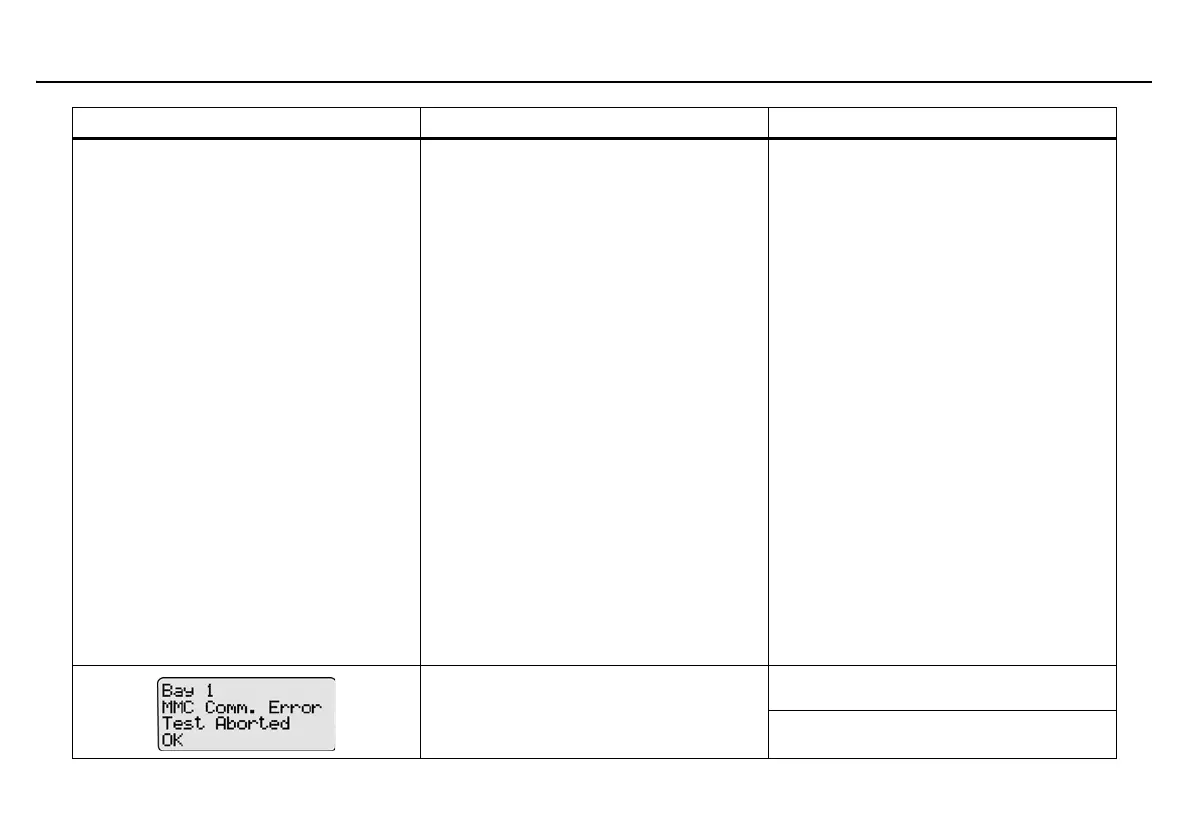
Problem transferring to the MMC/SD card
during a calibration or bump test.
Repeat the test.
Ensure the MMC/SD card is inserted.


 To Next Page