139
Contents
Preparation/
Setup
Print Using a
Computer
Appendix
IndexPrint/SaveInput/Edit
Names of
Components
Maintenance/
Printer Settings
Trouble-
shooting
4
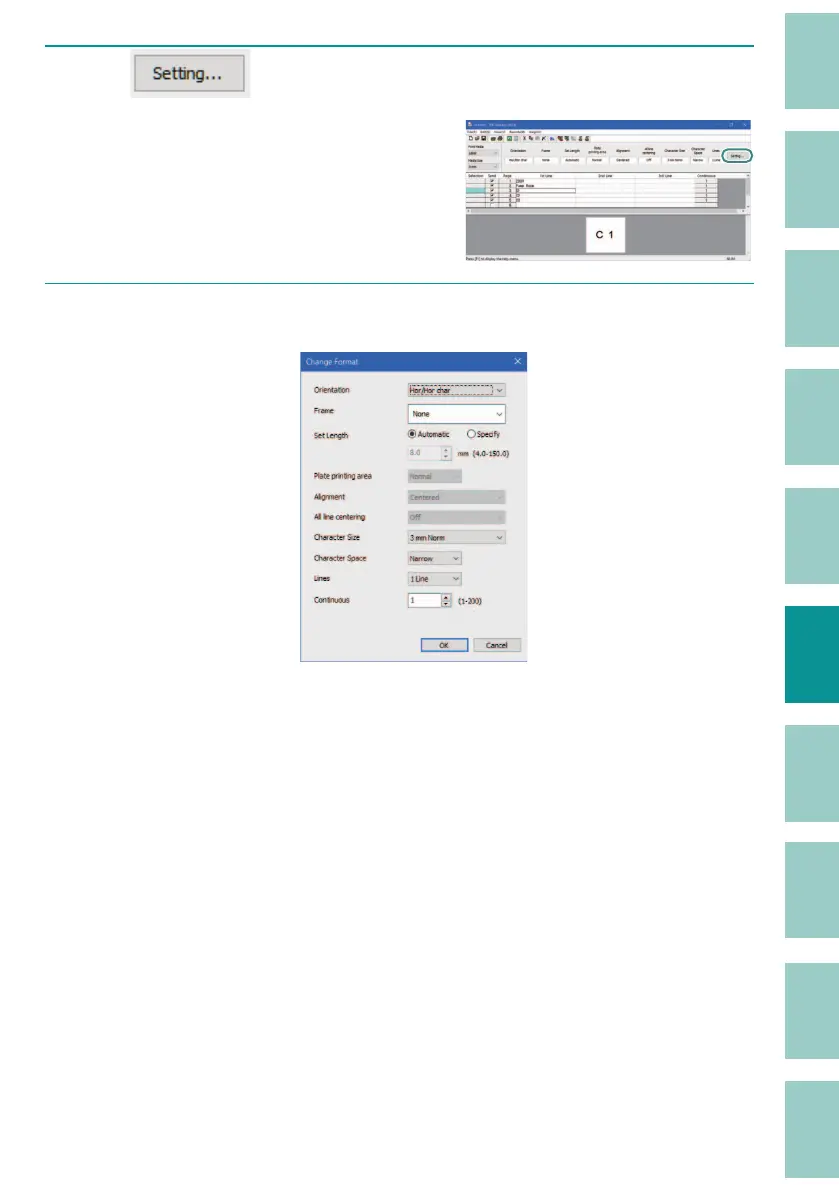
Click (Setting).
Or, from the [Edit] menu, select [Format
Setting], then [Page Setting].
Format setting can also be selected from the
menu that appears by r
ight-clicking on the
data list.
5
Set each item.
[Orientation]
The orientation (Vert/Hor) and text direction (Vert char/Hor char) are speci ed in the
"Or
ientation" settings. The default setting is "Hor/Hor char."
"Vert/Hor char" is only enabled when no text is entered.
For print image, refer to
"Specifying the Orientation and Character Direction
(P.45)"
.
[Frame]
This allows you to surround text with a frame. There are 5 frame shapes available, with
the default setting of "None
."
[Set Length]
You can specify the length of one tube (or one label). The default setting is
"
Automatic."
When "Specify" is selected, the length can be entered in the range of
8 mm t
o 150 mm (4 mm to 150 mm for labels and plates only) in 0.1 mm increments.



 To Next Page