177
Contents
Preparation/
Setup
Print Using a
Computer
Appendix
IndexPrint/SaveInput/Edit
Names of
Components
Maintenance/
Printer Settings
Trouble-
shooting
View the Status Monitor
The status monitor starts automatically when printing starts and displays the printer status and
remaining ink ribbon level.
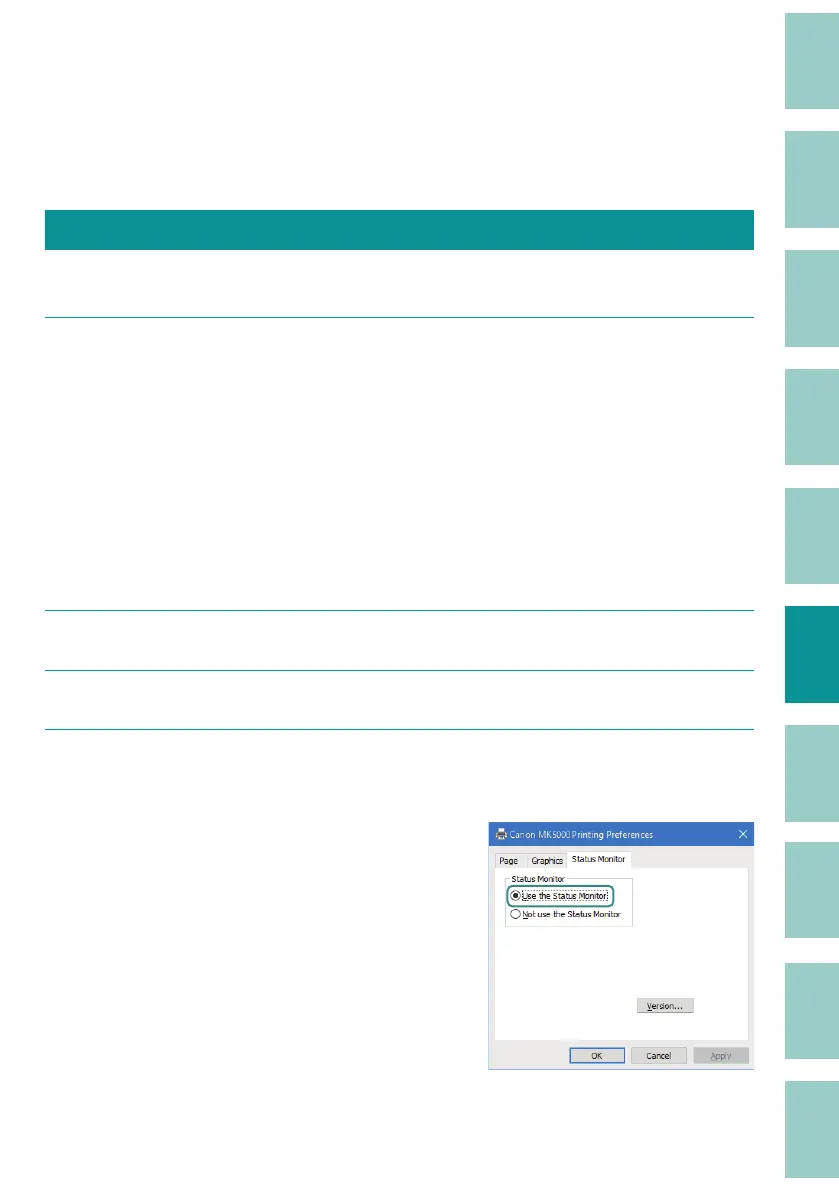
View Settings for the Status Monitor
Set to show or hide the status monitor. The default setting is "Use the Status Monitor."
1
Select [Start] > [Windows System Tools] > [Control Panel] > [Hardware and
Sound] > [Devices and Printers].
For Windows 11:
Select [Start] > [All apps] > [Windows Tools] > [Control Panel] > [Hardware and Sound]
> [Devices and Printers].
For Windows 8.1:
F
rom the desktop charm, select [Settings] > [Control Panel] > [Hardware and Sound]
> [Devices and Printers].
2
Right-click the printer icon, and select [Print Settings].
3
Click the [Status Monitor] tab.
4
Select [Use the Status Monitor] or [Not use the Status Monitor], and then click
[OK].



 To Next Page