195
Contents
Preparation/
Setup
Print Using a
Computer
Appendix
IndexPrint/SaveInput/Edit
Names of
Components
Maintenance/
Printer Settings
Trouble-
shooting
Changing the Display Settings
You can change the contrast and brightness of the display.
■
Adjusting the Display Contrast
The default setting of the display contrast is set to "5."
1
Press the [Settings] key.
2
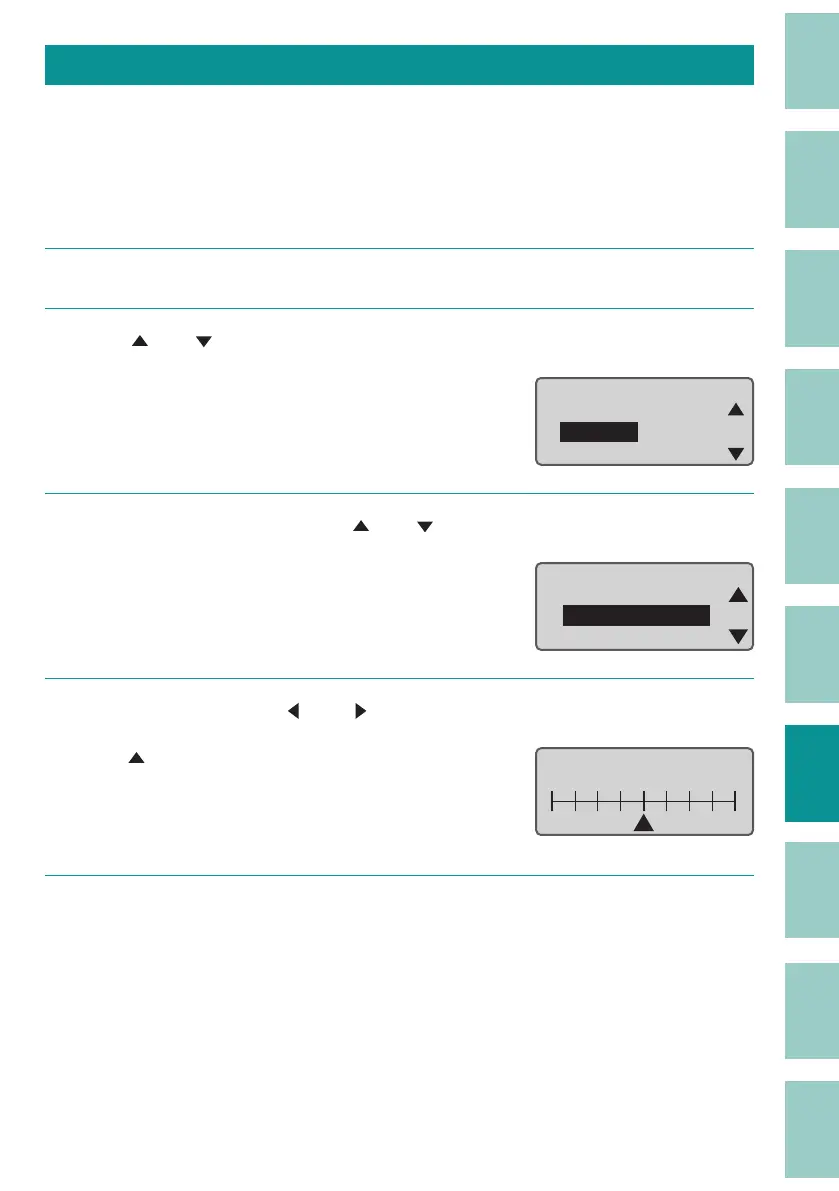
Use [ ] or [ ] to select "Setting," and then press the [Enter] key.
Settings
Others
Print adjust
Setting
ɻ
3
Select " Display contrast" with [ ] or [ ] and press the [Enter] key.
Setting
Print speed
Display contrast
Backlight (ADPTR)
4
Select the contrast by [ ] or [ ] and press the [Enter] key.
A" " mark will be displayed under the current
setting.
Display Contrast can be set in the range of 1
(light
est) to 9 (darkest).
Display contrast
DarkLight
5
Press the [Shift]+[Canc] keys.
The display returns to the character input
display.



 To Next Page