40
Contents
Preparation/
Setup
Print Using a
Computer
Appendix
IndexPrint/SaveInput/Edit
Names of
Components
Maintenance/
Printer Settings
Trouble-
shooting
Deleting Characters
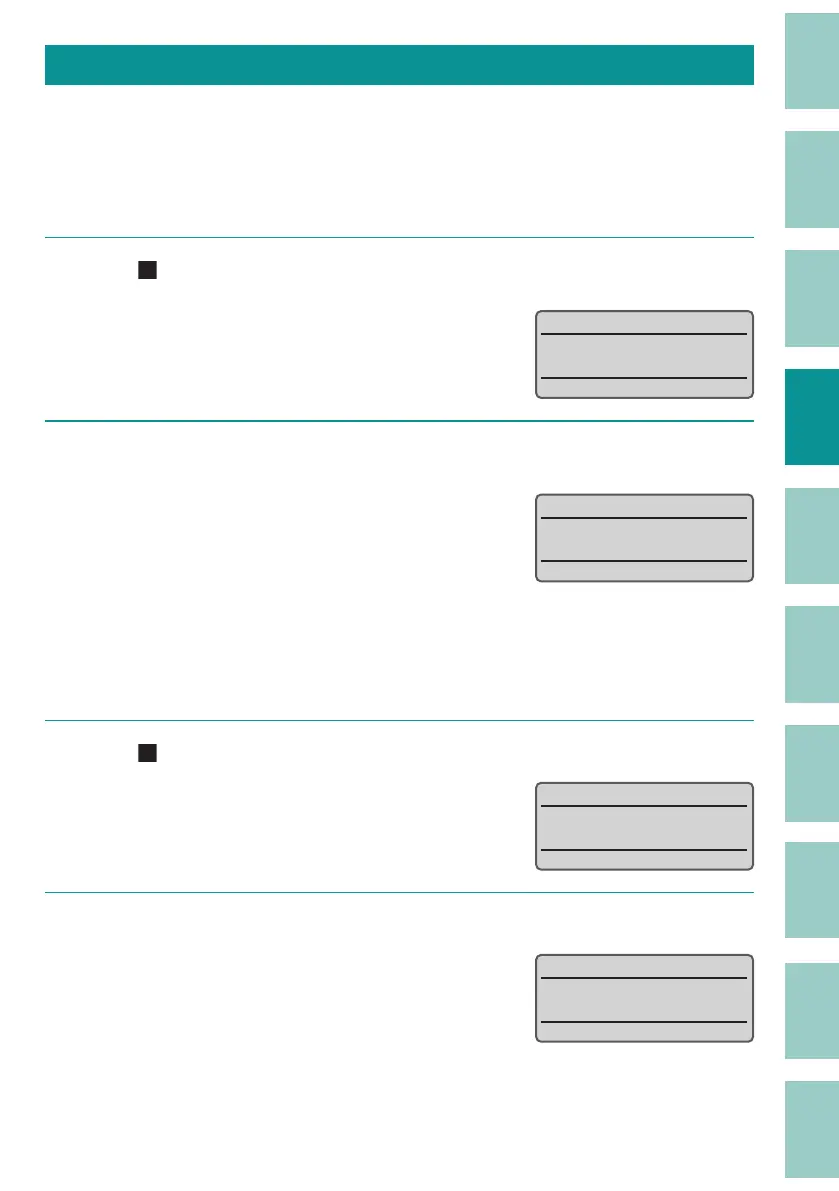
There are two ways to delete a character: using the [Back Space] key or using the [Del] key.
■
Deleting with the [Back Space] key
[Example] Change "27V" to "2V."
1
Move (the cursor) to "V."
˛
9
2
Press the [Back Space] key.
The character to the left of the cursor position
will be deleted.
9
■
Deleting with the [Del] key
[Example] Change "27V" to "2V."
1
Move (the cursor) to "7."
˛
9
2
Press the [Del] key.
The character at the cursor position will be
deleted.
9



 To Next Page