61
Contents
Preparation/
Setup
Print Using a
Computer
Appendix
IndexPrint/SaveInput/Edit
Names of
Components
Maintenance/
Printer Settings
Trouble-
shooting
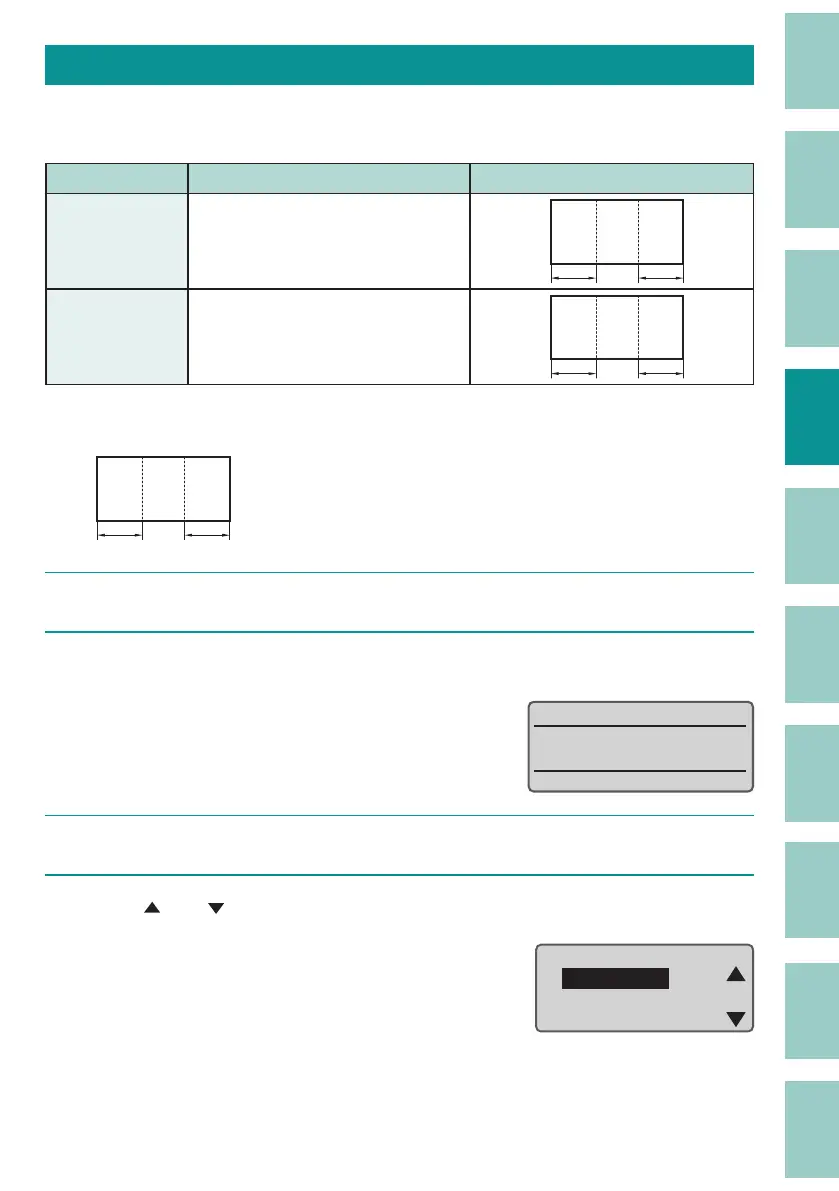
Align Multiple Lines of Text to the Center
When "Centered" is selected for "Alignment," multiple lines of text are centered and placed in the
center of the page. The default setting is "O ."
Setting Details Print Image
O
(Default Setting)
Align multi-line text at the
beginning and center them on the
page.
A-123
R11
On
Multi-line text is centered and
placed in the center of the page.
A-123
R11
[Example] Create the following labels.
A-123
R11
1
Set the number of lines to "2 Lines."
(P.48)
2
Enter the text.
ʷ
˛
3
Press the [Seg Len] key.
4
Press [ ] or [ ] to select "Cut Length," and then press the [Enter] key.
Cut Length
ɻɻ
Cut Length
Alignment
Plate Print Area



 To Next Page