90
Contents
Preparation/
Setup
Print Using a
Computer
Appendix
IndexPrint/SaveInput/Edit
Names of
Components
Maintenance/
Printer Settings
Trouble-
shooting
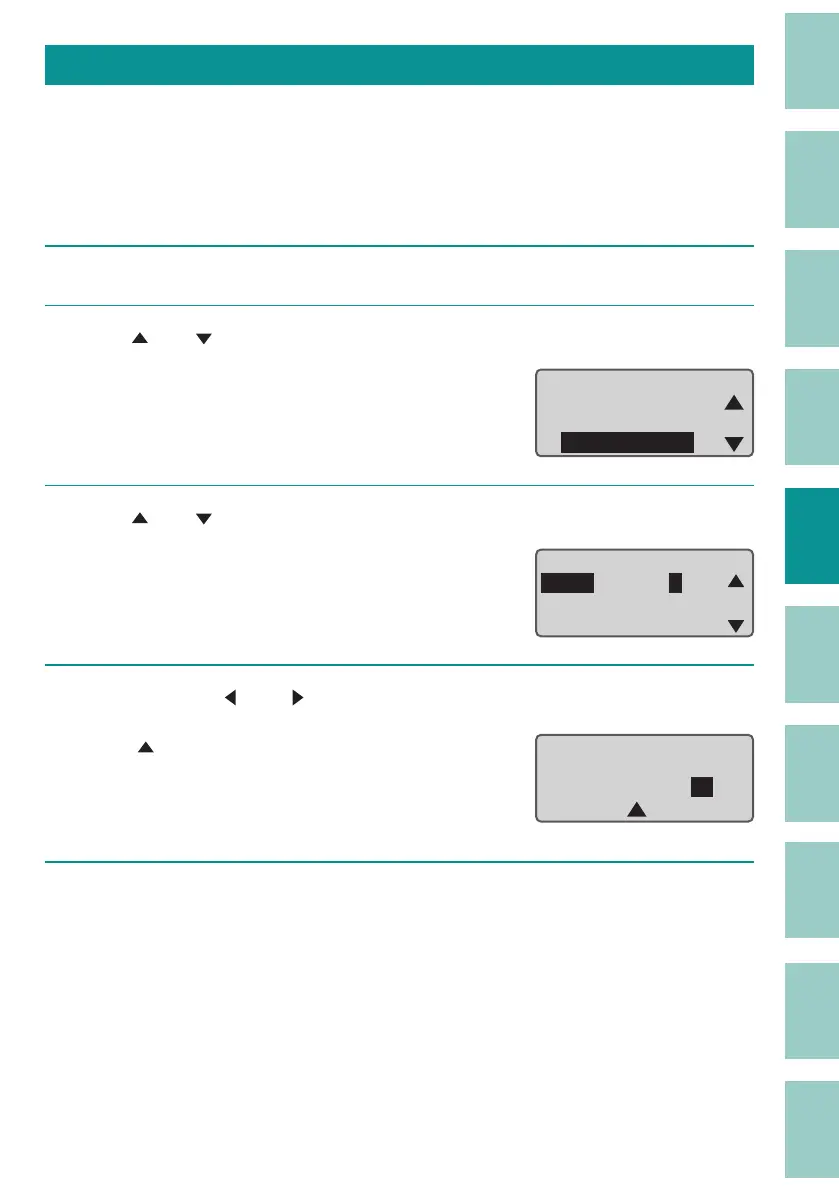
Changing the Print Density
Depending on the print media you are using and the environment, the printing may be too light
or too dark. In such cases, adjust the print density.
The density can be set for each print media. The default setting is "3."
[Example] Adjust the print density of the tube so that it is the darkest.
1
Press the [Adjust] key.
2
Use [ ] or [ ] to select " Print density," and press the [Enter] key.
Adjustments
ɻɻ
Full Cut Depth
Full Cut Motion
Print density
3
Use [ ] or [ ] to select "Tube," and press the [Enter] key.
Print density
ShrinkTube
Label
Tube
4
Select "5" with [ ] or [ ] and press the [Enter] key.
A " " mark will be displayed under the current
setting.
Density can be set in the range of 1 (lightest) to
5 (dar
kest).
1ɻ2ɻ3 ɻ4ɻ5
Print density
5
Press the [Shift]+[Canc] keys.
The display returns to the character input display.



 To Next Page