42
Contents
Preparation/
Setup
Print Using a
Computer
Appendix
IndexPrint/SaveInput/Edit
Names of
Components
Maintenance/
Printer Settings
Trouble-
shooting
Editing Characters and Lines
Setting the Character Size
This is how the character size is set. The character size can be selected from those below; the
default value is "3 mm full-width."
6 mm
half-width
6 mm
full-width
200V
200V
4 mm
half-width
4 mm
full-width
200V
200V
3 mm
half-width
3 mm
full-width
200V
200V
2.6 mm
half-width
2.6 mm
full-width
200V
200V
1.3 mm
full-width
2 mm
half-width
2 mm
full-width
200V
200V
200V
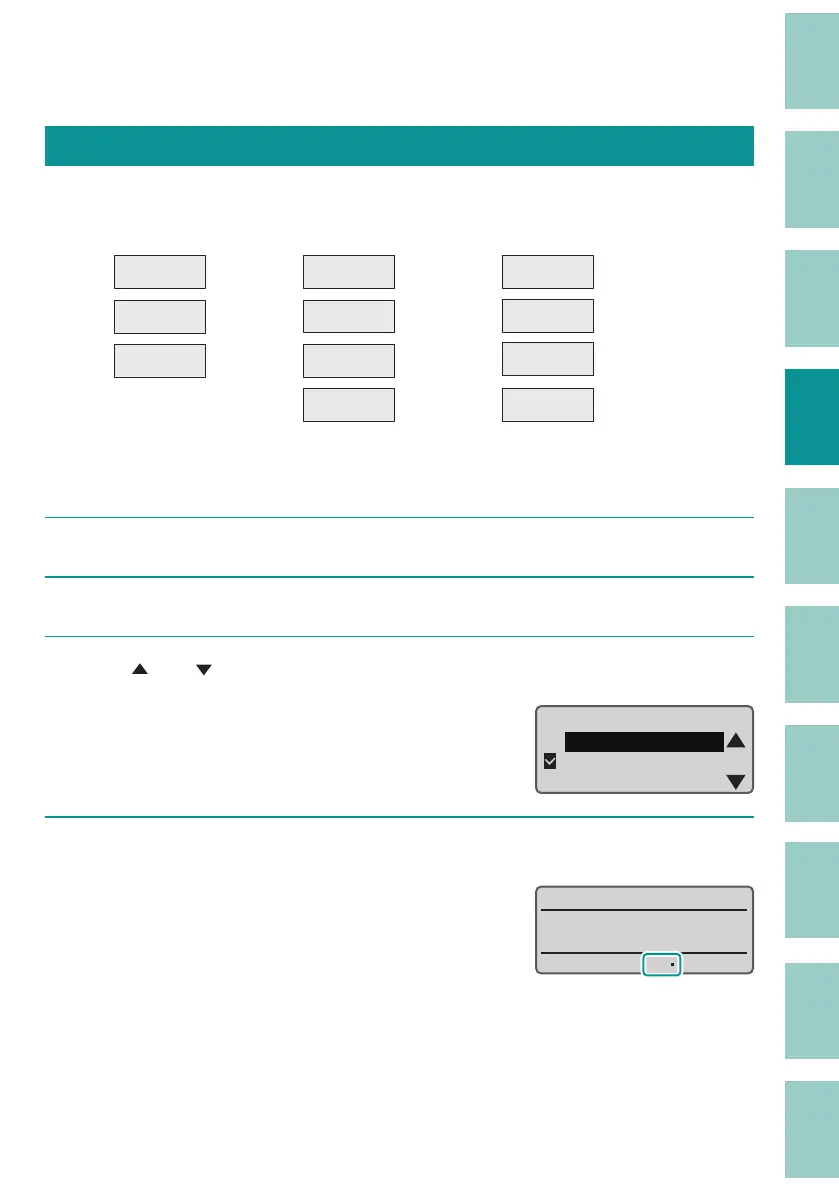
[Example] Set the character size to "3 mm half-width."
1
Display the page where you want to change the character size.
2
Press the [Char Size] key.
3
Use [ ] or [ ] to select "3 mm half-width."
"×" will appear next to character sizes that
cannot be selected.
Character Size
3ᶳ half-width
3ᶳ
full
-width
4ᶳ half-width
4
Press the [Enter] key.
The display returns to the character input
display.
The character size setting can be checked on the
displa
y.
If you select "half-width," the text will be
displa
yed in half-width.
˛
3mm



 To Next Page