48
Contents
Preparation/
Setup
Print Using a
Computer
Appendix
IndexPrint/SaveInput/Edit
Names of
Components
Maintenance/
Printer Settings
Trouble-
shooting
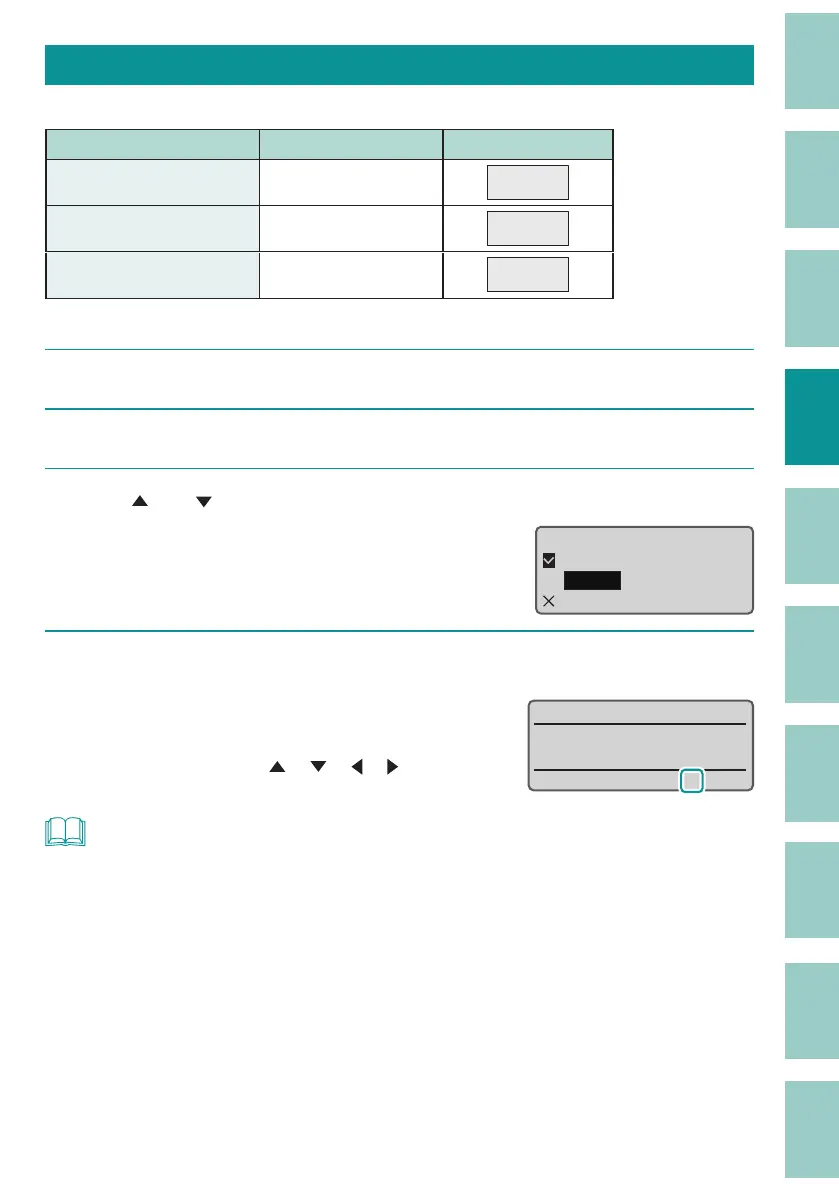
Specifying the Number of Lines
Sets the number of lines. The default setting is "1 Line."
Setting Details Print Image
1 Line (Default Setting) Input in one line
12V
2 Lines Input in two lines
12V
24V
3 Lines Input in three lines
+12V
-12V
200V
[Example] 2 line input.
1
Display the page where you want to change the number of lines.
2
Press the [Set Lines] key.
3
Use [ ] or [ ] to select "2 Lines."
"×" will appear next to the number of lines
that cannot be selected.
Lines
1 Line
2 Lines
3 Lines
4
Press the [Enter] key.
The number of lines setting can be checked
on the display.
Use the arrow keys ([
], [ ], [ ], [ ]) to
move between the lines.
˛
NOT
• The number of lines can be set for each page.
• When the character size is set to "1.3 mm full-width," "2 mm full-width," or "2 mm Half,” the text can
be printed in three lines. If you want to print in three lines, set the character size before selecting the
number of lines.
(P.42)
• If after entering text, you would like to reduce the number of lines, delete the second (or third) line of
text and then change the line number setting.
• You may not be able to select "2 Lines" or "3 Lines" depending on the selected character size.
• No error message will be displayed even if the print data extends beyond the width (top and bottom) of
the print media.
It is recommended that you refer to the preview to make sure that no characters are
missing before printing.
(P.81)



 To Next Page