53
Contents
Preparation/
Setup
Print Using a
Computer
Appendix
IndexPrint/SaveInput/Edit
Names of
Components
Maintenance/
Printer Settings
Trouble-
shooting
Adding a Line between Lines
This function allows you to print a solid line (center line) between the rst and second lines of
data entered in two lines. The default setting is "O ."
+12V
+24V
1
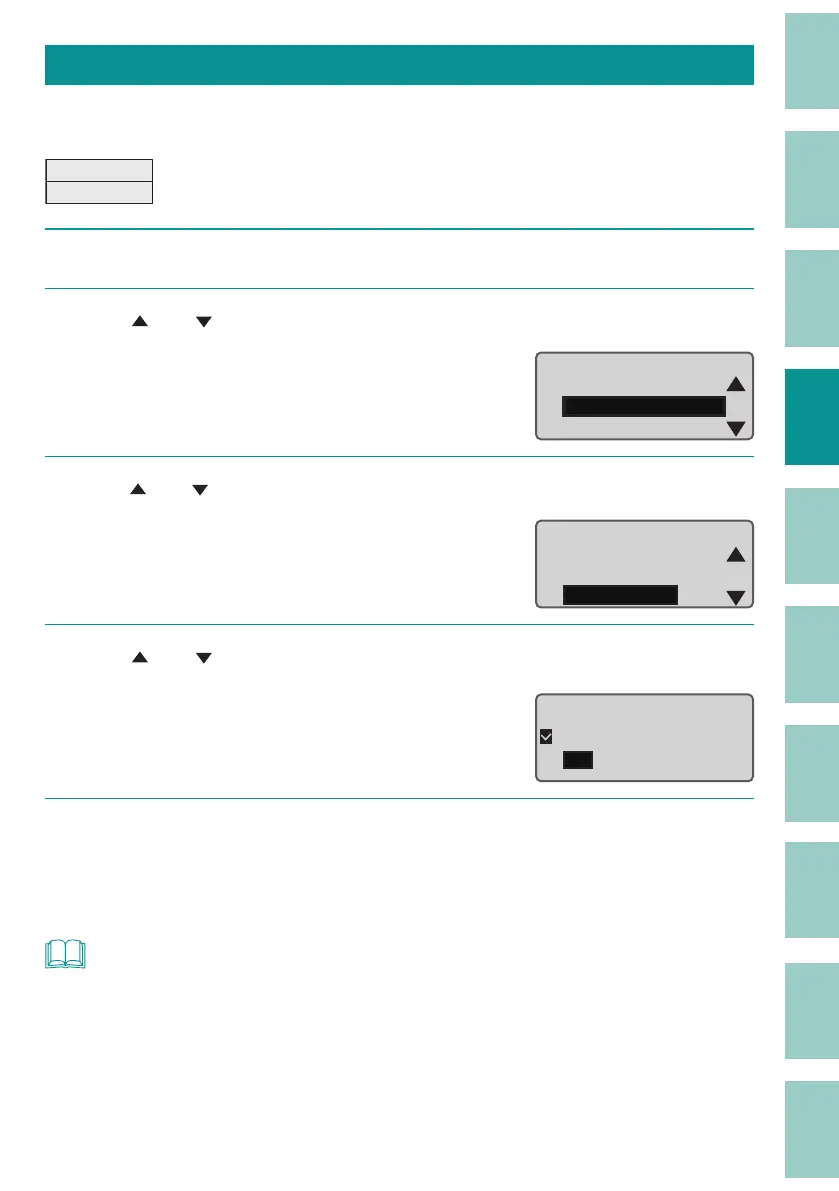
Press the [Settings] key.
2
Use [ ] or [ ] to select "Print Settings" and press the [Enter] key.
Settings
Page Settings
Print Settings
Delete All
3
Use [ ] or [ ] to select " Center Line," and then press the [Enter] key.
Print Settings
Plate Full cut
Underline 6 , 9
Center Line
4
Use [ ] or [ ] to select "On," and then press the [Enter] key.
When printing, a solid line will be printed
between the rst and second lines.
2⒐
2Q
Center Line
5
Press the [Shift]+[Canc] keys.
The display returns to the character input
display.
NOT
• The settings for this function are applied to all pages. You cannot change the settings for each page.
• The center line will not be printed in the following cases.
- When the number of lines is "1 Line" or "3 Lines."
- When the orientation is "Vert/Hor char."



 To Next Page