165
Contents
Preparation/
Setup
Print Using a
Computer
Appendix
IndexPrint/SaveInput/Edit
Names of
Components
Maintenance/
Printer Settings
Trouble-
shooting
4
Click [Print data in the Printer] on the [Remote] menu.
IMPORTANT
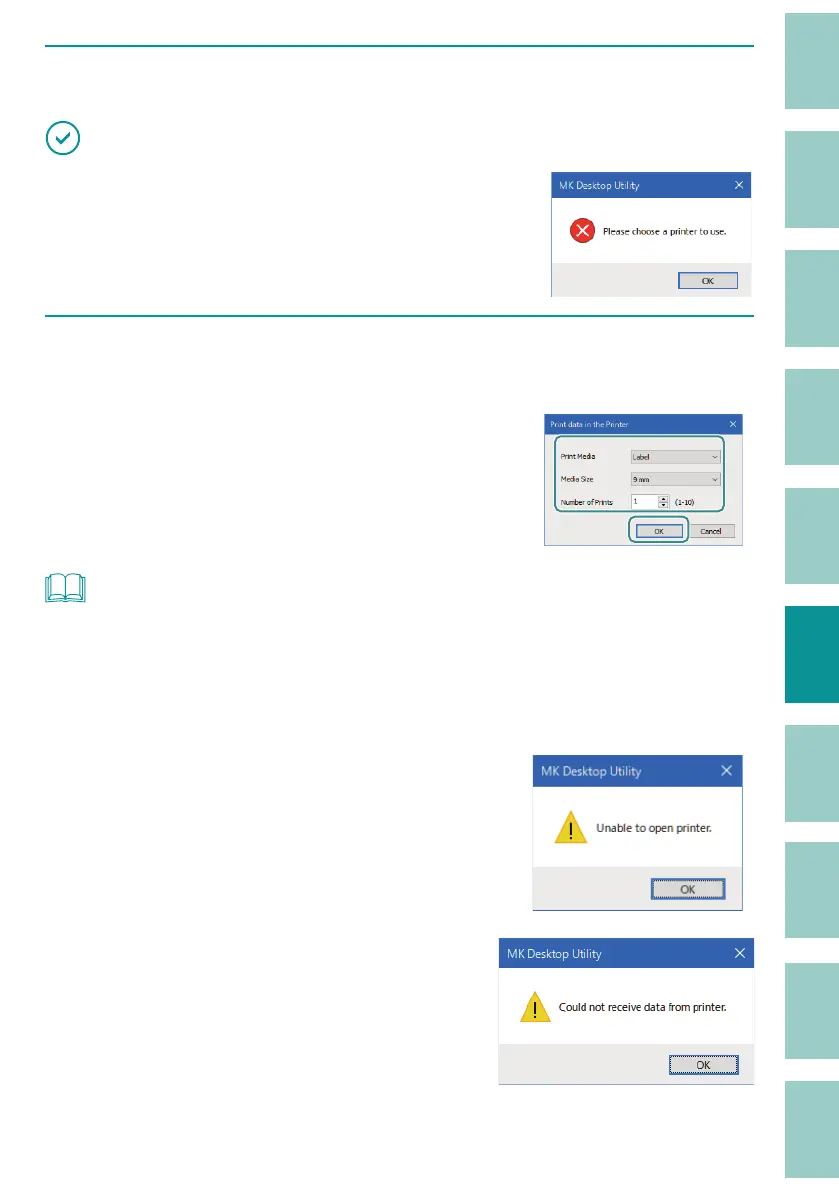
• If the message is displayed, the printer to use is not
selected. Select the printer from [Select printer] on the [File]
menu.
(P.164)
5
Specify the print media, media size, and the number of tubes (or labels) to
print, and then click [OK].
The data stored on the character input display
will be printed.
NOT
• If you want to check the data stored in the character input display, release the PC connection status.
Make sure that "Receiving" is not shown on the printer's display, and then press the [Canc] key.
• Except for labels/plates, the minimum set length is 8 mm. If there is a page that is less than 8 mm
long and the print media is changed to other than label/plate, the set length is changed to 8 mm and
printed.
• If the message "Unable to open printer." appears, con rm
the following.
- The printer is turned on and the computer is connected
to the printer with a USB cable.
- The printer is selected correctly.
(P.164)
• If the message "Could not receive data from printer."
appears, the printer has not switched to the PC connection
mode. Switch the printer to PC connection mode.
(P.164)


 To Next Page