224
Contents
Preparation/
Setup
Print Using a
Computer
Appendix
IndexPrint/SaveInput/Edit
Names of
Components
Maintenance/
Printer Settings
Trouble-
shooting
7
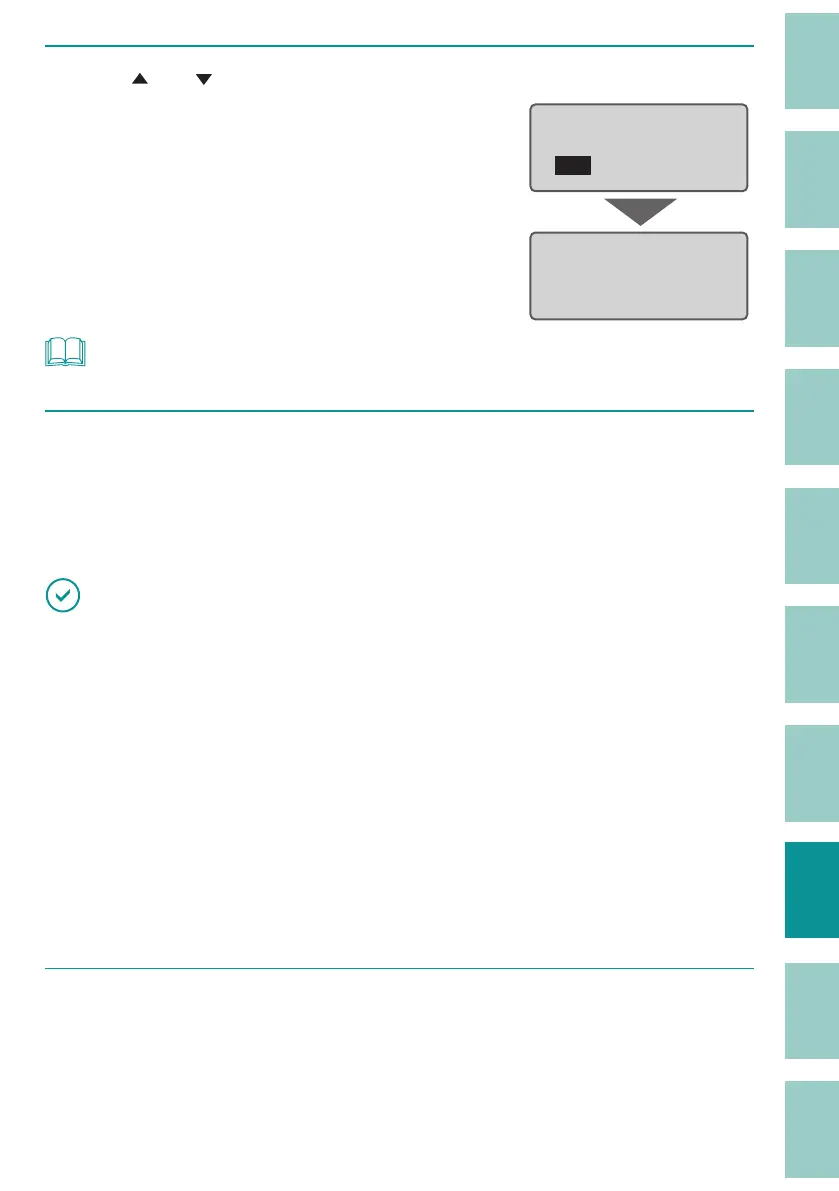
Use [ ] or [ ] to select "Yes" and press the [Enter] key.
If you select "Yes", the printer will be on standby
state to receive from the rmware update le.
No
Yes
Firmware update
Please update the
rmware with update
le via PC.
NOT
• If you want to cancel the standby state, turn o the printer.
8
Execute the rmware update le (.exe) on the computer.
After checking the current rmware version and the version of the updater, click [Send].
When the update is complete, the printer will automatically turn o .
IMPORTANT
• Don't do any of the following while updating the rmware.
- Turn o the power.
- Unplug the USB cable.
- Operate any component of the printer.
- Send data to the printer from an application or a printer driver.
- Put/allow the computer to sleep (the update may not be performed properly if the computer goes
into sleep mode.)
• If any of the following occurs, the update may not have been performed correctly. Please check the
rmware version on your device.
- The update may have been interrupted in the event of a power outage, etc.
- The "Firmware update complete" dialog box does not appear at least 20 minutes after starting the
update.
9
After con rming that the update is complete, close the rmware update le
screen.
This completes the rmware update.



 To Next Page