48
44000-UG-01-01-EN_CPI_Paypod Embedded Pay Station_User Guide_V1.1.pdf
Paypod™ Embedded Pay Station
Operation
Published by CPI
As an option, the pay station's POSlinq™ middleware can be installed to provide communication with the POS control
unit software. The sections in this chapter describe the pay station operation using the POSlinq™ middleware.
When starting the POSlinq™ software you have to log in with your user ID and password provided
by your POSlinq™ software administrator.
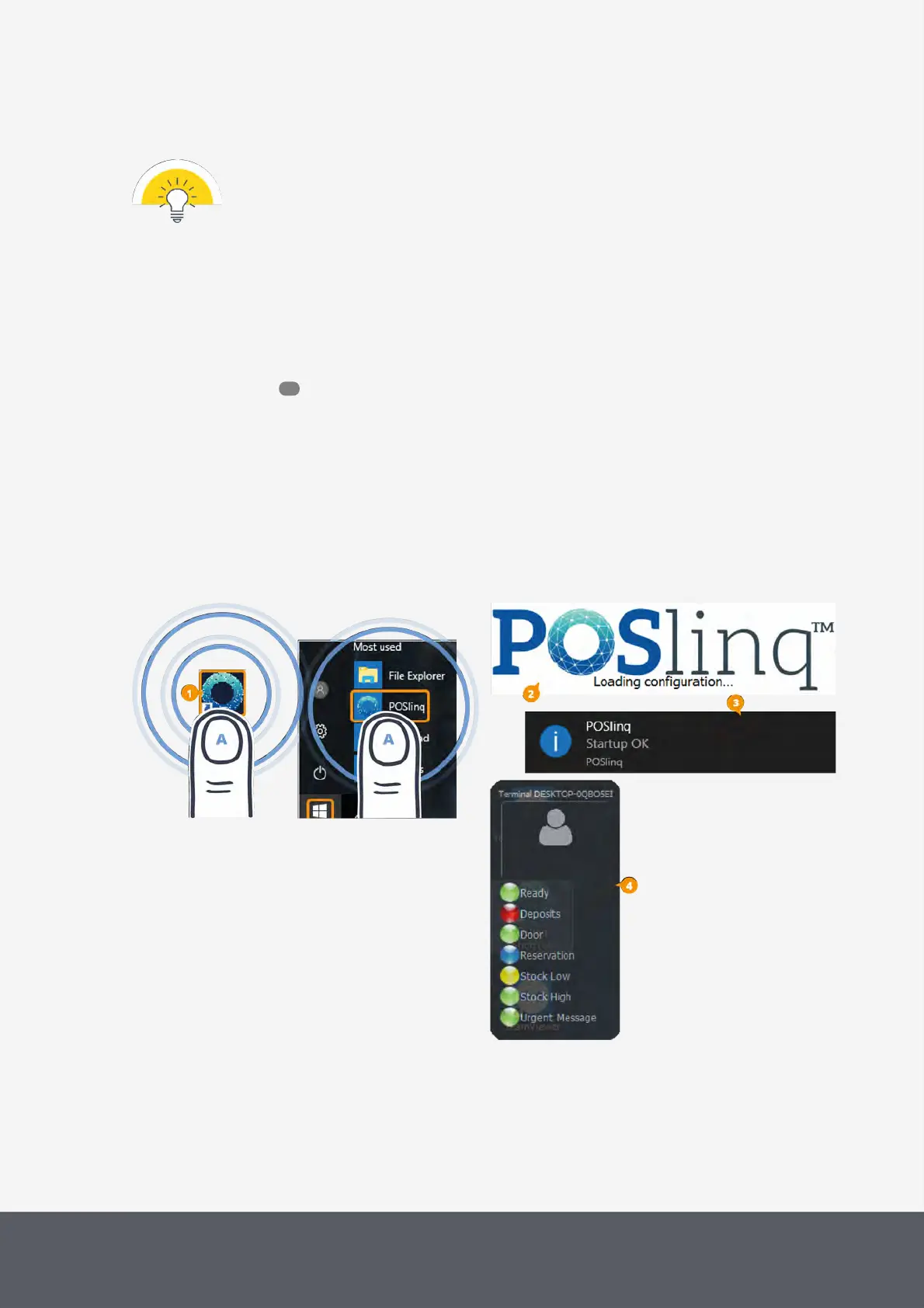
After having switched the pay station on and started your POS software you can also start the POSlinq™ middleware:
1 Double-tap the POSlinq™ software icon[1] on the POS desktop for instance[A] or select from the start
menu[A].
While the loading screen[2] is displayed the middleware is started and the coin and banknote recyclers are ini-
tialized. This can take a few minutes.
2 Wait until the Start Up OK message[3] and then the middleware's Terminal interface[4] comes up showing the
pay station status .
The input funnel LED stops flashing and is white now[5]. The banknote bezel LEDs are off[6].
3 If necessary, in your POS software, establish communication with the POSlinq™ middleware.
4 Tap the user icon[7] on the middleware's Terminal interface[B].
A dialog box[8] asks you to enter your log-in data.
5 Use the on-screen numeric pad[9] to enter your userID and password and confirm with Validate[C].
The user icon is now showing your userID[10]. After a while, the Terminal interface closes and a status indi-
cator[11] should flash green in the top left screen corner above a star icon, the color of which depends on your
user rights.
POSlinq™ Loading Screen and Terminal Interface
49



 To Next Page