53
44000-UG-01-01-EN_CPI_Paypod Embedded Pay Station_User Guide_V1.1.pdf
Operation
Paypod™ Embedded Pay Station
Published by CPI
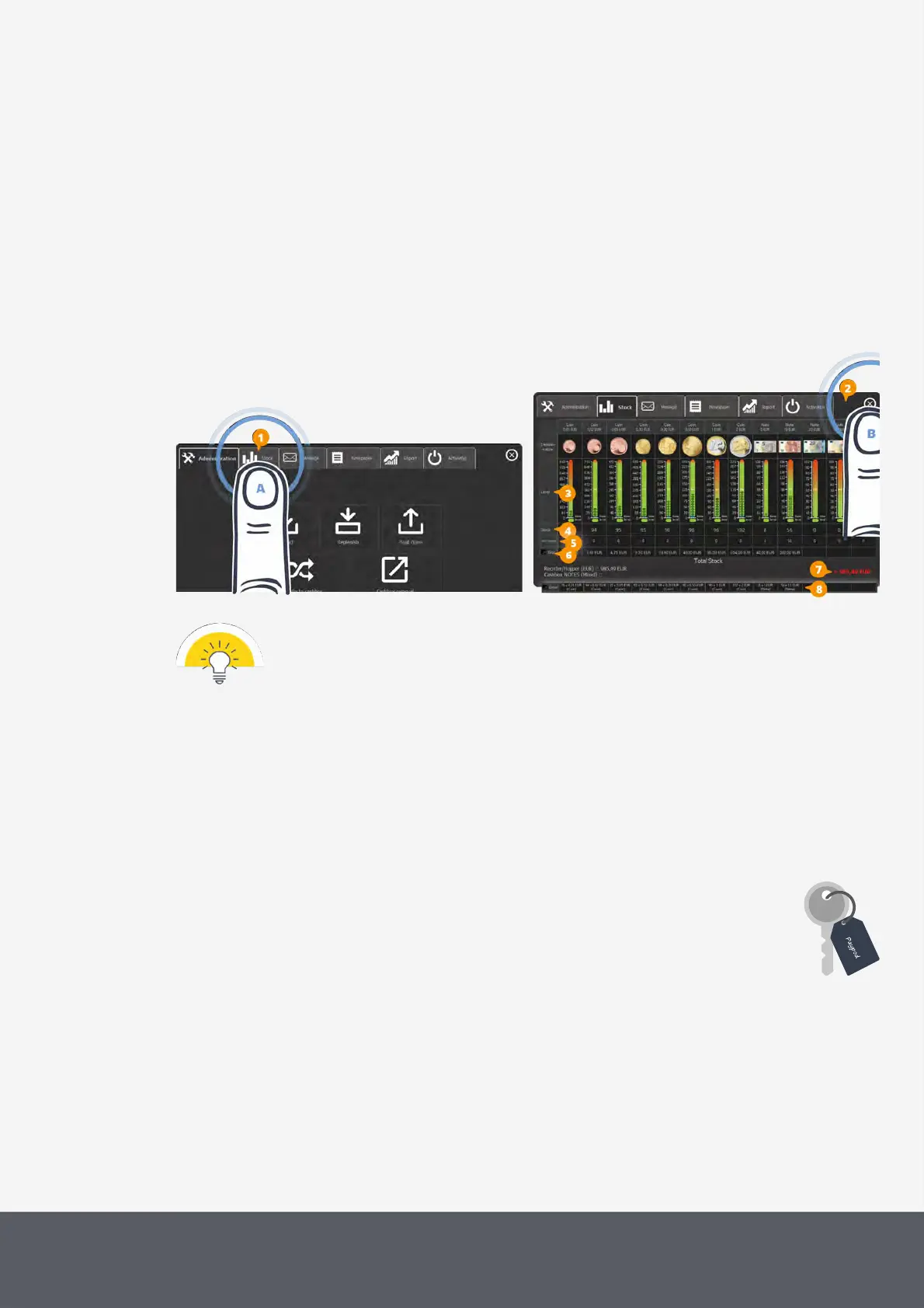
2 Select the Stocks tab[1][A].
The Stocks screen[2] provides an overview of the cash amount collected in the pay station's coin and banknote
recycling units as well as in the cash box:
· Filling level[3]
· Number of coins/banknotes in relevant recycling unit or banknote cash box[4]
· Number of banknotes in the E24loading unit[5]
· Total value per coin/banknote in relevant recycling unit or banknote cash box[6] (product of number of
coins/banknotes and coin/banknote value)
· Total value of all coins and banknotes in all recycling units and banknote cash box[7]
· Product of number of coins/banknotes and coin/banknote value in relevant recycling unit[8]
Opening POSlinq™ Stocks Screen (Administration Tab)
Tapping a Total field[6] in one of the denomination columns displays details[8] on the amount of
each coin and banknote denomination.
To close the Stocks screen
3 Tap the X in the right top corner[B].
4.7 Opening and Closing the Paypod™ Pay Station
The pay station's cash payment components are locked by a door. You may open the pay station to ex-
tract the payment components for filling or cleaning operations for instance:



 To Next Page