71
44000-UG-01-01-EN_CPI_Paypod Embedded Pay Station_User Guide_V1.1.pdf
Handling Cash
Paypod™ Embedded Pay Station
Published by CPI
Handling Cash5
Whenever cash needs to be filled or collected you will be advised on the POS screen, e.g. through a
status message of the POSlinq™ middleware. Read here how to
· Refill recyclers with cash
· Transfer banknotes to cash box
· Dispense cash, empty cash recyclers
Most of the cash handling should be done by a user logged on as an administrator (red star indic-
ator ).
5.1 Refilling Recyclers with Cash
In order to ensure that all cash counters are increased correctly, refilling cash is controlled by the POS software
provided by our customers' POS software partner. The filling process thus differs from application to application in
terms of user interface and the interaction with it, whereas the cash insertion process itself always remains the same.
The sections in this chapter describe the pay station filling process using the POSlinq™ middleware.
In case cash runs short you should get a message signaling that coins or banknotes have to be refilled:
· Refilling coins
· Refilling banknotes
The maximum capacities are displayed on the POSlinq™ middleware's filling screen, or refer to the technical charac-
teristics .
5.1.1 Refilling Coins
In case cash runs short, the pay station has to be refilled with coins by inserting the missing hopper coins into the in-
put funnel. The POSlinq™ middleware's filling screen tells you how many coins you may replenish to maximum stock
level.
· Inserting the coins in the input funnel and not in the coin hoppers directly, ensures that all coin
counters are increased correctly.
· For the filling procedure you have to be logged on as an administrator.
To refill the coins
1 If necessary, wait until a transaction has been fin-
ished.
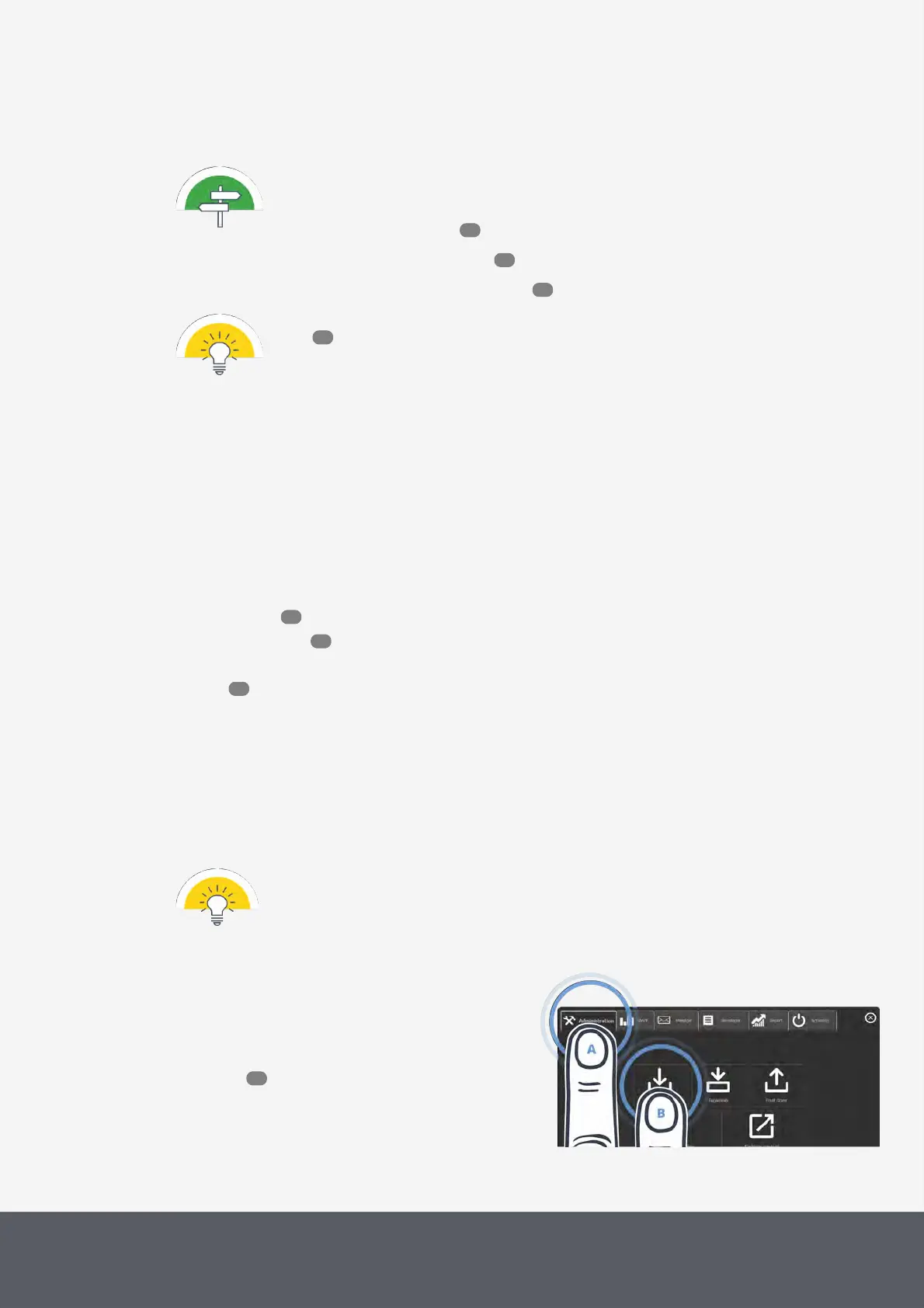
2 On the main screen of the POSlinq™ middle-
ware , select the Administration tab[A] and then
Reload[B].
The filling screen displays all coin and banknote de-
nominations programmed and their relevant filling
numbers:
Opening POSlinq™ Filling Screen
71
78
80
49
71
74
129
52



 To Next Page