49
44000-UG-01-01-EN_CPI_Paypod Embedded Pay Station_User Guide_V1.1.pdf
Operation
Paypod™ Embedded Pay Station
Published by CPI
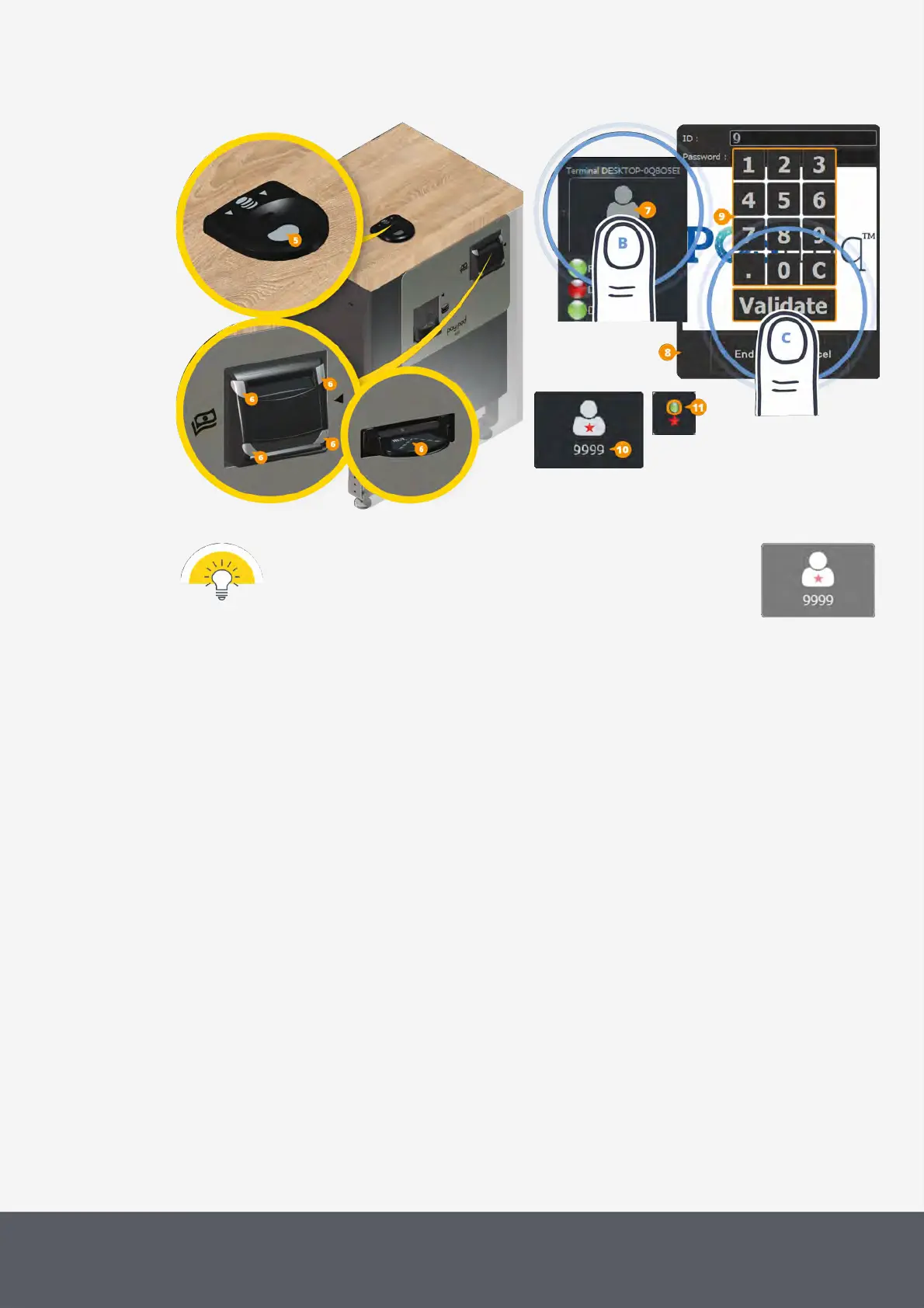
Paypod™ Ready to Process Transactions after POSlinq™ Start
No star on the user icon and a flashing white star identifies the user logged
in to the system as a simple user, a black star as a manager, a red star as
an administrator.
To log off POSlinq™ middleware:
6 Tap the user icon[7] on the middleware's Terminal interface to log off.
4.3 Checking the Paypod™ Pay Station Status
Before checking out products for the first time please have a short look at the status display to ensure that the Pay-
pod™ pay station is ready for payment. The Terminal box of the POSlinq™ middleware is displayed once the middle-
ware has been started and shows the pay station's status.
If, for configuration reasons, the Terminal interface is not shown but a red star icon flashing from green to yellow, tap
the red star icon.
Then the Terminal interface will open:



 To Next Page