50
44000-UG-01-01-EN_CPI_Paypod Embedded Pay Station_User Guide_V1.1.pdf
Paypod™ Embedded Pay Station
Operation
Published by CPI
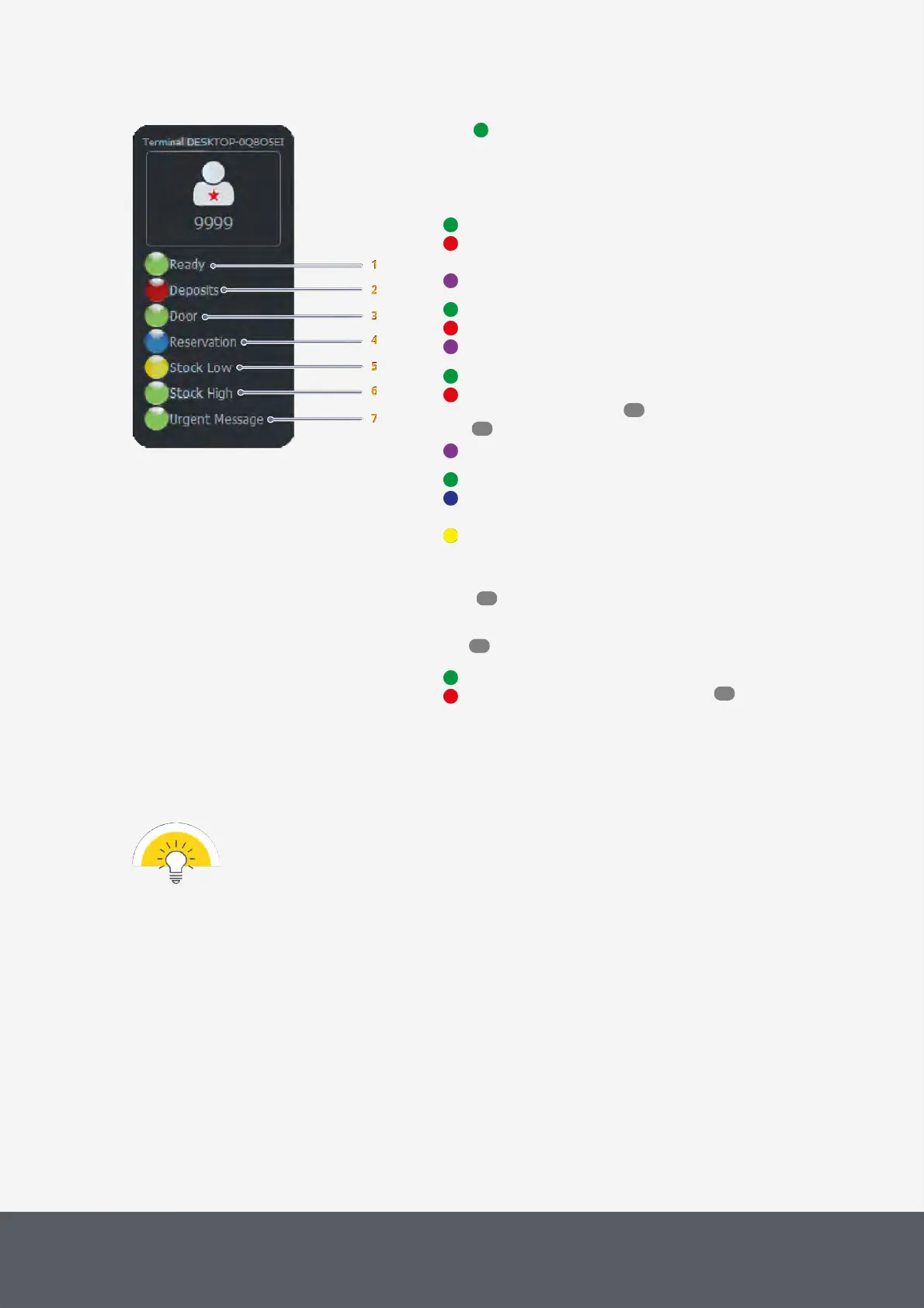
POSlinq™ Terminal interface
A green Ready indication shows the pay station is ready for a
transaction.
Other color indications may demand your attention (i.e., refilling,
emptying):
1 all is working
pay station is malfunctioning. Please check other statuses be-
low.
Current pay station status unknown to POSlinq™ middleware
2 pay station enabled. Cash can be inserted.
pay station disabled.
status unknown
3 all doors closed
at least one door open. Please ensure that all devices are
closed (Paypod™ pay station as well as payment compon-
ents ).
status unknown
4 pay station free
pay station reserved for a payment. Please wait until the trans-
action has been completed.
reserved by another till. Please wait until the transaction has
been completed.
5 At least one denomination is at its low level and has to be re-
filled .
6 At least one denomination is at its high level and has to be emp-
tied .
7 No error
Error message. Please try to fix the error .
4.4 Processing a Transaction
In case there are several pay stations connected to the POSlinq™ middleware, you can use the
status interface to select/change the pay station you want to use for payment:
Tapping the name of the active pay station at the bottom of the status interface opens a dialog box
to activate another pay station either for one transaction or for all future transactions (permanent
change).
To process a transaction
1 On your POS user interface, select the desired products and sum up the total amount due.
The price to be paid by your customer is displayed.
2 On your POS user interface, tap on the button triggering the payment process (e.g., Cash).
The payment dialog box[1] of the POSlinq™ middleware opens.
3 Ensure that the box shows the Total to Pay sum[2] at the top.
· The E22 coin input[3] and banknote insertion LED[4] is flashing green asking the customer to pay his
products selected.
· The E23/E24 coin input LED[3] is flashing green and the two banknote insertion LEDs[4] are green
53
46
71
80
113



 To Next Page