79
44000-UG-01-01-EN_CPI_Paypod Embedded Pay Station_User Guide_V1.1.pdf
Handling Cash
Paypod™ Embedded Pay Station
Published by CPI
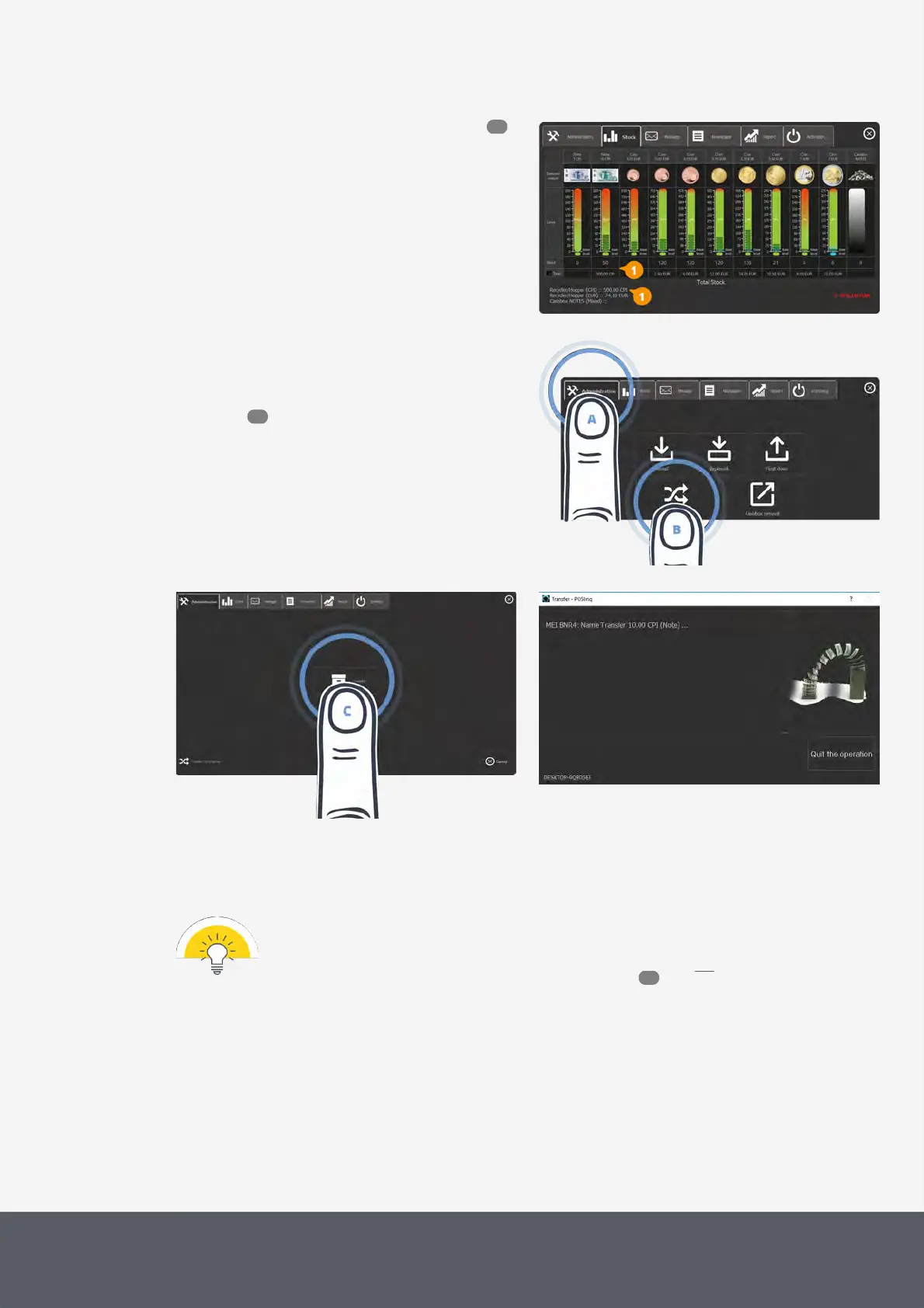
The right-hand example shows a recycler stock of
5010-value CPI banknotes[1] to be transferred to the
cash box:
POSlinq™ Stocks Screen with Banknote Recycling Capacity
1 If necessary, wait until a transaction has been fin-
ished.
2 On the main screen of the POSlinq™ middle-
ware , select the Administration tab[A] and
then Transfer to Cash Box[B].
The transfer to cash box screen is displayed:
Opening POSlinq™ Transfer to Cash Box Screen
Starting Banknote Transfer to Cash Box
POSlinq™ Transfer to Cash Box Status Screen
3 Tap the Transfer icon[C] to start the banknote transfer from the recycling units to the cash box. (Depending on
configuration, banknotes may also be dispensed through the insertion/return slot.)
This can take a few minutes. A status window traces the process and enables you to Quit the Operation.
Most of the applications require a minimum stock of banknotes to remain in the recycling unit(s) for
the next day.
This minimum stock varies depending on the configuration and will not be transferred to the cash
box and would have to be dispensed banknote by banknote .
As soon as all banknotes are transferred, the middleware returns to the Administration screen.
4 Tap the X button to close the screen[D].
The pay station is back in operating mode and ready for the next transactions.
The recycling unit counters are reset[1] and the cash box counter is increased[2].
52
52
84



 To Next Page