EasyManua.ls Logo

DataCard SD260 - User Manual

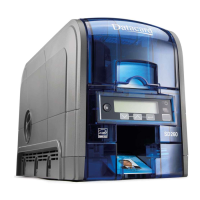
DataCard SD260
216 pages
Print Icon
To Next Page IconTo Next Page
Loading...
Datacard
®
XPS Card Printer
Installation and User Guide
October 2011
Part No. 539957-001, Rev B

Table of Contents

Other manuals for DataCard SD260

Questions and Answers

  • U
    uaustinSep 8, 2025
    How to fix DataCard Printer when PC USB port does not communicate reliably?
    • M
      matthew56Sep 8, 2025
      The PC's power management might be shutting down USB communication. To resolve this, open the Device Manager and the list of USB devices, then disable shutdown for each hub in the list. You might need to restart the PC for the changes to take effect. If you are using a laptop, give it a few moments to enable USB communication after hibernation. Try unplugging and reconnecting the USB printer port. As an alternative, replace the PC port or the PC.
  • C
    Colleen ShannonSep 7, 2025
    What to do if DataCard SD260 Printer USB not detected?
    • M
      Melinda OwensSep 7, 2025
      If you receive an error message stating that the USB is not detected, it indicates that the USB installer timed out and a printer was not detected. You should remove the printer driver before re-installing the printer.
  • W
    William AndersonAug 22, 2025
    What to do if DataCard Printer USB cable is connected before driver installation?
    • T
      timothy78Aug 22, 2025
      The first printer installed on a PC using a USB connection must be installed from the driver CD or downloaded driver. Remove the driver before re-installing the printer.
  • R
    Ronnie CaseySep 4, 2025
    Why is the 'Print Sample Card' button not available for my DataCard Printer?
    • S
      Steven HoffmanSep 4, 2025
      The 'Print Sample Card' button in Printer Properties is enabled when the printer and Card Printer Driver communicate normally.
  • J
    Jon HernandezSep 3, 2025
    Why is the PC USB port not communicating with the DataCard SD260 Printer USB port?
    • G
      gibbsrachaelSep 3, 2025
      Power management on the PC has shut down USB communication.
  • K
    Kenneth WalkerSep 1, 2025
    What to do if the network cable is loose on my DataCard SD260 Printer?
    • A
      Ashley OrtizSep 2, 2025
      If the network cable is loose, reconnect the data cable to the network port and the printer, ensuring it's securely snapped in. Then, restart the printer.
  • R
    rayjeffreyAug 31, 2025
    What to do if the data cable of my DataCard Printer is damaged or frayed?
    • J
      Jonathan RhodesAug 31, 2025
      If the data cable is damaged or frayed, power off the DataCard printer. If you have a spare cable, replace the damaged one. Otherwise, contact your service provider to order a new data cable.
  • H
    hwashingtonAug 30, 2025
    What to do if the cable is loose on my DataCard Printer?
    • C
      christopher61Aug 30, 2025
      If the cable is loose on your DataCard Printer, reconnect the USB cable to the ports on the PC and the printer. Power the printer off, and then back on. If the PC and printer still do not communicate, restart the PC.
  • L
    Lisa WaltersAug 28, 2025
    Why does my DataCard Printer have a temporary communication problem?
    • H
      Howard Wagner IIAug 29, 2025
      Temporary communication problems with your DataCard Printer may be due to several factors. Check the following: USB extension cables can cause communication problems. The recommended USB cable is 6-ft. (2 meters) long and rated for USB 2.0 data transmission. If you are using a USB hub, a self-powered hub is recommended.
  • F
    Felicia KaufmanAug 27, 2025
    What to do if I get an error message that the USB is not detected on my DataCard SD260?
    • P
      Patrick OlsonAug 27, 2025
      If you receive an error message stating that the USB is not detected, it means the USB installer timed out before a printer was detected. Remove the Card Printer Driver from the Device Manager before reinstalling the printer.

Summary

Chapter 2: Installation Requirements

PC Requirements

Lists the minimum hardware and operating system specifications for the PC.

Chapter 3: Install the Printer

Choosing Your Installation Method

Outlines installation methods: Driver CD, Download, Printer Sharing, and Pooling.

Install the Printer Driver

Overview of procedures for installing the printer driver.

USB Installation using the Installation CD

Step-by-step guide for installing the printer via USB using the installation CD.

Network Installation using the Installation CD

Step-by-step guide for installing the printer via network using the installation CD.

Printer Sharing

Guides on setting up and using the printer over a network with shared access.

Chapter 4: Printing Cards

Chapter 5: Using the Printer

Messages and Conditions

Overview of common printer messages and error conditions.

Responding to Messages

Lists common error messages and provides troubleshooting steps for each.

Chapter 9: Removing a Printer from a Windows PC

Removing XPS Card Printer Driver

Step-by-step instructions for uninstalling the XPS Card Printer Driver.

Chapter 10: Troubleshooting

Locate the Problem

Procedure to identify the source of printer malfunctions.

Installation Troubleshooting

Common issues encountered during printer installation and their solutions.

USB Installation Troubleshooting

Specific troubleshooting steps for USB printer connection problems.

Network Installation Troubleshooting

Specific troubleshooting steps for network printer connection problems.

Driver Problems

Troubleshooting issues related to printer driver detection and communication.

Card Appearance

Something did not print

Troubleshooting steps for when no printing occurs on the card.

Printing includes unexpected data

Solutions for resolving issues with extraneous data appearing on cards.

The color printing has flaws

Troubleshooting steps for defects in color printing quality.

The printing is too light

Solutions for issues resulting in faint or light card printing.

The printing in too dark

Solutions for issues resulting in overly dark card printing.

The monochrome printing has flaws

Troubleshooting steps for quality issues in monochrome printing.

Magnetic Stripe

Magnetic Stripe Troubleshooting

Common problems and solutions for magnetic stripe encoding and reading.

DataCard SD260 Specifications

General IconGeneral
Windows operating systems supportedWindows 7 Enterprise, Windows 7 Enterprise x64, Windows 7 Home Basic, Windows 7 Home Basic x64, Windows 7 Home Premium, Windows 7 Home Premium x64, Windows 7 Professional, Windows 7 Professional x64, Windows 7 Starter, Windows 7 Starter x64, Windows 7 Ultimate, Windows 7 Ultimate x64, Windows 8, Windows 8 Enterprise, Windows 8 Enterprise x64, Windows 8 Pro, Windows 8 Pro x64, Windows 8 x64
ColorYes
Print speed (color)200 card/h
Product colorBlue, Grey
Weight and Dimensions IconWeight and Dimensions
Depth391 mm
Width175 mm
Height224 mm

Related product manuals