Dobot M1 User Guide 6 Operation
Issue V1.3.4 (2019-05-23) User Guide Copyright © Yuejiang Technology Co., Ltd
80
Please download the recommended version V15.04.6. The way on how to install and use
is not described in this topic.
The 3D printing model and the firmware have been prepared.
The printing platform has been prepared and please place it in the workspace.
NOTICE
If the SN number of Dobot M1 is DT2118xxxxx and later numbers, please switch 3D
printing mode directly to start 3D printing without an update. If you need to update the
3D printing firmware, please see 6.9.2 Upgrading Firmware.
xxx indicates the random number, please replace it based on site requirements.
Procedure
If Connect turns to Disconnect, the connection is successful.
Select Tools > Web Management on the M1Studio page.
The Web management page is displayed.
Select Home in the navigation tree on the left.
The Home page is displayed.
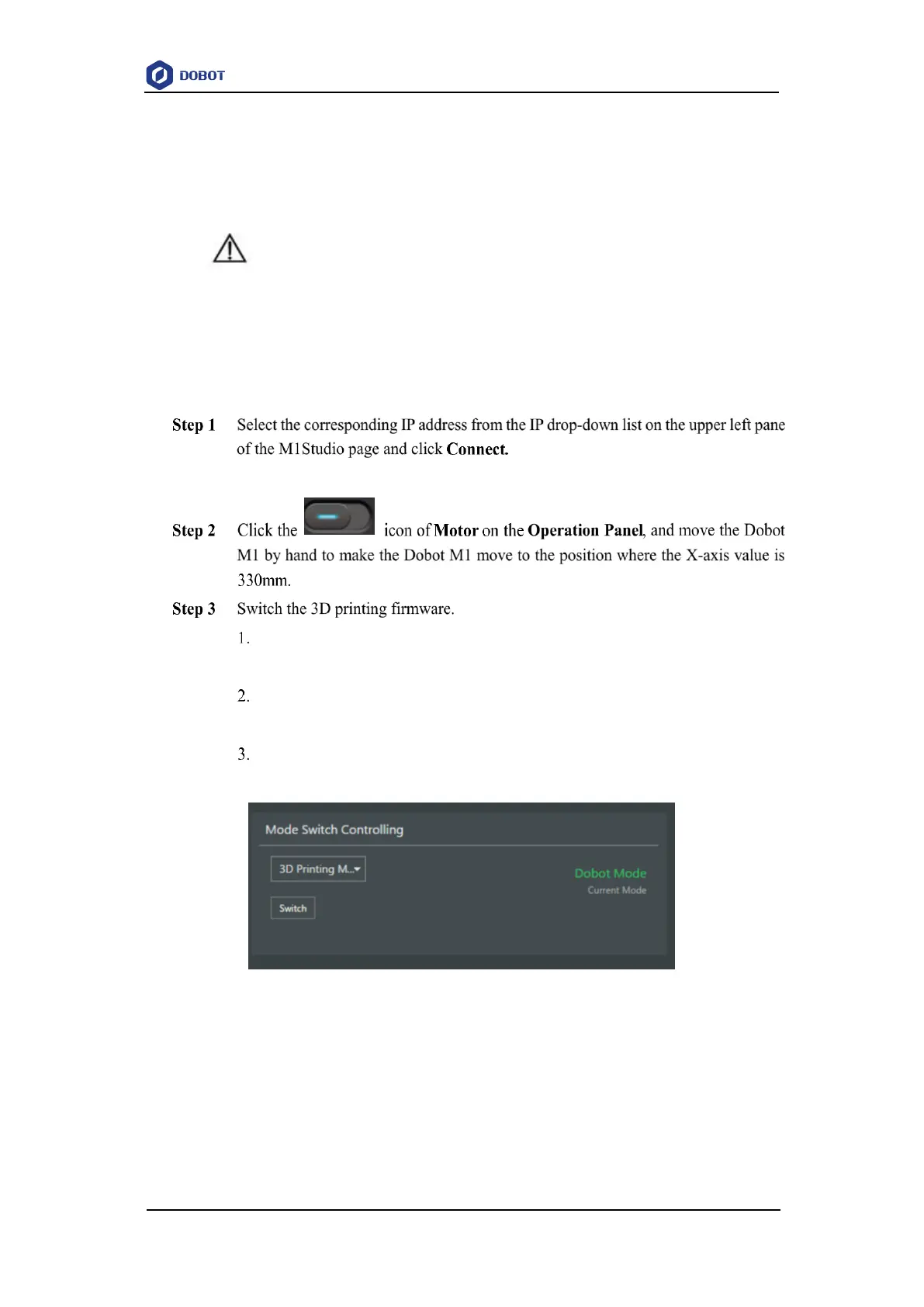
Select 3D printing Mode from the drop-down list on the Mode Switch
Controlling pane of the Home page and click Switch, as shown in Figure 6.19.
Figure 6.19 Switch 3D printing
During switching, the green LED indicator will keep on. After completion, the
green LED indicator will be blinking and Current Mode is changed to 3D
Printing Mode, as shown in Figure 6.20.


 To Next Page