Dobot M1 User Guide 6 Operation
Issue V1.3.4 (2019-05-23) User Guide Copyright © Yuejiang Technology Co., Ltd
88
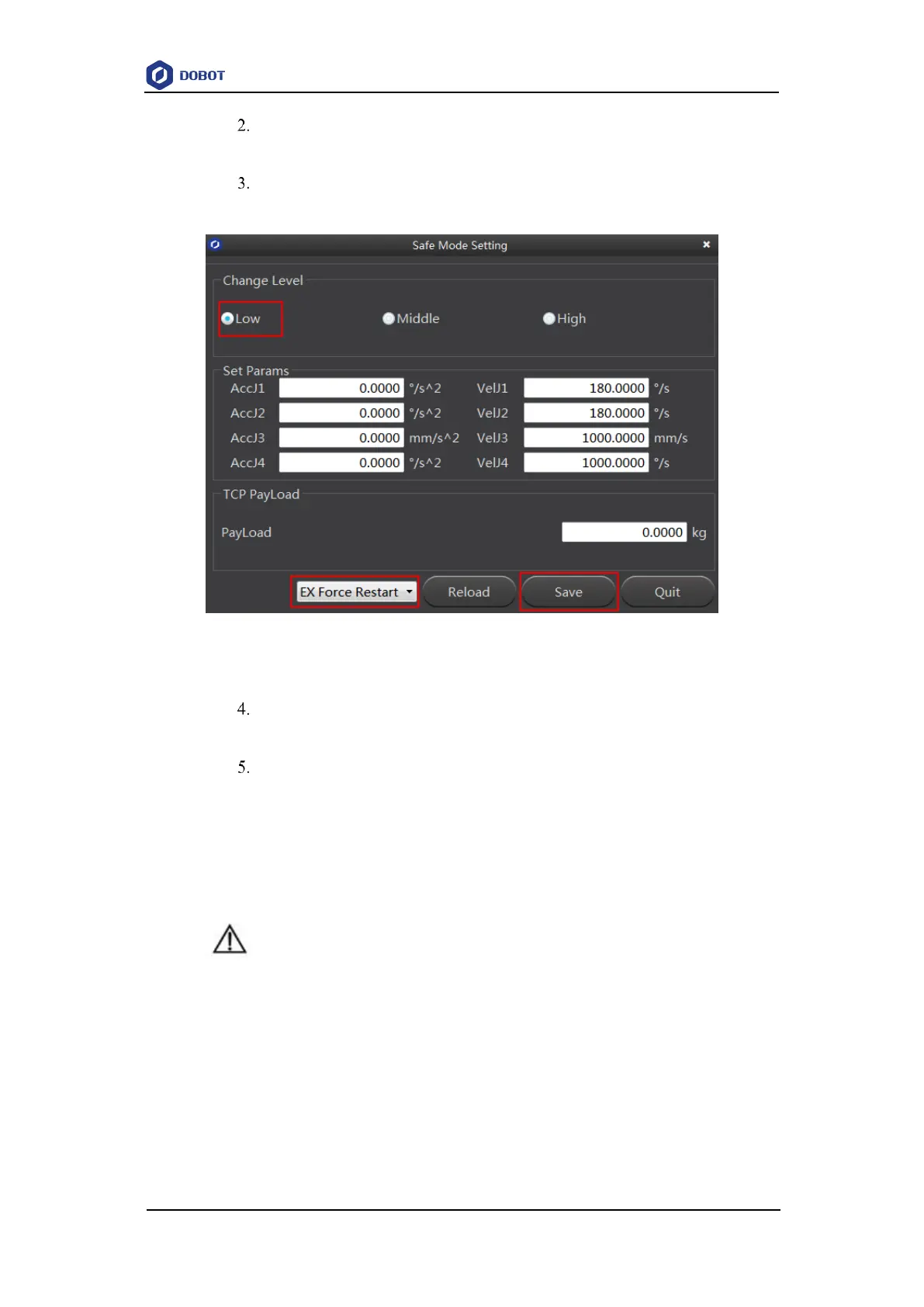
Select Tools > SafeSetting… on the M1Studio page.
The Safe Mode Setting page is displayed.
Set Change Level to Low, PayLoad to 0, select EX Force Restart and click
Save, as shown in Figure 6.30.
Figure 6.30 Set collision detection parameters
Select Tools > DynamicSetting… on the M1Stuido page.
The Dynamic Setting page is displayed.
Be sure to understand the precautions shown on the Dynamic Setting page and
then click Start.
After the process bar is 100%, the kinetic parameters will be obtained
automatically, as shown in Figure 6.31.
If the kinetic parameters you get is quite different from Figure 6.31, please re-
execute 1 - 5 since the obtained kinetic parameters are wrong.
NOTICE
When obtaining the kinetic parameters, the robot arm will move in random
directions for a while. Please make sure that there are no obstacles within the
workspace, to avoid obtaining wrong kinetic parameters because of collision.
During robot arm running, please do not perform any other operation on the Dobot
M1 or power off it, to avoid the Dobot M1 in an abnormal condition
When the unexpected occurs during robot arm running, please click Stop on the
Dynamic Setting page.


 To Next Page