Release date: 01 Nov 2021
Revision: 1.0
•
•
•
3.3.3.3 Hovermap workflow
The icons on the right-hand side of the Hovermap App are the settings that need to be checked before
every flight. The standard procedure is to work from top to bottom, ensuring that all settings have been
checked and are correct. This section outlines the settings that are contained within each section.
Hovermap Wi-Fi connection settings
Press the Hovermap Wi-Fi Connection button to open the Wi-Fi settings panel. This allows you to
connect to Hovermap’s Wi-Fi.
Green: Indicates that you are connected and communicating with Hovermap.
Gray: Indicates that no Wi-Fi connection has been established. The Wi-Fi is either off, or not
connected to a network.
Red: Indicates that you are connected to a Wi-Fi network, but Hovermap is either not on this
network or not responding.
Mission settings
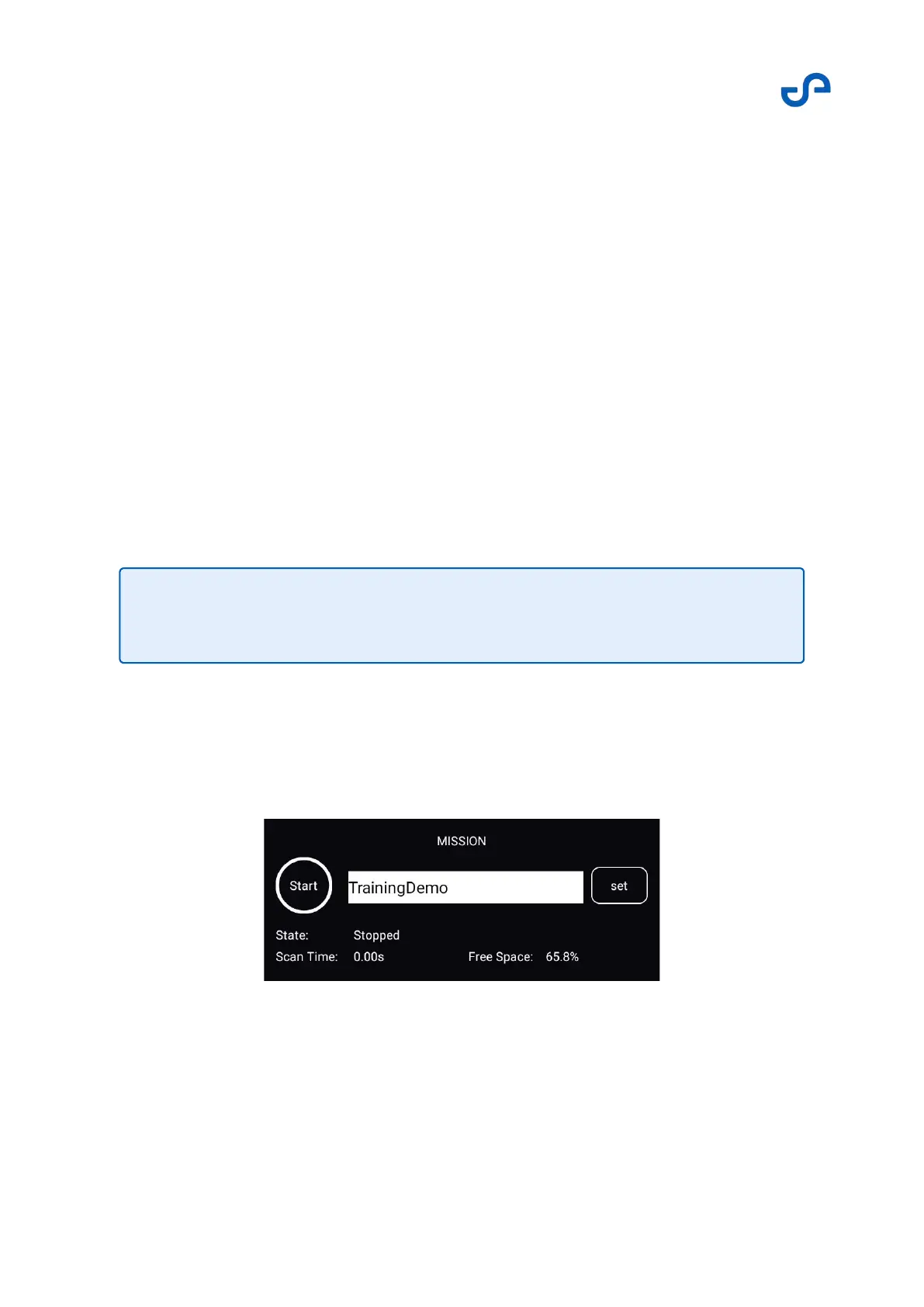
Press the Mission button to open the menu. The mission settings allow you to set the scan name, or to
start or stop a scan.
When idle, the mission settings appear as follows:
Note
The password is hovermap.



 To Next Page