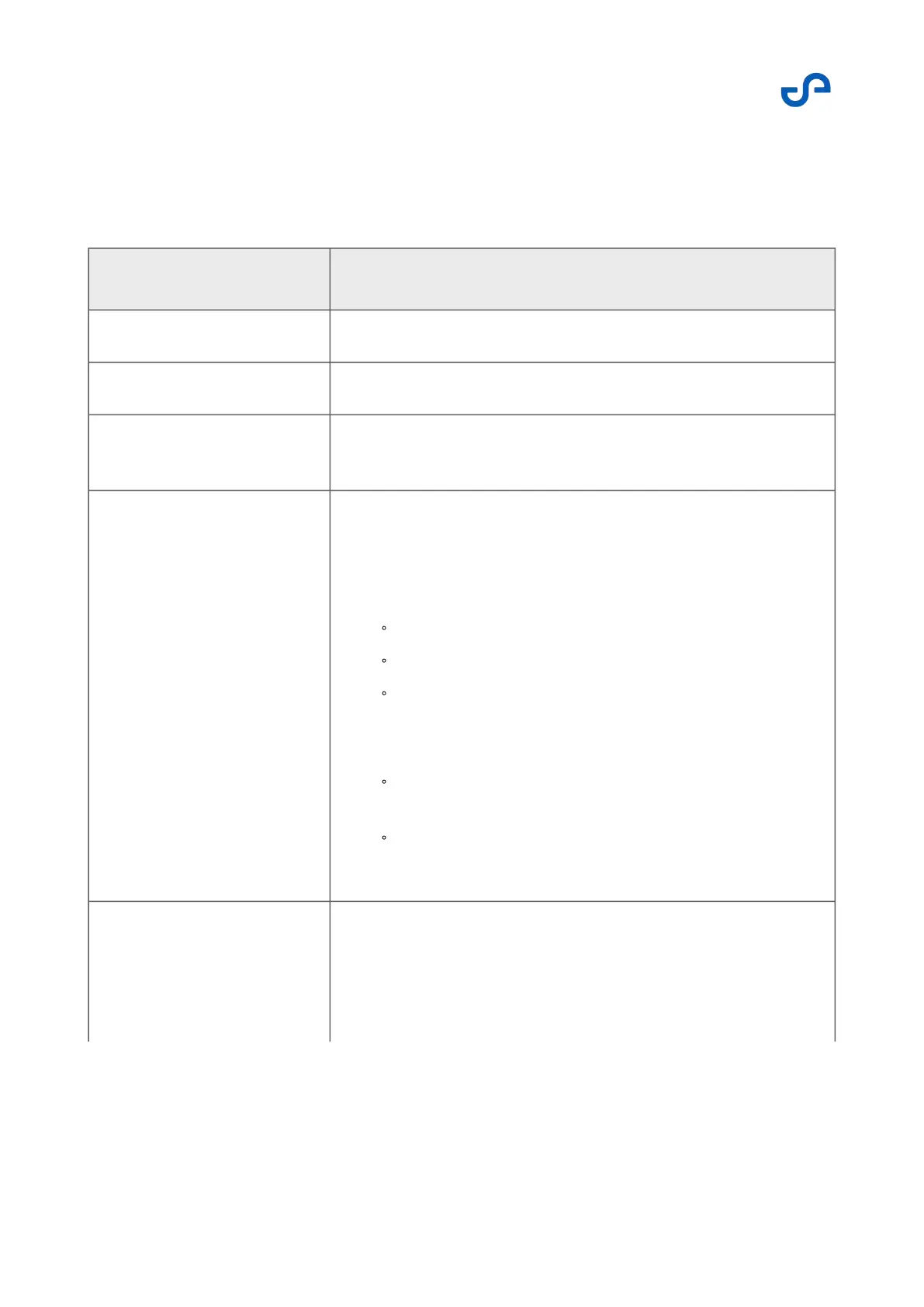
The following options are available.
Table 5 Renderer settings
Field Data
Current Pointcloud Allows you to export the current point cloud as a CSV file.
Cursor Choose your preferred icon to show the location of the drone.
Past Trajectory Turn this setting on to show the path traveled by the drone. Press
Clear to remove the trajectory from the display.
Points
Size: Increase or decrease the size of the points in your point
cloud. The maximum point size is 15.
Opacity: Use this setting to control how opaque the points in
your point cloud are.
0: Points are invisible.
0.5: Each point has 50% opacity.
1: Each point has 100% opacity. You will not be able to
see through it.
Colourisation: Choose between the following options:
Solid Colour: Changes the entire point cloud to the
chosen color.
Height Ramp: Choose between options outlined in
Height Ramp Style, below.
Height Ramp Style This setting appears when colorization by height is selected (the
default setting).
Wrap: Bounds are set manually. This style will repeat colors
when points are located outside the set bounds. It renders
larger environments faster.



 To Next Page