48 System Maintenance
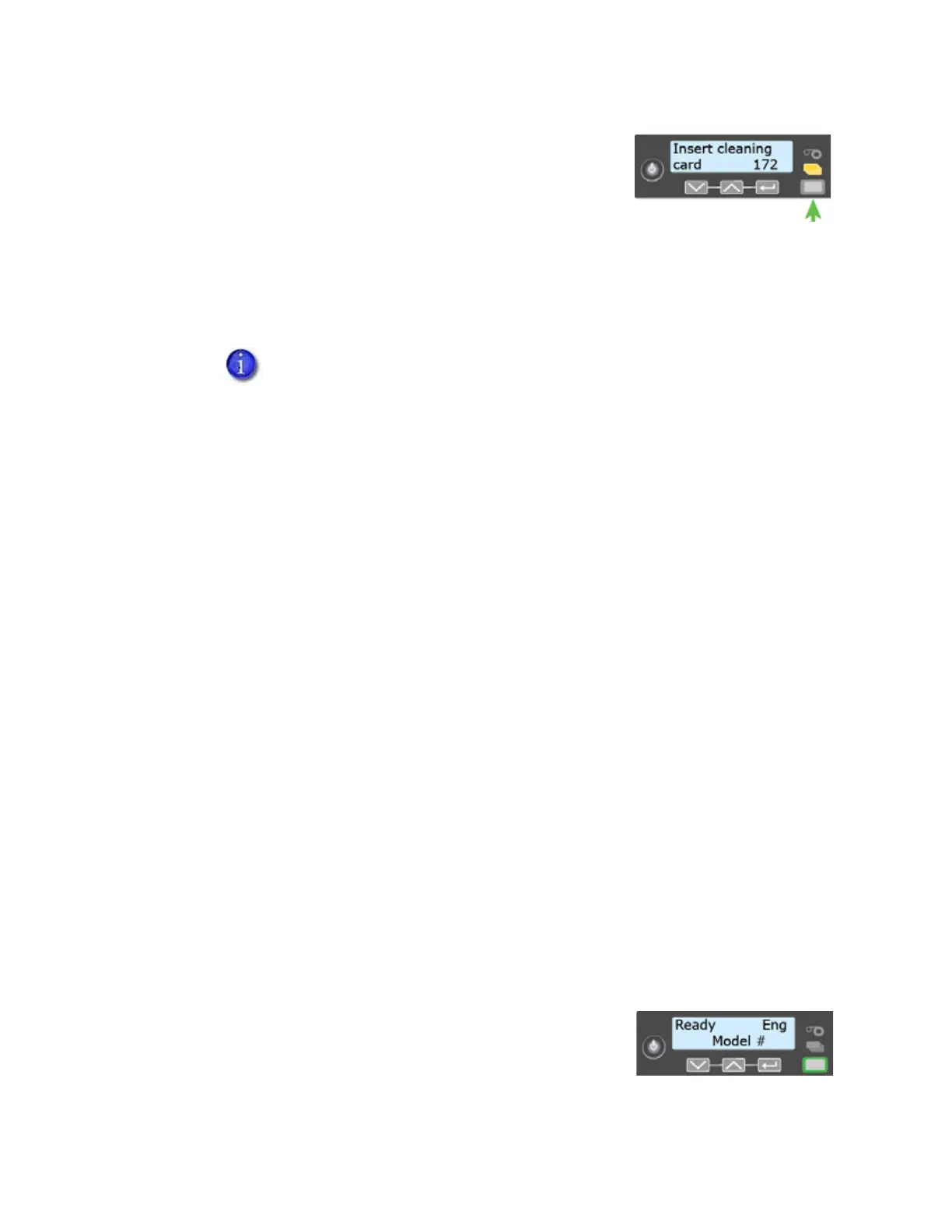
f. Insert cleaning card displays on the LCD panel. Press the
U
SER button to start the cleaning cycle.
The printer moves the card through the printer several
times. If the vertical option is installed, the card moves
into the vertical area and cleans the rollers located there.
At the end of the cleaning cycle, the double-sided, sticky cleaning card can stick as it
enters the printer reject tray (RT1). The isopropanol cleaning card is ejected into the
printer reject tray.
2. Prepare the printer for use.
a. Unlock the single input hopper.
b. Replace the cards in the input hopper and close the hopper.
c. Unlock the printer access door and open the door.
d. Remove the ink ribbon cartridge (C1) from the printer.
e. Install a new cleaning sleeve and replace the cleaning spindle in the printer. Refer to
“Replace the Cleaning Sleeve” on page 35 for the steps to follow.
f. Load a new ink ribbon, if necessary. Refer to “Replace the Ink Ribbon” on page 32 for
more information.
g. Remove the used cleaning card from the printer.
h. Remove any rejected cards from the reject tray. Refer to “Empty the Printer Reject Tray”
on page 51.
i. Replace the ink ribbon and retransfer film cartridges and close the printer access door.
j. Lock the input hopper and access door.
k. Press the U
SER button to return the printer to Ready and
make it available to print cards again.
l. Discard the used cleaning card and cleaning sleeve.
When you clean a system with an embosser, the following occurs:
On a single-hopper system, the sticky cleaning card enters the embosser
and stops on top of the emboss wheel. Open the embosser access door to
remove the sticky cleaning card from the system. Remove the indent
cartridge to access the card, if necessary.
On a multi-hopper system, the isopropanol card moves into the embosser
and cleans the card entry area and embosser rollers. The cleaning card is
ejected into the embosser reject tray. Open the embosser to remove the
cleaning card.



 To Next Page