© EPRAD Incorporated
4.3 Configuring via the Web Browser
This section covers the steps required to configure the eCNA-10 for the network. Open your Java
enabled web browser and enter http://192.168.0.254 into the address bar. Press the Enter key and
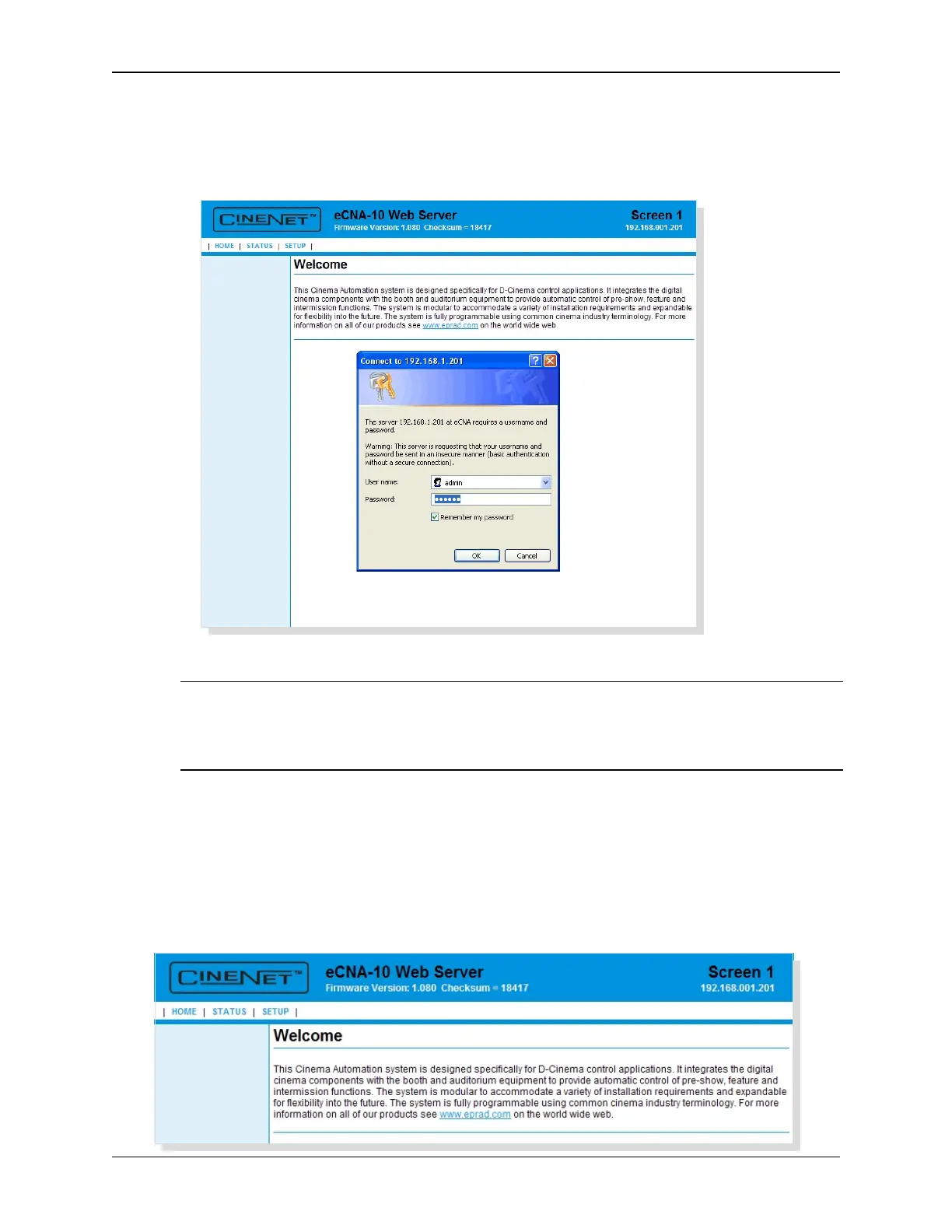
the HOME screen will appear followed by the Password screen.
U
Enter admin in the User name field and 314159 in the Password field. Click on the OK button.
(Note: User level access only allows “viewing” of status and configuration. Enter user in the User
Name field and 3141 in the Password field. Click the OK button.)
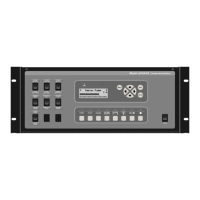
The first screen displayed upon login is the HOME screen. The Firmware Version, Screen Id Number
and IP Address are displayed in the screen header. There are three menu options across the top of
the screen: HOME, STATUS and SETUP.
Note: The unit ships with a default IP address of 192.168.0.254. If this address has been
changed, enter the assigned IP address instead of the default. If you do not know the
address, it can be found from the eCNA-10 front panel display in the Ethernet TCP/IP
settings menu.
18
eCNA-10 Operation and Installation Manual Version 1.270-00


 To Next Page