© EPRAD Incorporated
4.3.30 Setup: Program Editor
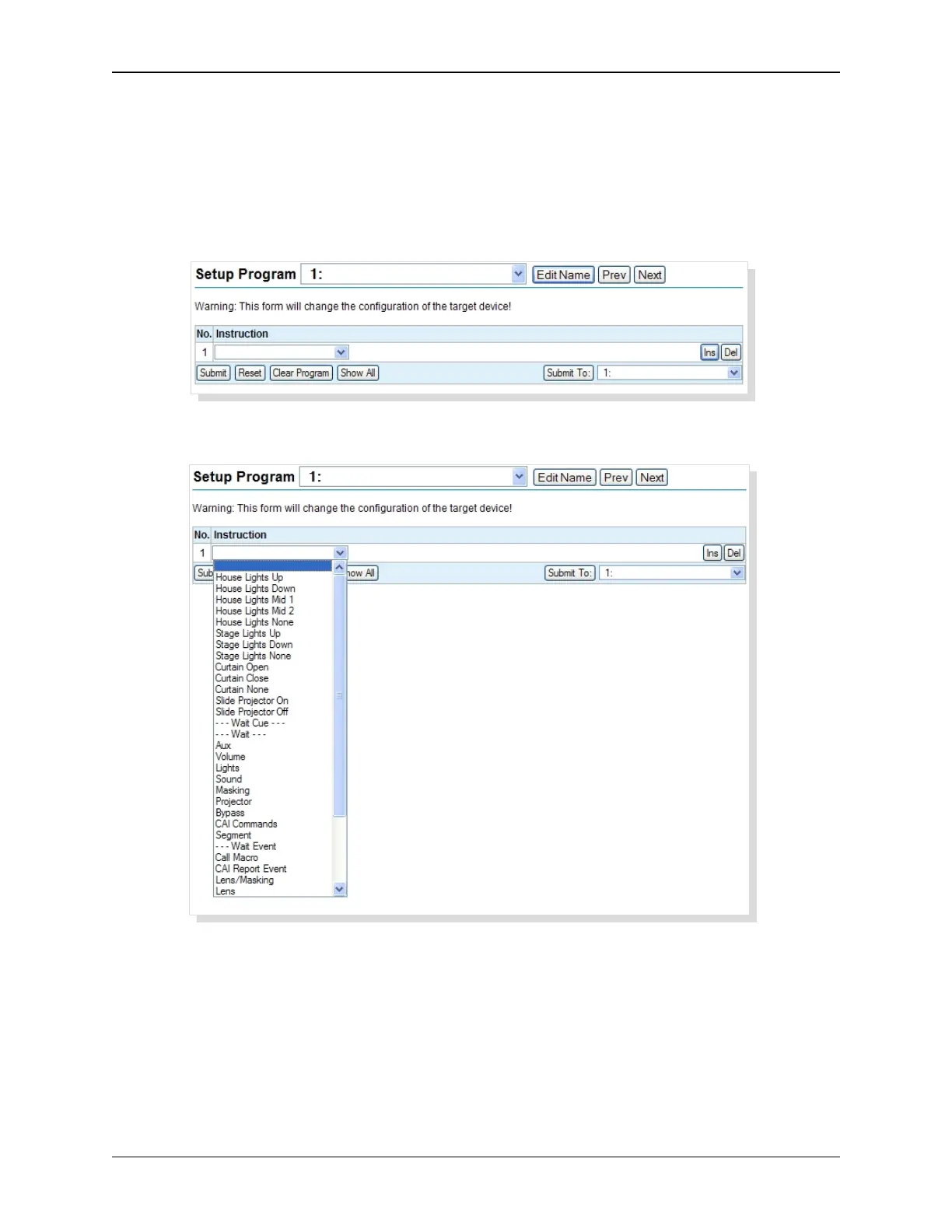
Click on Program Editor in the Setup Menu. This the program editor screen. The figure below shows
an ‘empty’ program. Locate the Ins and Del buttons in the Action column to right of the instruction.
Clicking the Ins button inserts a new program step before that step, increments it and all steps after
it by one. When starting with an empty program, click the Ins button 5 to 10 times (or click the
Show All button) and begin adding instructions at Step 1. Click the Del button to delete an
instruction.
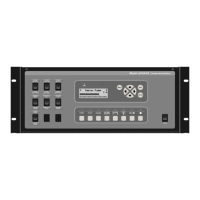
Use the list box(s) to select the instruction, associated parameters and offset times.
The Clear Program button provides an easy way to remove all instructions from the editor. This
allows you to easily start from an empty program.
The Reset button can be used to put to original program back, if it has not yet been saved to the
eCNA-10 (with the Submit button).
Click the Submit button to save the program to the eCNA-10.
The Submit To button can be used to copy the program that is in the current editor to any of the
nine eCNA-10 programs. Select the program you want to save to from the list box and click the
Submit To button.
74
eCNA-10 Operation and Installation Manual Version 1.270-00


 To Next Page