QUANTUM™ LX EVAPORATOR CONTROL PANEL
OPERATION
090.610-O (MAR 2016)
Page 79
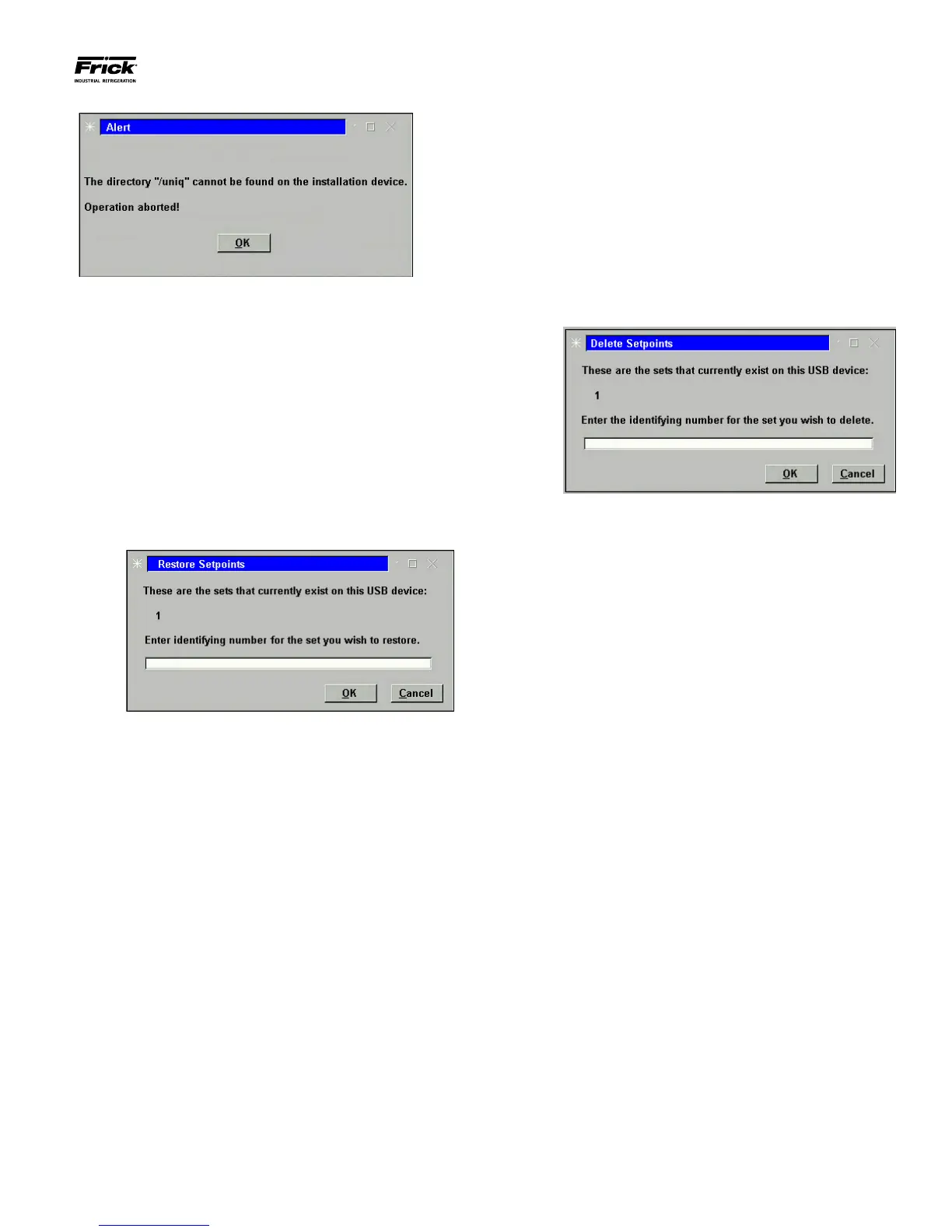
• If the above dialog box appears, you must insert
a valid software upgrade USB device.
3) Restore Setpoints – Use this option to re-load previ-
ously saved setpoints and custom text to the Quantum™.
• Ensure that all setpoint values have been docu-
mented as a safety precaution. Install the previ-
ously saved setpoint USB device into the pro-
vided connection on the Quantum™.
• Press the [3] button.
• The software program will read the USB device,
and the following dialog box will appear:
• Any numerals that appear on the center line of
this box, will represent units that have already
been saved (from 0 to 99). If no units have yet
been saved, the center line will be blank and
therefore there are no setpoints to restore.
• Enter a number on the keypad that corresponds
to the unit number that you wish to restore, then
press [Enter].
• A progress bar will appear asking you to Please
Wait…
• After the le has been written or updated, the
dialog boxes will disappear, and you can either
exit, or continue with another function.
4) Delete Setpoints – Use this option to delete the set-
points and custom text for a particular unit.:
• Ensure that all setpoint values have been docu-
mented as a safety precaution. Install the previ-
ously saved setpoints USB device into the pro-
vided connection on the Quantum™.
• Press the [4] button.
• The software program will read the USB device,
and the following dialog box will appear:
• Any numerals that appear on the center line of
this box, will represent units that have already
been saved (from 0 to 99). If no units have yet
been saved, the center line will be blank, and
therefore there are no setpoints to delete.
• Enter a number on the keypad that corresponds
to the unit number that you wish to delete, high-
light the Ok button, then press [Enter]. You will
be prompted with a new dialog box which will
ask y
ou OK to delete set number (0-99)?
• Highlight the Yes button, and press [Enter]. The
dialog box will be updated with a new message
stating that Set number (0-99) has been deleted!
• Press [Enter] to return to the Software Mainte-
nance menu.
5) Exit - Use this selection to leave this screen by press-
ing the [5] button, the panel will reboot and return to the
Operating Status screen.
6) A box will then appear during reboot stating that a
system update le has been found. The user should then
select [Yes] to allow the operating system upgrade to
complete. Once this completes, the user will be prompted
to turn the power off, and then on again to allow the new
system to boot.




 To Next Page