Chapter 6 Accessing the Harmonic MediaGrid
© 2017 Harmonic Inc. All rights reserved. 172 Harmonic MediaGrid Release 4.1
Mounting a Harmonic MediaGrid File System Using Windows
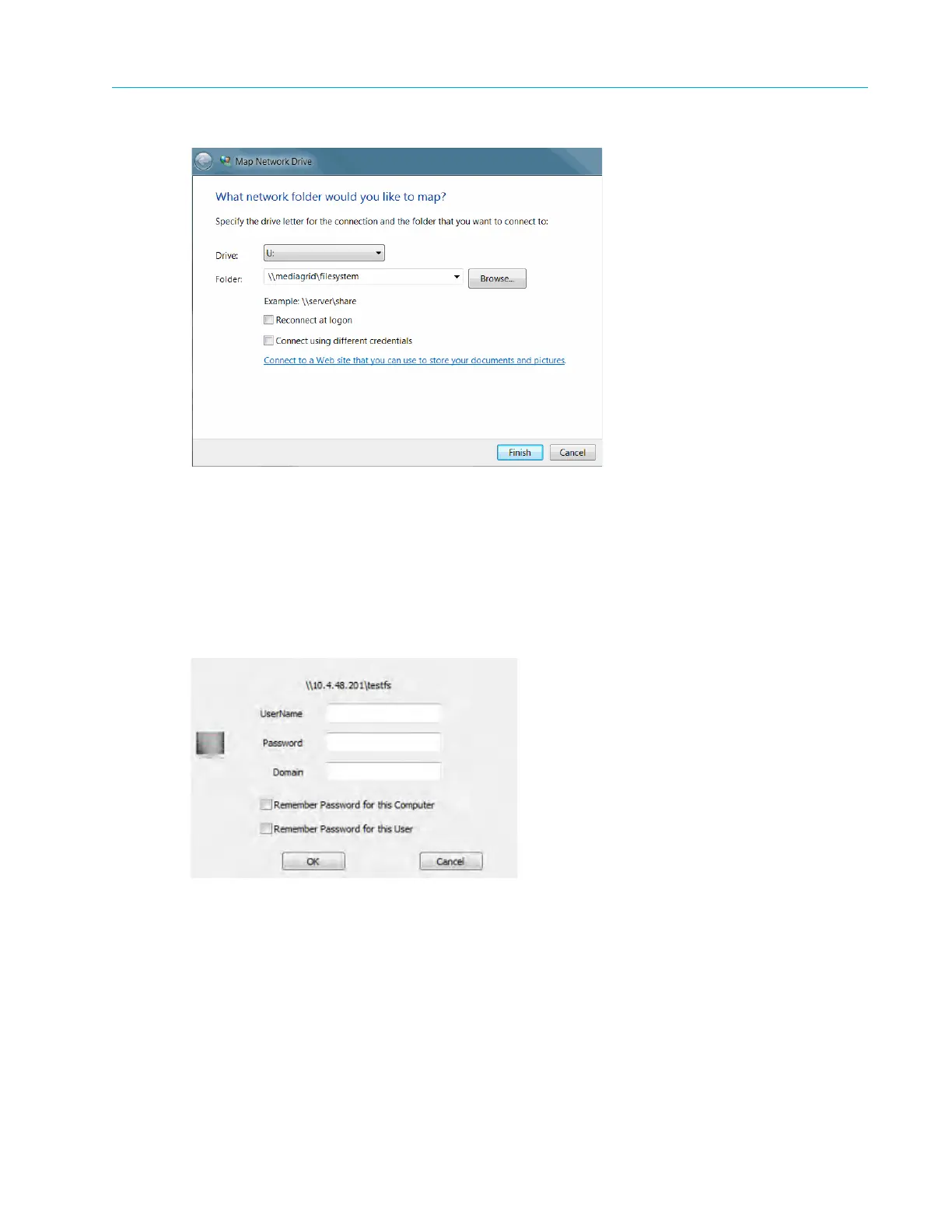
Figure 6–1: Map Network Drive
3. Enter or select the drive letter to map from the Map Network Drive screen.
4. E
nter the Harmonic MediaGrid server name and the file system to mount using a standard
UNC pathname, for example: \\10.4.48.201\testfs.
5. Click the Finish button.
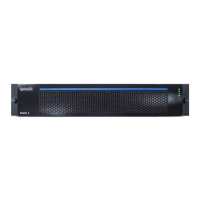
Your computer attempts to map to Harmonic MediaGrid and the following login prompt appears.
Figure 6–2: Harmonic MediaGrid Login
6. Enter a valid, case-sensitive username
and password.
7. Optionally, enter a domain.
8. If you would like all users of this client system to automatically connect to this Harmonic
MediaGrid using these credentials, select
Remember Password for this Computer.
Future attempts to access the Harmonic MediaGrid will not require entry of a password.
9. If you would like only the logged in user to automatically connect, select
Remember Password
for this User
.
Future attempts by the current user to access the Harmonic MediaGrid will not require entry
of a password.



 To Next Page