Chapter 6 Accessing the Harmonic MediaGrid
© 2017 Harmonic Inc. All rights reserved. 179 Harmonic MediaGrid Release 4.1
Mounting a Harmonic MediaGrid File System Using Windows
8. Save the file with the .bat filename extension (for example, “newstartup.bat”).
9. Close the
Startup folder.
10. Click the
Add button in the Startup Properties dialog box.
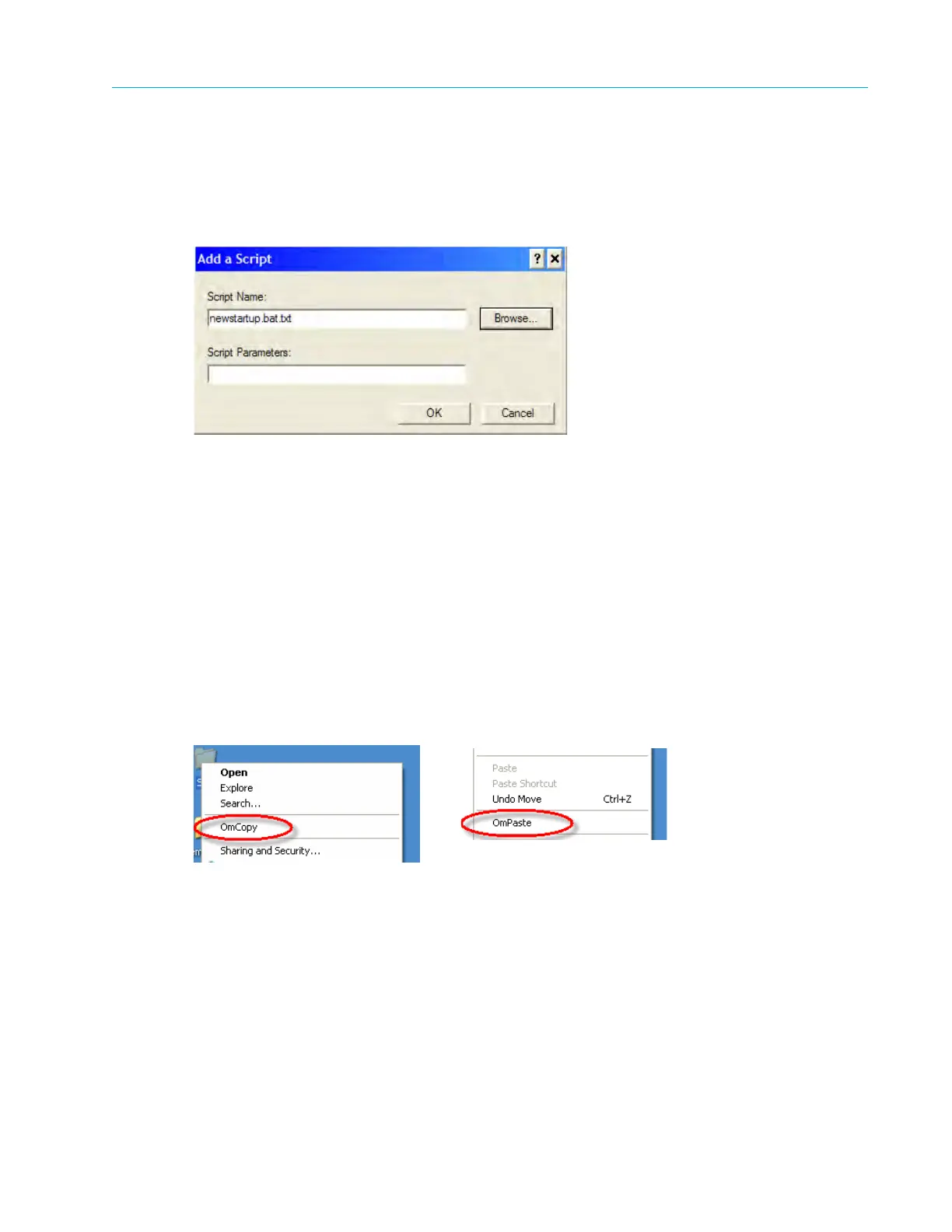
The
Add a Script dialog box displays.
Figure 6–5: Add a Script
11. Click
Browse and then add the script file you created.
12. Click
OK.
13. Exit the
Group Policy management console.
Using OmCopy for Fast Copying
The OmCopy feature in the Windows FSD allows you to copy files and directories faster than
simply using Windows Explorer.
To copy data using OmCopy:
1. Select the file or directory you wish to copy.
2. Right-click to view the right-click menu options and select
OmCopy, as shown in Figure 6–6.
Figure 6–6: Using OmCopy
3. Open the destination directory and move mouse to
the background of the directory.
4. Right-click to open the right-click menu and select
OmPaste, as shown in Figure 6–6.
The OmCopy dialog box appears as the file or directory is being copied.
Mounting the Harmonic MediaGrid from the ProMedia™ Origin Server
The ProMedia Origin uses the Windows FSD to allow you to access files on the Harmonic
MediaGrid system. Note that the parameters of the Windows FSD on the ProMedia Origin are
already optimized for performance and do not require modification.



 To Next Page