Chapter 6 Accessing the Harmonic MediaGrid
© 2017 Harmonic Inc. All rights reserved. 182 Harmonic MediaGrid Release 4.1
Mounting a Harmonic MediaGrid File System Using a Macintosh
Connecting to the Harmonic MediaGrid File System
When you have finished reviewing and configuring your mount options, you can connect to the
Harmonic MediaGrid as described in Connecting to the Harmonic MediaGrid File System.
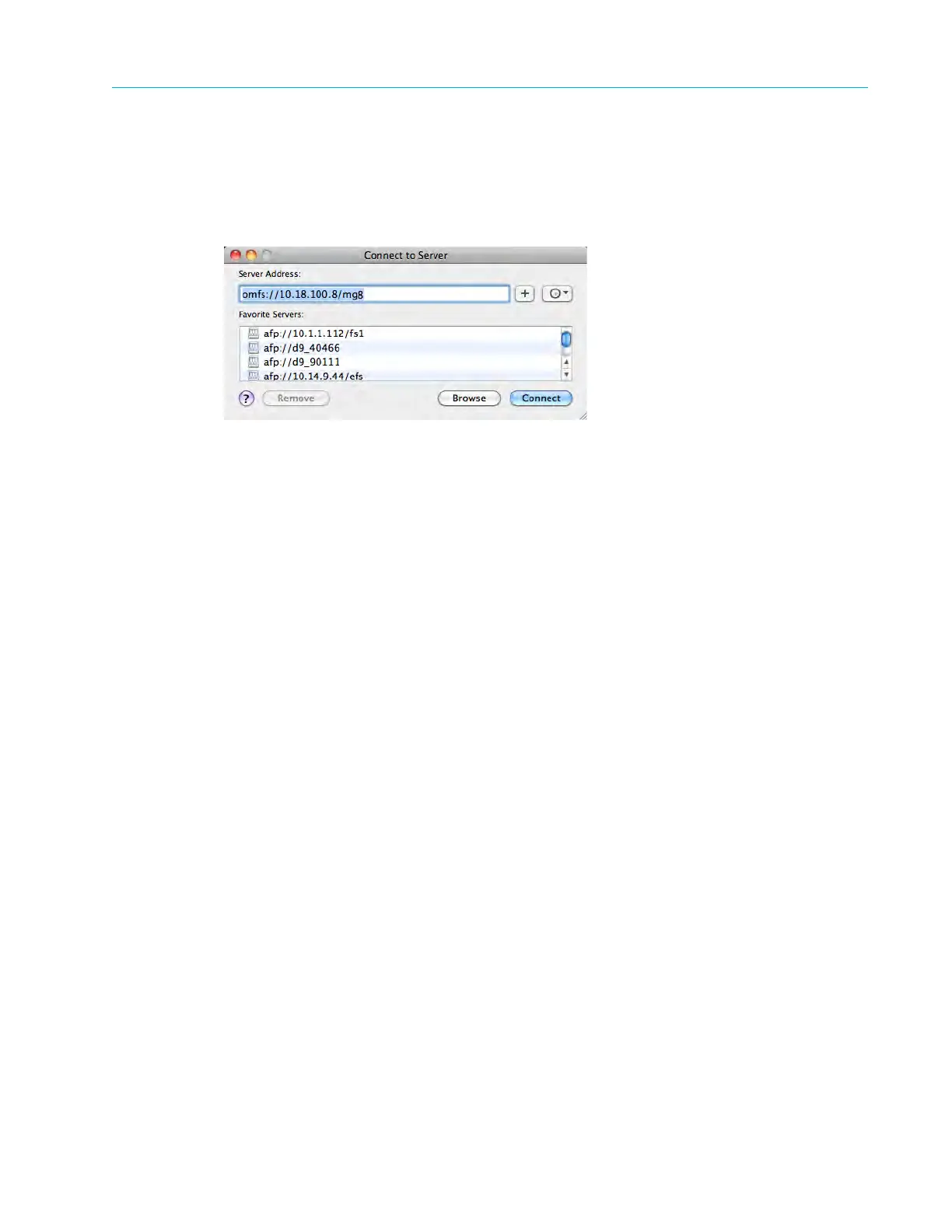
1. Launch a new Finder window, open the
Go menu, and then click Connect to Server....
2. In the Server Address field, type: omfs://<IP address of your Harmonic MediaGrid system>/
<file system name>.
3. Click
Connect. The Connect to Server dialog box appears.
4. Enter the name and password for your Harmonic MediaGrid file system. The domain
information can be entered as username/domain.
5. Optionally, you may select the checkbox to add your Harmonic MediaGrid password to your
keychain.
Adding the password to your keychain allows you to configure your Mac FSD client to
connect to Harmonic MediaGrid automatically upon log in, as described in the following
section.
Configuring your Mac FSD Client to Connect Automatically
If you have added your Harmonic MediaGrid password to your keychain, you may configure the
client to connect to the Harmonic MediaGrid automatically.
1. Open the
System Preferences window, and click Users & Groups to open the Users & Groups
dialog box.
2. From the
Login Items window, click the + symbol, browse to the Harmonic MediaGrid system,
and then click
Add.
3. The Harmonic MediaGrid file system will appear in the Login Items window.



 To Next Page